Music Player
A full music player built into the firmware — local library with playlists, internet radio, podcasts, synced lyrics and audiophile-grade output. Open it from Tools → Music Player.
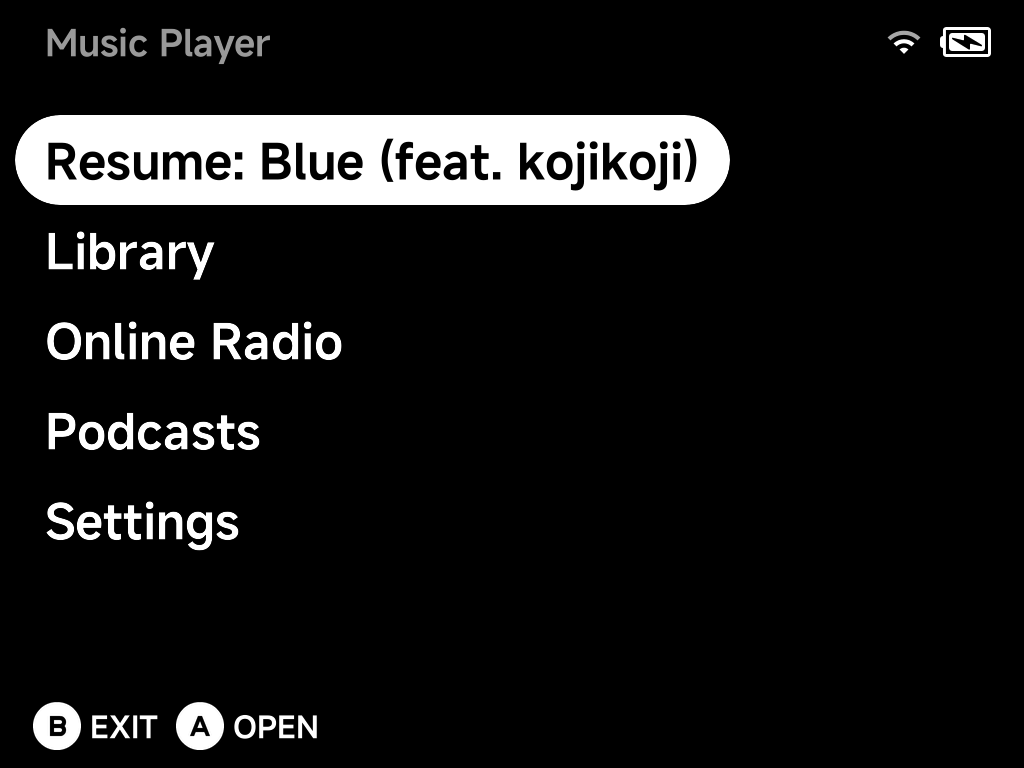
The home screen offers Resume (pick up the last track where you left off), Library, Online Radio, Podcasts and Settings.
Library
Put your music in the Music folder on the SD card. The Library has two
views: Files (browse your folders directly) and Playlists.
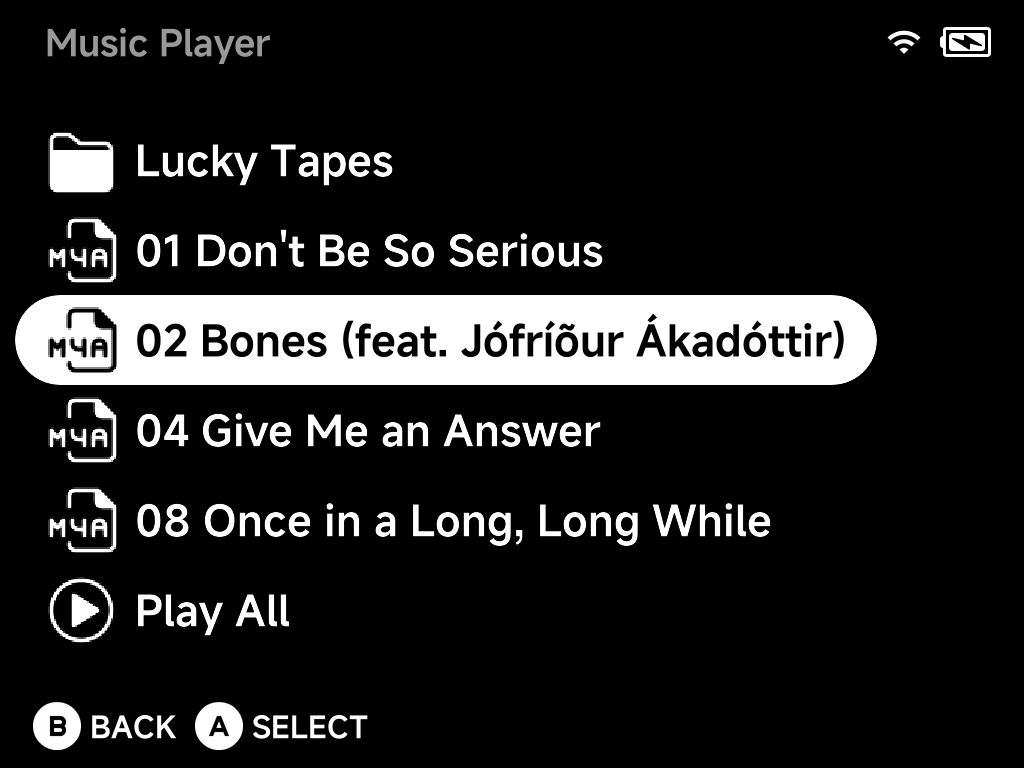
The Files view mirrors your folder structure, so organizing with folders
works naturally: drop loose tracks straight into Music, or group songs
in folders — in the screenshot above, a Lucky Tapes folder collects that
artist's songs while the other tracks sit at the top level. Each file shows
its format icon, and every folder gets a Play All entry that plays its
contents in one go. Folders are the quick way to organize; for hand-picked
track sequences across folders, use Playlists instead — both
work side by side.
Supported formats: mp3, flac, wav, ogg, opus, m4a, aac and
mod tracker modules.
Managing files
Press MENU on any track or folder in the Files view for its context menu:
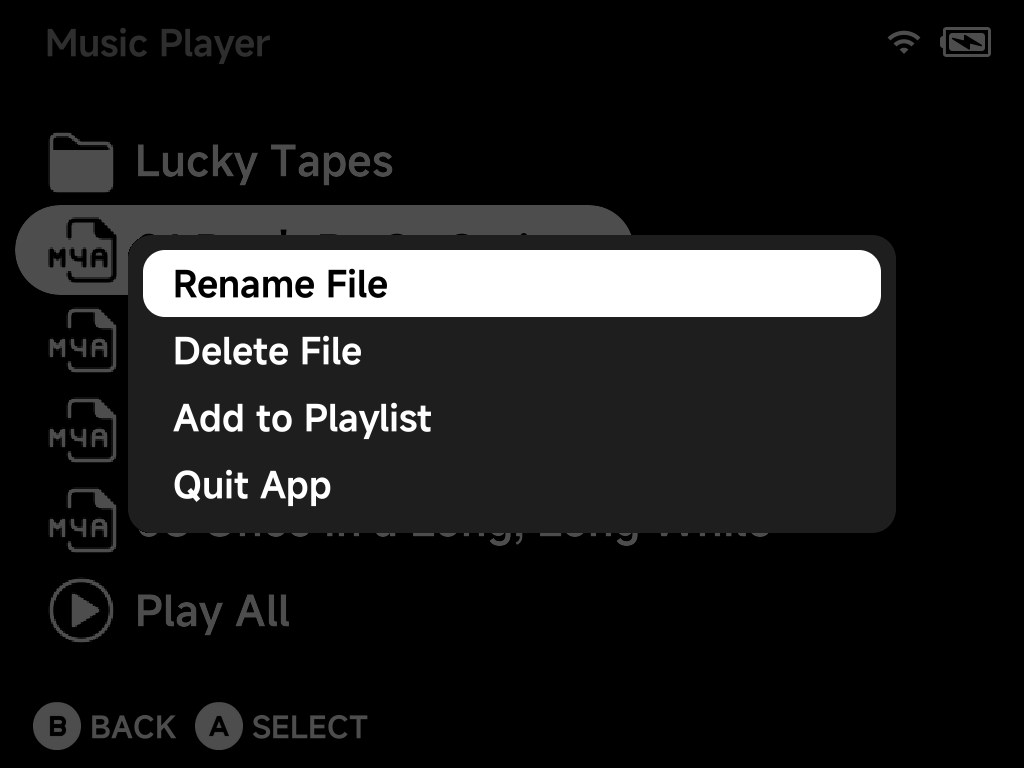
- Rename File / Delete File — manage your music right on the device; renames use the on-screen keyboard, deletes ask for confirmation.
- Add to Playlist — add the track to an existing playlist or create a new one on the spot.
On a folder the same menu adapts: Rename Folder, Delete Folder, and Add Folder to Playlist, which adds all of the folder's tracks in one go.
Playlists
The Playlists view lists your playlists with their track counts:
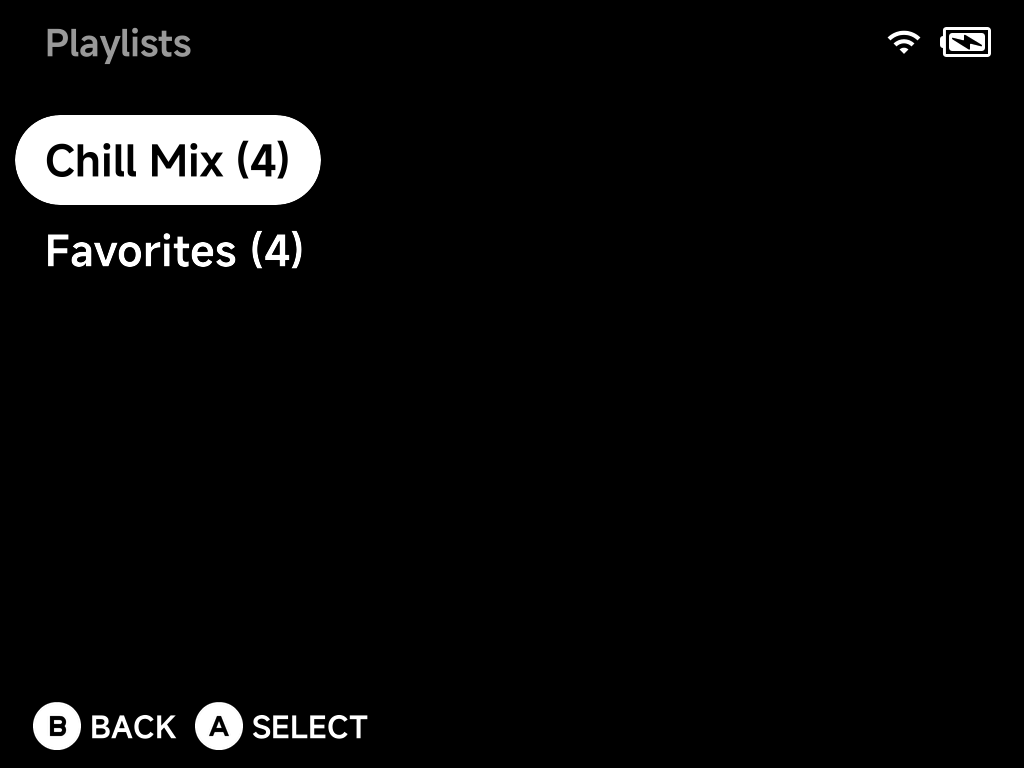
Aopens a playlist; from inside, pick a track to start playing.Ycreates a new playlist, named with the on-screen keyboard (with no playlists yet,Aon the empty page does the same).- Tracks get in via the Files view's context menu — Add to Playlist for a single track, Add Folder to Playlist for a whole folder.
Press MENU on a playlist to manage it:
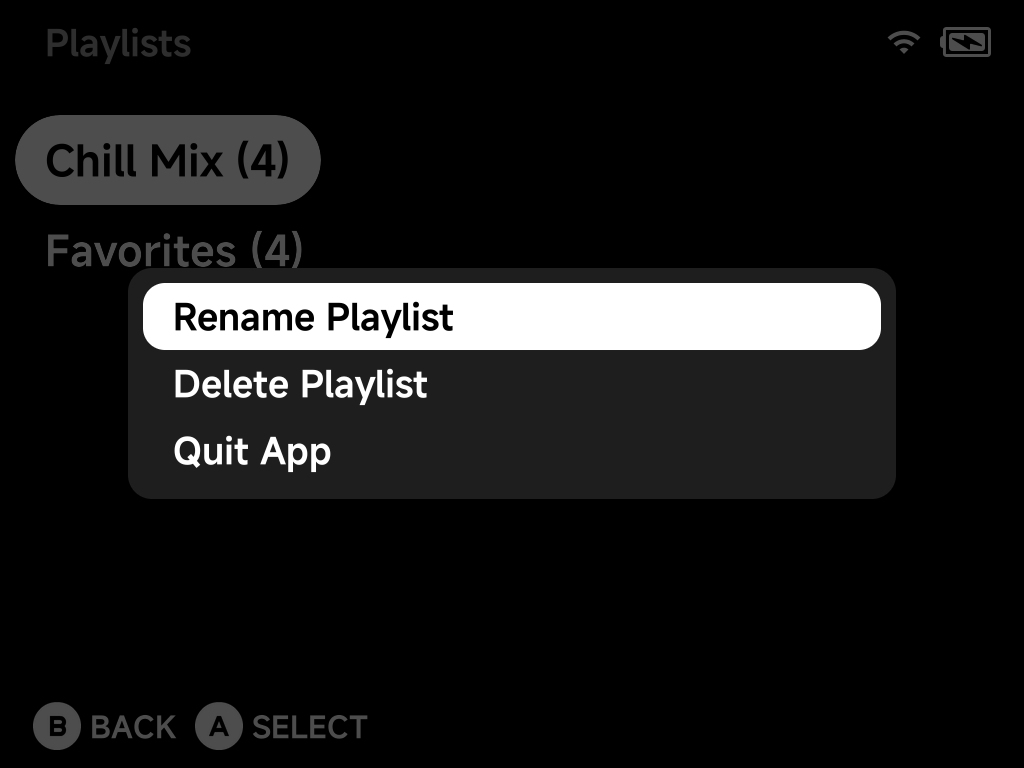
- Rename Playlist — via the on-screen keyboard.
- Delete Playlist — with a confirmation dialog.
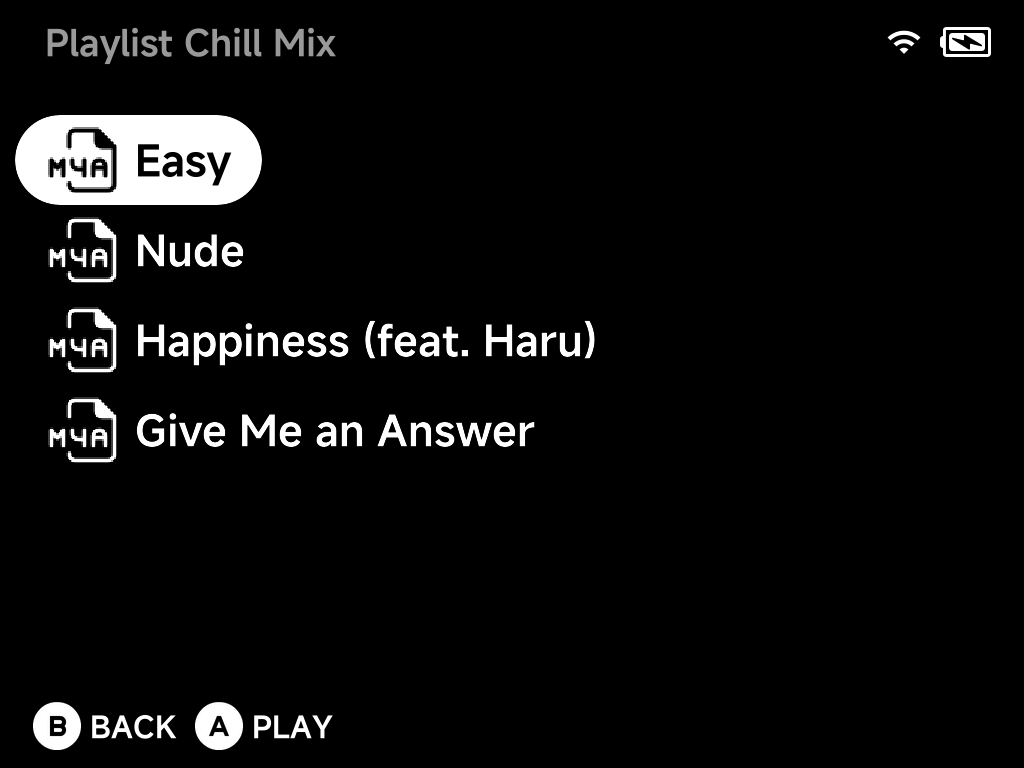
Open a playlist to see its tracks — A starts playing from the selected
track:
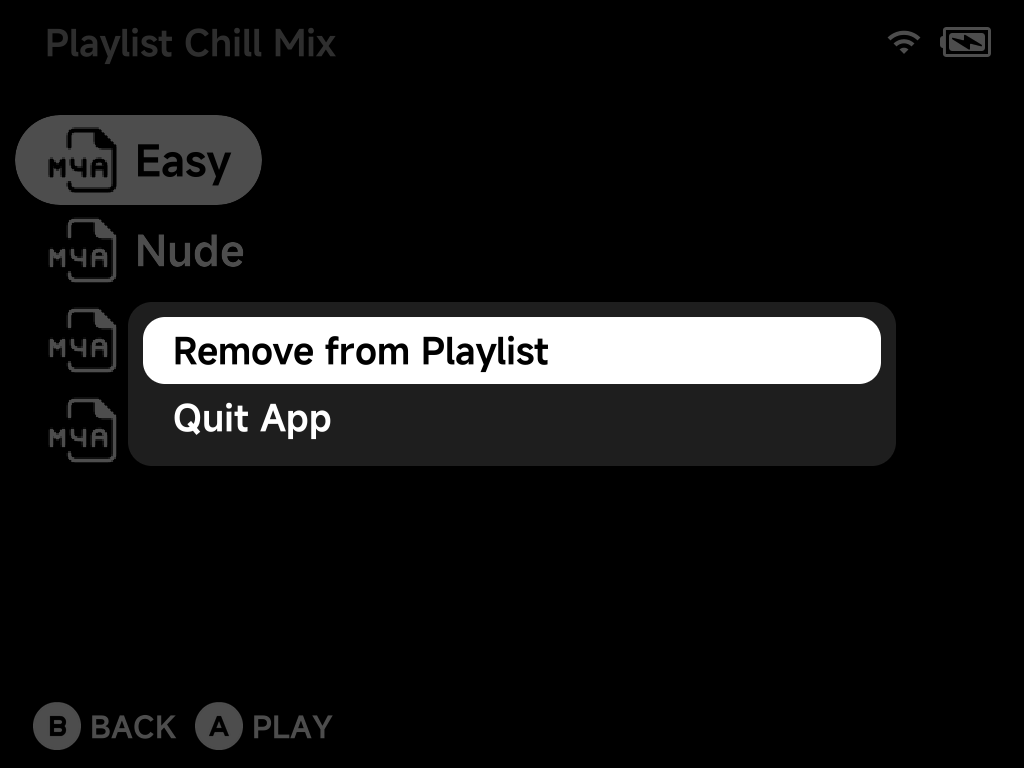
Inside, MENU on a track offers Remove from Playlist (also confirmed
before removing):
Under the hood playlists are standard .m3u files stored in
.userdata/shared/music-player/playlists, so you can also create or edit
them from a computer.
Now playing
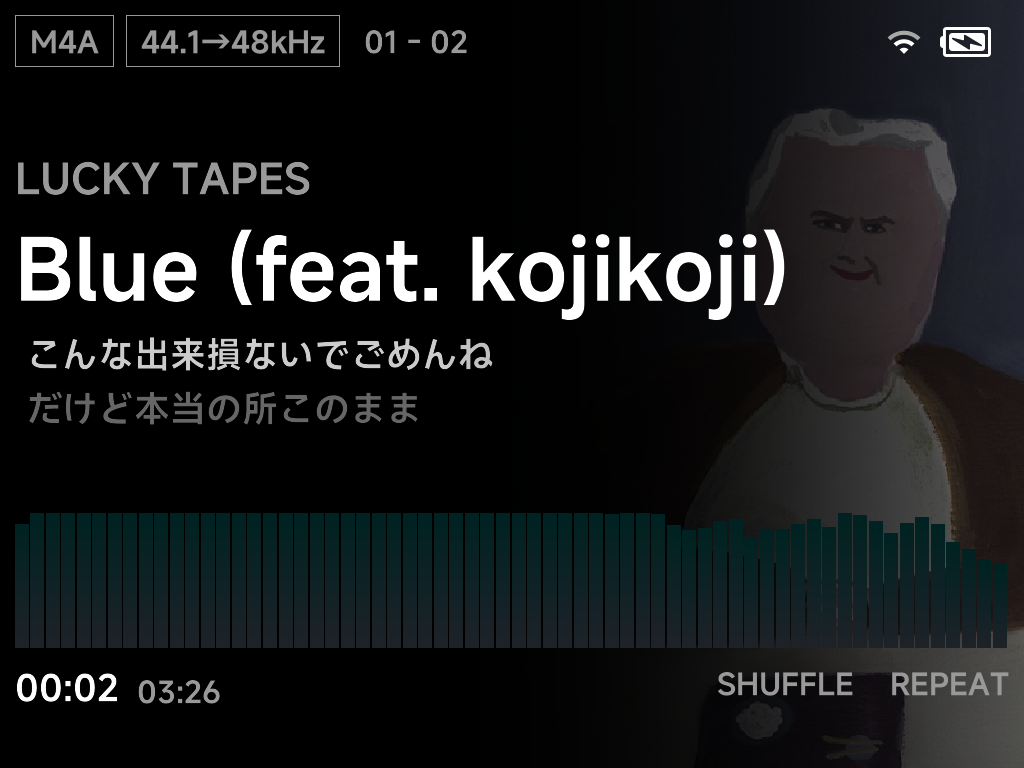
The now-playing screen shows cover art, a spectrum visualizer, shuffle and
repeat state, the format badge (M4A, FLAC…) and the live sample-rate
badge — e.g. 96kHz when playing natively on a capable output, or
44.1→48kHz when resampling.
Synced lyrics are fetched automatically from LRCLIB when online, cached on the SD card, and scroll in time with the song.
Controls
| Button | Action |
|---|---|
A |
Pause / resume |
B |
Back to the browser — music keeps playing while you browse |
Left / Right |
Seek −/+ 5 s (hold to keep seeking) |
Up / R1 |
Next track |
Down / L1 |
Previous track |
X |
Toggle shuffle |
Y |
Toggle repeat |
F1 / L2 |
Cycle the visualizer style |
F2 / R2 |
Toggle lyrics on or off |
MENU |
Show this controls list on screen (any button closes it) |
SELECT |
Turn the screen off now (see below) |
SELECT + A |
Wake the screen when it is off |
With shuffle on, previous retraces the tracks that actually played, in order.
Auto screen off
While music plays, the screen switches itself off after a configurable idle
time (default 60 s) — saving battery and preventing accidental button
presses; while it's off, ordinary buttons are ignored. Tap SELECT to turn
the screen off right away instead of waiting. Press SELECT + A to wake
it. Media buttons on a USB or Bluetooth headset keep working even with the
screen off.
Online Radio
Online Radio streams internet stations through the same high-quality resampler as local playback, with cover art fetched for the currently playing song.
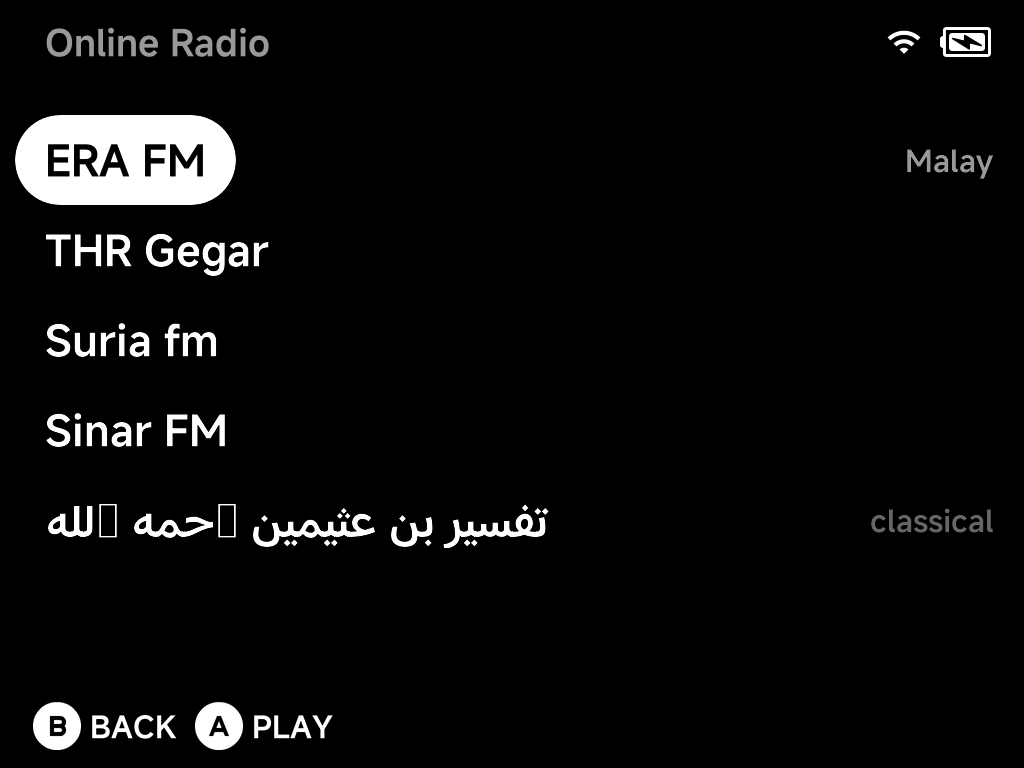
The page lists your stations — A plays one. Press MENU for the
context menu: Manage Stations (browse the online catalog), Delete
Station, and Playback Controls.
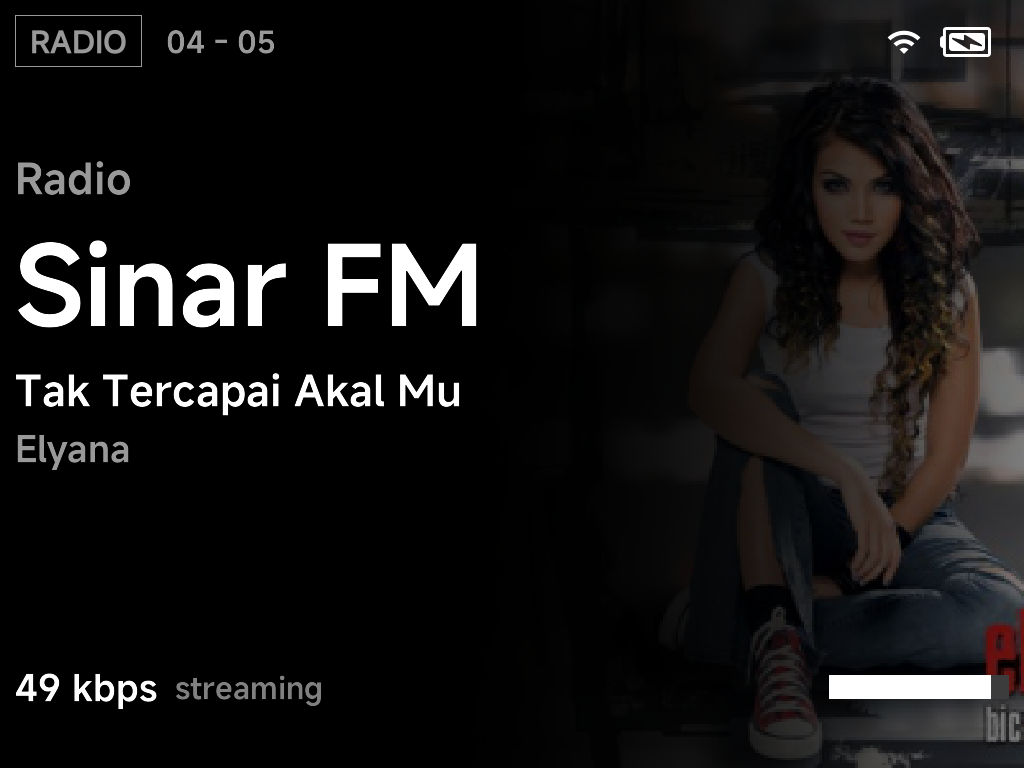
While a station plays, the screen shows the station name, the current song from the stream's metadata — with cover art fetched automatically for the playing song — and the live stream bitrate:
Radio controls
| Button | Action |
|---|---|
A |
Stop / resume the stream |
B |
Back to the station list — the radio keeps playing |
Up / R1 |
Next station |
Down / L1 |
Previous station |
MENU |
Context menu (including Playback Controls, this list on screen) |
SELECT |
Turn the screen off now |
SELECT + A |
Wake the screen when it is off |
Auto screen off works here exactly like local playback — including the idle timeout and headset media buttons staying live while the screen is dark.
Adding stations
The station catalog comes from the community-run
radio-browser.info index — browse by
country, add what you like (availability varies, as the one-time notice
says). Inside the catalog, MENU offers Refresh List and Manual
Setup Help.
You can also add stations by hand, exactly as the built-in help describes — edit:
.userdata/shared/music-player/radio/stations.txt
one station per line:
Name|URL|Genre|Slogan
MP3, AAC and M3U8 streams are supported, up to 32 stations; the slogan is optional (shown when the stream carries no song info). A good directory for stream URLs is fmstream.org.
Podcasts
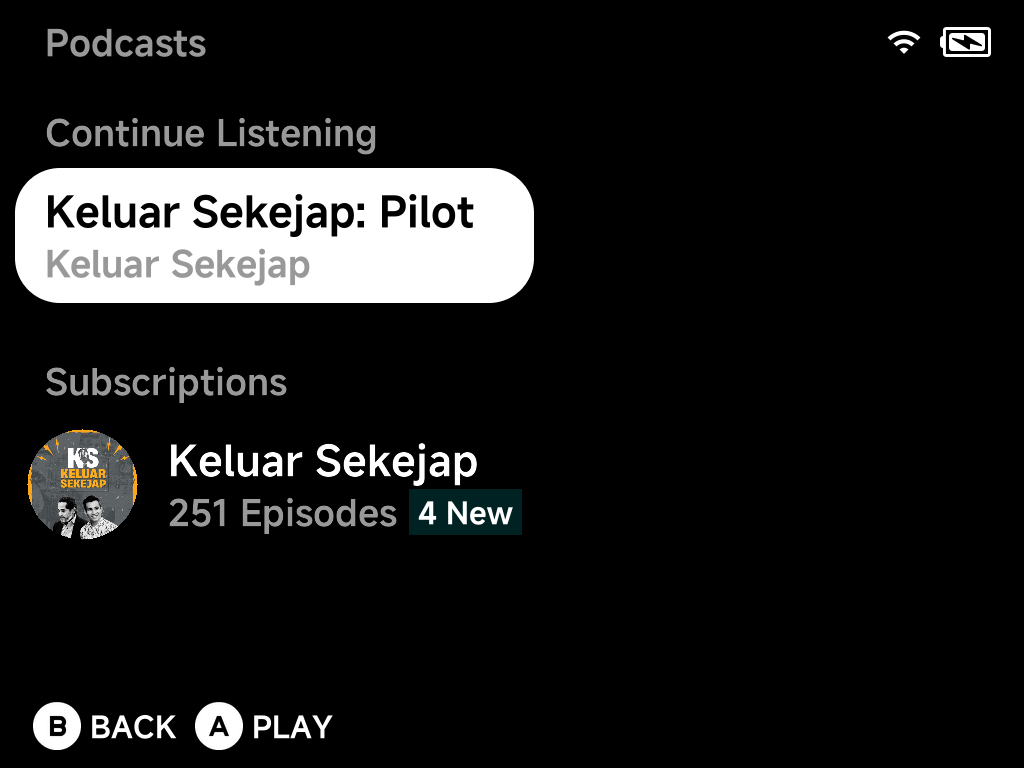
The Podcasts page shows Continue Listening (episodes you're partway through — playback position is remembered per episode) and your Subscriptions, each with its episode count and a New badge.
Press MENU on a subscription for its context menu:
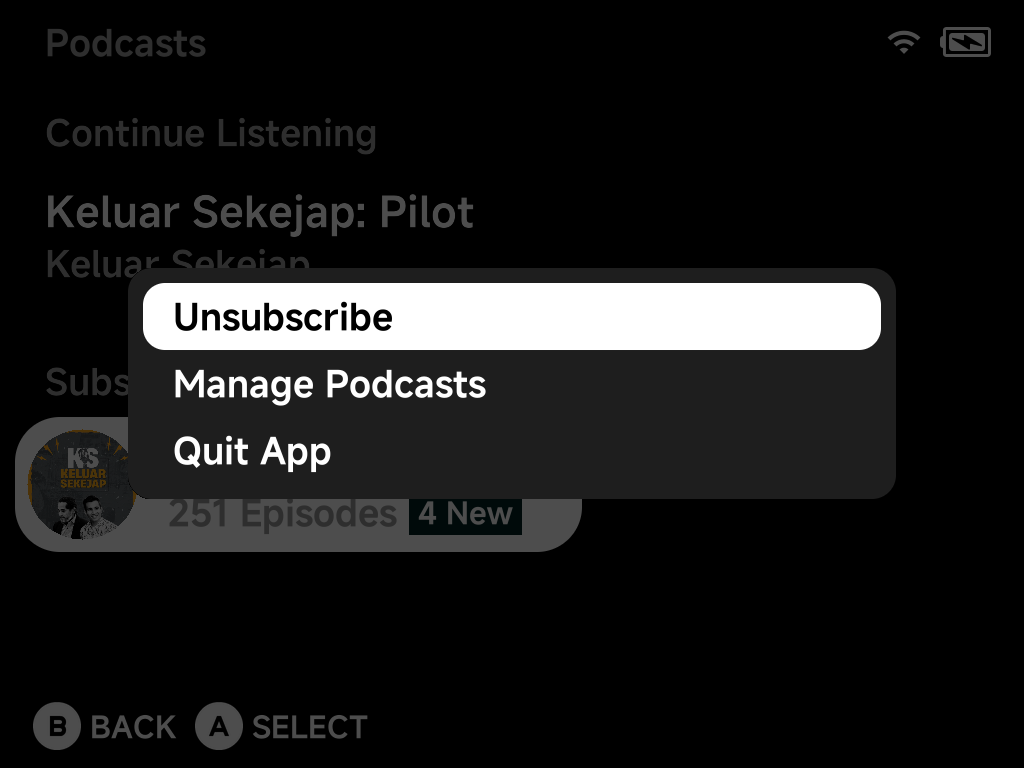
- Unsubscribe — remove the podcast, with a confirmation.
- Manage Podcasts — subscribe to new shows (below).
- Refresh List appears when you need to re-fetch feeds.
Subscribing
Manage Podcasts offers two ways in, both backed by the Apple Podcasts directory:
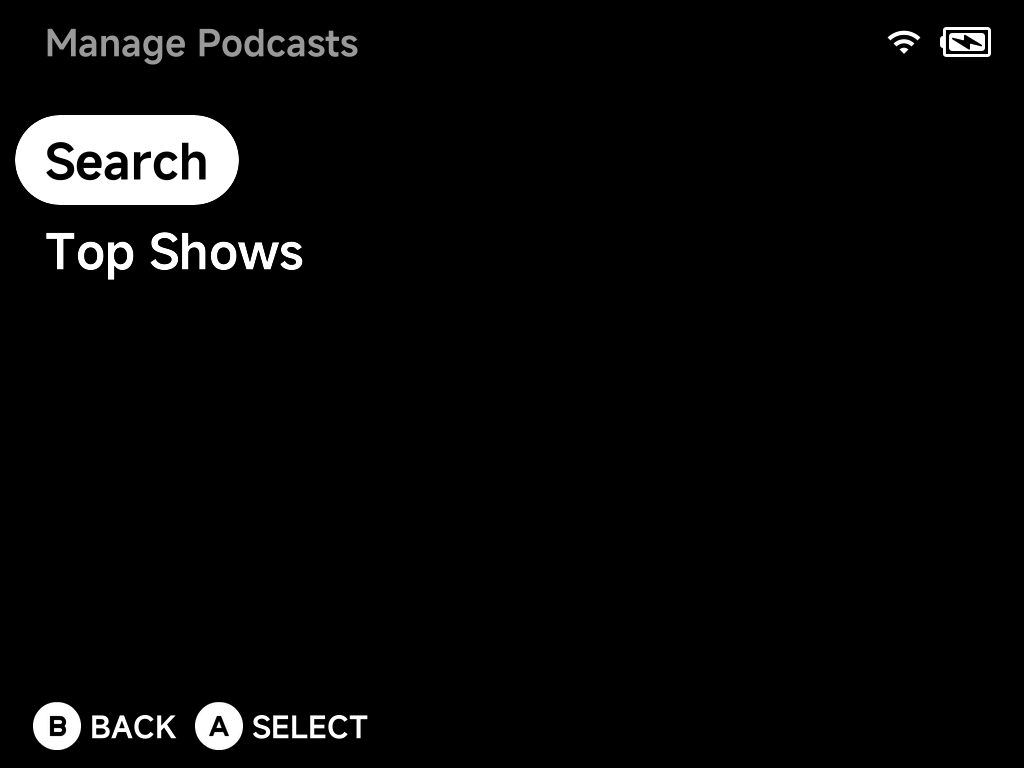
- Search — find a show by name with the on-screen keyboard.
- Top Shows — browse the podcast charts for your country:
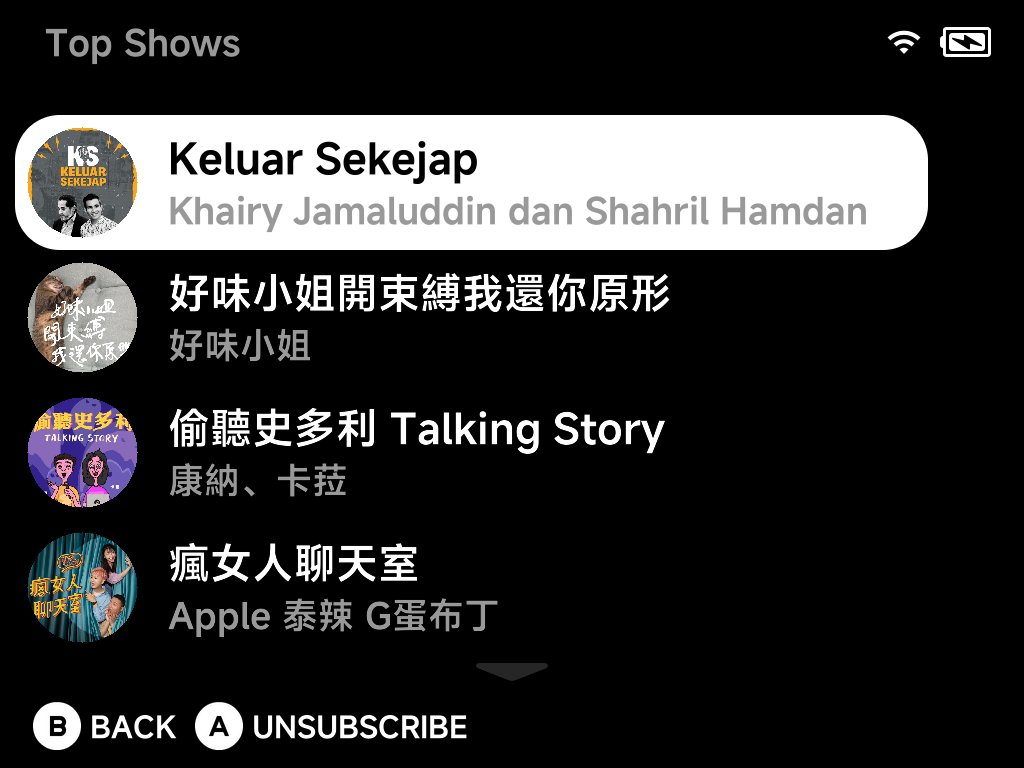
A subscribes to the selected show — or unsubscribes if you already follow
it (the hint bar tells you which).
Episodes
Opening a show lists its episodes under the show's artwork and description — each with its duration, age, a New badge for fresh episodes, and a download indicator:
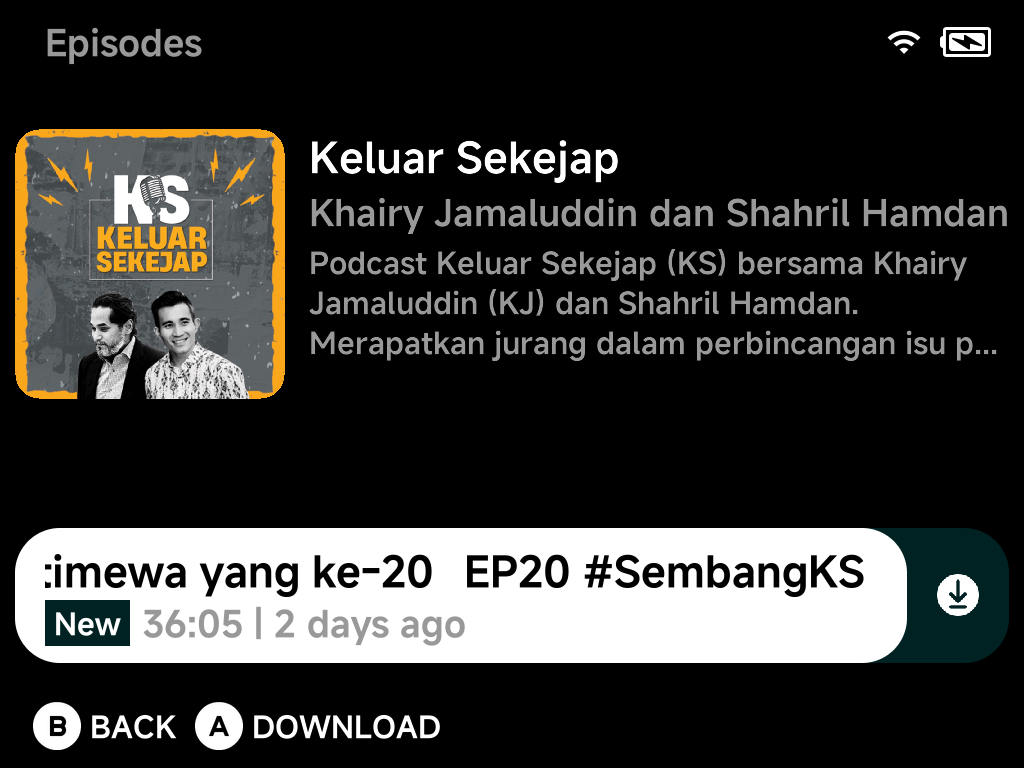
Episodes are downloaded to the SD card for offline listening — on a new
episode A starts the download (the hint bar shows it), and once
downloaded, A plays.
Press MENU on an episode for its context menu:
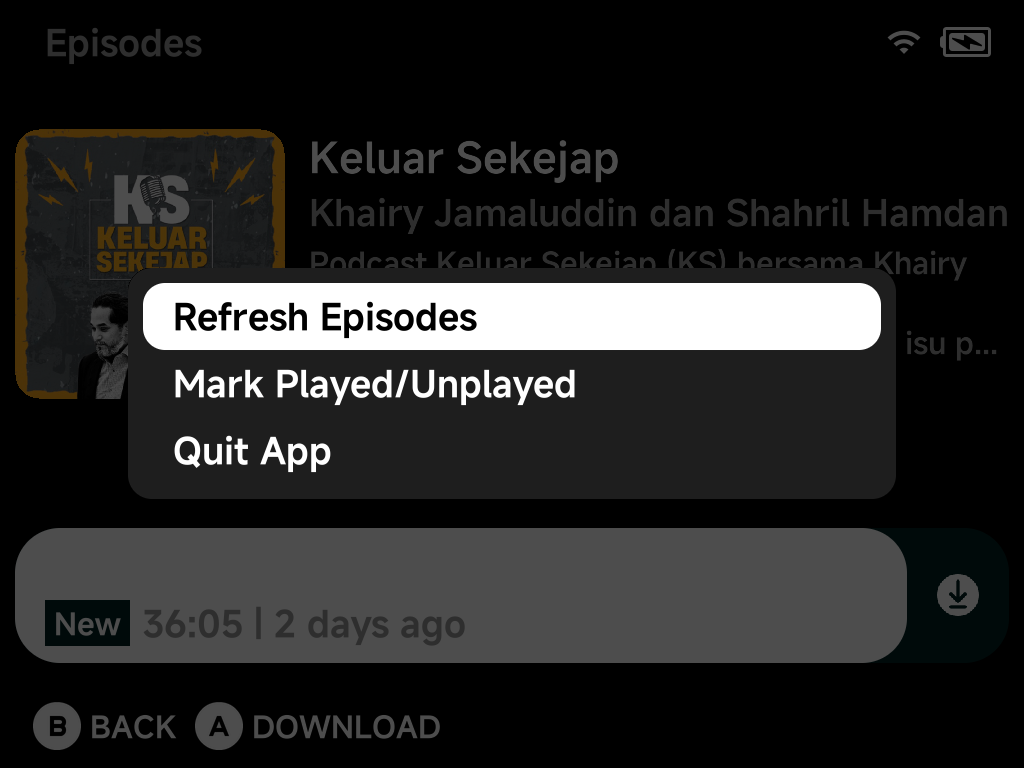
- Refresh Episodes — re-fetch the show's feed.
- Mark Played/Unplayed — toggle the episode's played state.
- The menu adapts to the episode: a downloaded episode adds Remove Download, and one mid-download offers cancelling it.
Podcast player
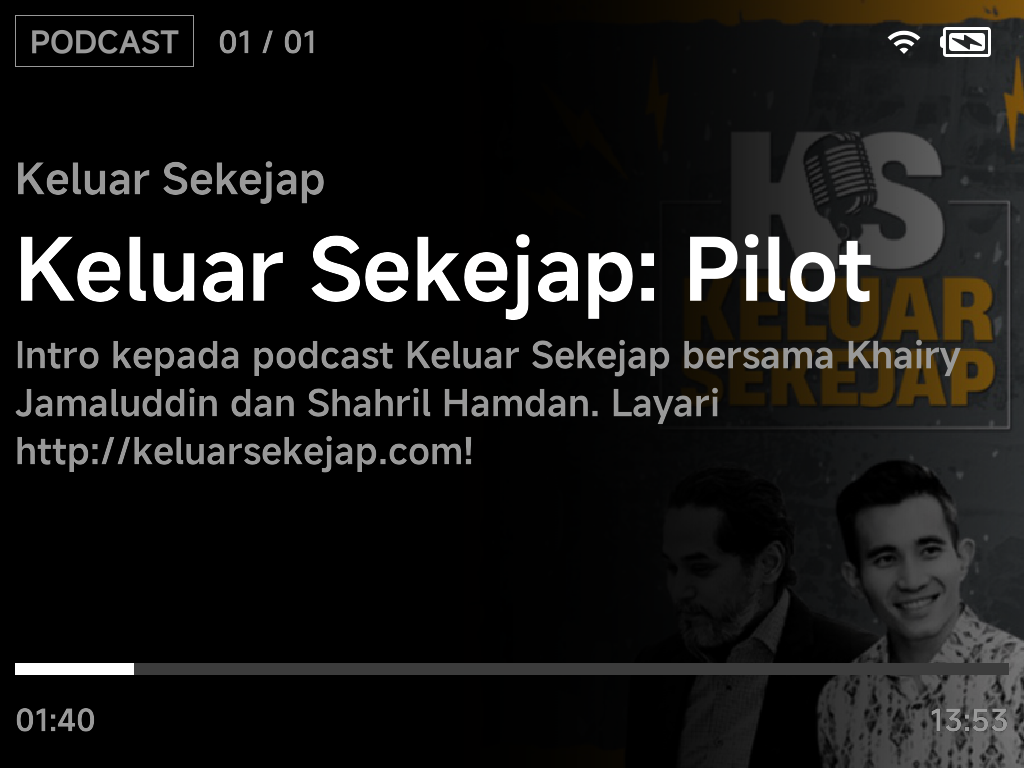
The player shows the episode description over the show's artwork, with a progress bar and position. Playback position is saved as you listen, so Continue Listening can pick the episode back up later.
| Button | Action |
|---|---|
A |
Pause / resume |
B |
Back to the episode list — audio keeps playing (if paused, stops) |
Left |
Skip back 10 s (hold to keep skipping) |
Right |
Skip forward 30 s (hold to keep skipping) |
Up / Down |
Playback speed up / down (0.5× – 2×, in 0.25 steps) |
SELECT |
Turn the screen off now |
SELECT + A |
Wake the screen when it is off |
Auto screen off applies here too — idle timeout, and headset media buttons keep working while the screen is dark.
Settings
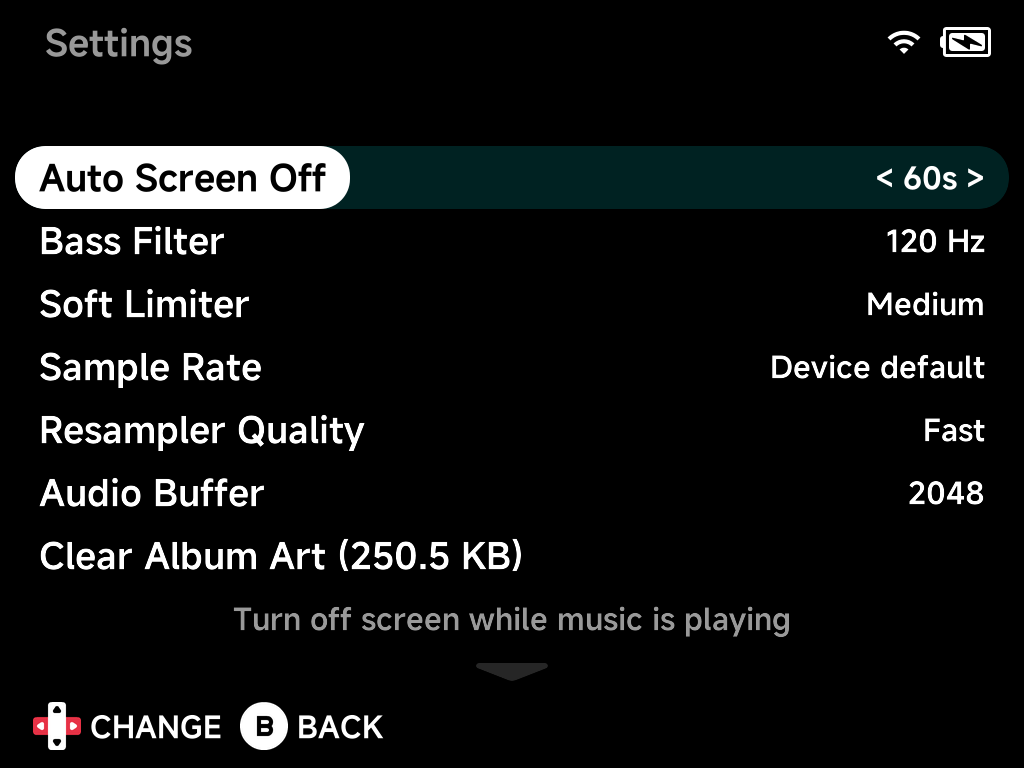
- Auto Screen Off — idle time before the screen turns off during playback.
- Bass Filter — high-pass filter to reduce speaker distortion.
- Soft Limiter — limits volume peaks to prevent clipping.
- Sample Rate —
Device default, orFollow sourcefor bit-exact hi-res playback on USB DACs (no resampling); applies on the next track. - Resampler Quality — higher quality costs more CPU.
- Audio Buffer — larger buffers prevent dropouts.
- Clear Album Art / Clear Lyrics — empty the on-SD caches.
Output routing is system-wide: speaker, Bluetooth or USB-C DAC, switched automatically as devices connect — see Settings → Audio.