Main Menu & Game Lists
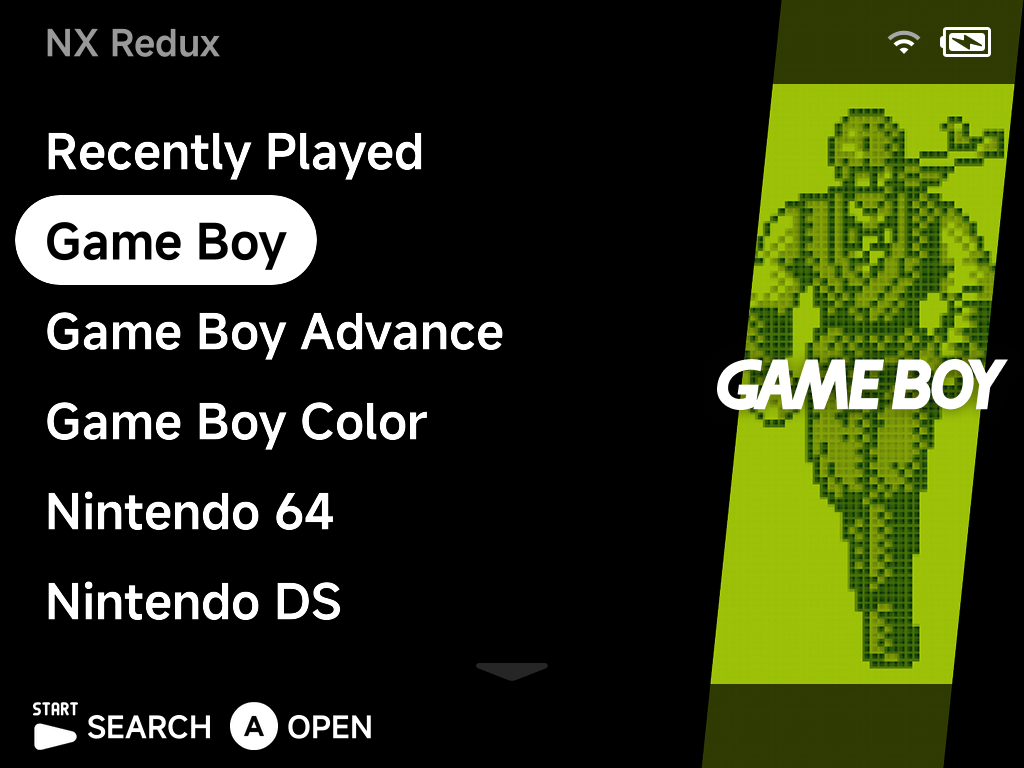
The main menu lists your systems, with Recently Played at the top and Tools at the bottom. The artwork panel on the right previews the selected system or game.
Navigating
Up/Downmove through the list — the list wraps around at both ends, so one pressUpfrom the top jumps straight to Tools at the bottom.Aopens the selected system, folder or game.Bgoes back.- Scroll indicators at the top and bottom edges show when there is more to see.
Game lists
Opening a system shows its games, with box art and a screenshot preview for the selected title.
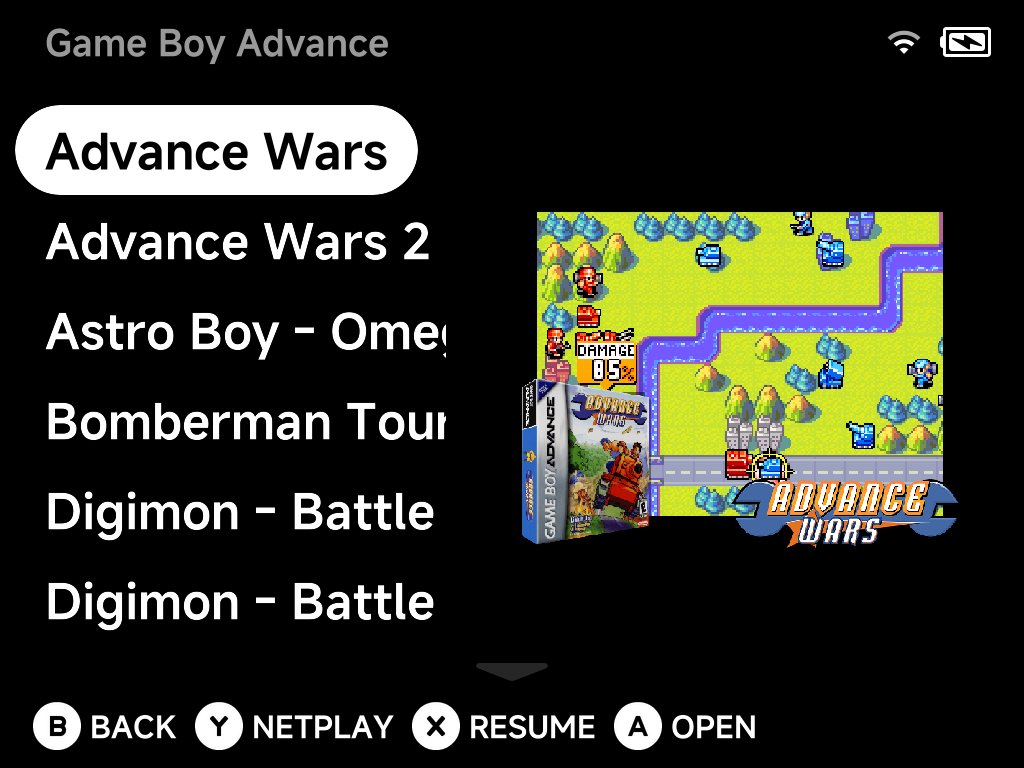
The hint bar shows what is available for the selected game:
AOpen — launch the game.XResume — jump straight back into your auto-saved session (shown when the game has one).YNetplay — host or join a local wireless session for supported systems.BBack — return to the main menu.MENU— open the game context menu.
Search
Press START on the main menu to search your entire library.
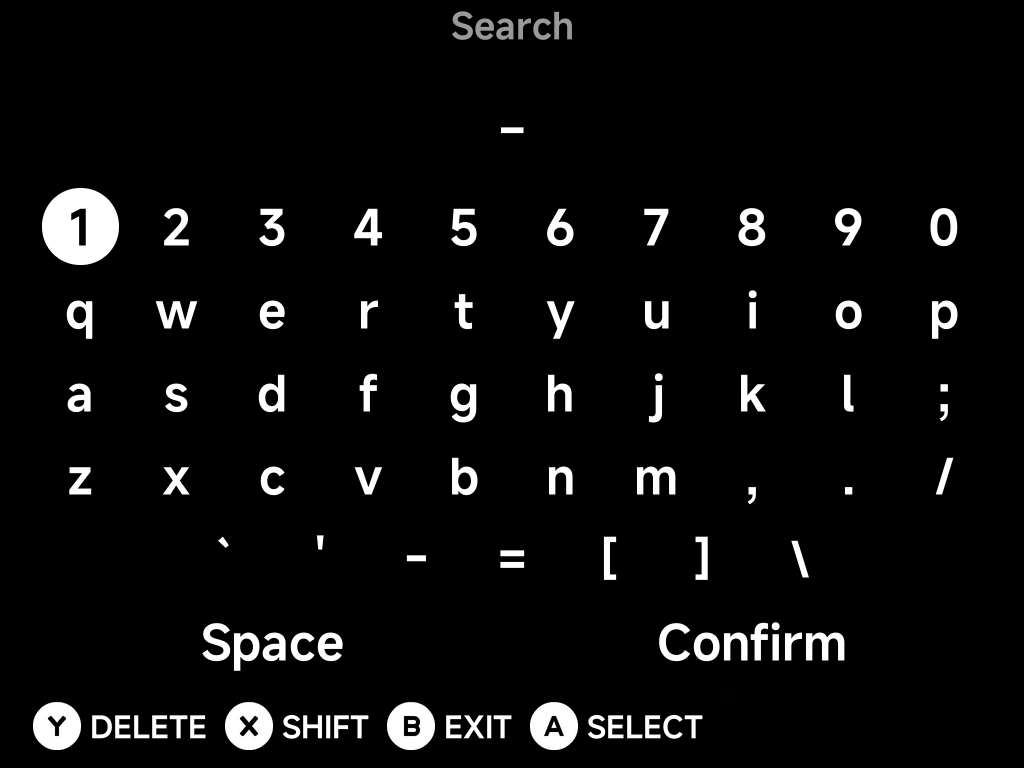
Type with the on-screen keyboard (A select, X shift, Y delete) and
confirm to see matching games from every system.
Shortcuts and pinned games
- Games can be pinned to the main menu from their context menu for one-press access.
- The main menu supports shortcuts for frequently used Tools and games.
- Prefer a minimal menu with only hand-picked games? See the Five-Game Menu guide.
Collections
Build your own game collections from the game list: press MENU on a game and
choose Add to Collection — add it to an existing collection or create a new
one on the spot.