On-Screen Display
The On-Screen Display (OSD) gives quick access to common actions from anywhere — in the menus or in-game — without quitting what you're doing.
Opening the OSD
- Smart Pro S: press the
HOMEbutton. - Brick / Brick Pro / Smart Pro: long-press the
MENUbutton.
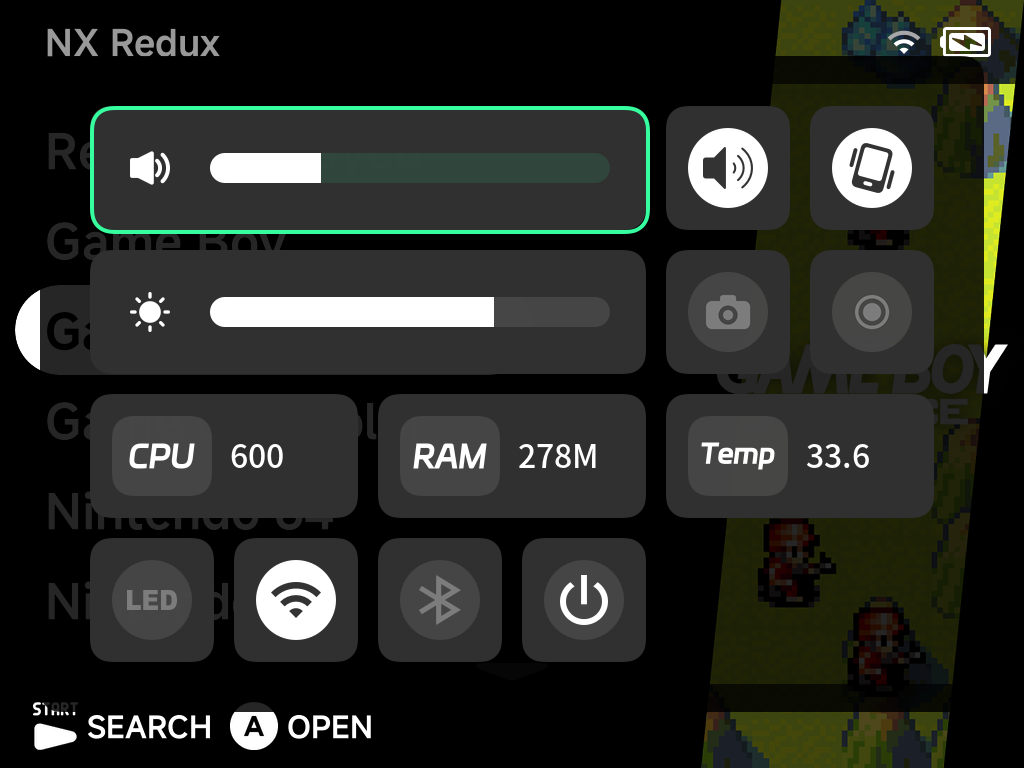
The OSD overlays the screen with a grid of widgets:
- Volume slider with mute toggle, brightness slider, and rumble toggle.
- Wi-Fi, Bluetooth and LED toggles with live state.
- Screenshot and Screen Recorder toggles (see below).
- System monitors: CPU frequency, memory usage and temperature (plus fan control on the Smart Pro S).
- Power off button.
The entire OSD (layout, widgets, icons) ships on the SD card, so it stays consistent regardless of the stock firmware version.
Screenshots
Enable Screenshot in the OSD to arm the capture daemon — a camera icon appears in the status bar while it is armed.
- Press
L2+R2to capture the screen. An on-screen hint shows the shortcut when you arm it, and a toast confirms each saved capture. - Captures are saved to
Images/Screenshotson the SD card. - The OSD closes itself when you arm the capture, so it never gets in the way.
Screen recording
Enable Screen Recorder in the OSD and recording runs automatically in the
background — the record icon in the status bar turns red while recording.
Recordings are saved as MP4 to Videos/Recordings on the SD card. Turn the
toggle off to stop.
Note
Where a capture isn't possible (some third-party content on certain devices), the screenshot tool tells you honestly with a "Capture not available here" toast instead of saving a black image.