Emulator Options
Emulator behavior — video scaling, core-specific tweaks, controls, shaders — can be configured in three places, each with its own scope. Per-game settings override the system-wide ones.
System-wide: Tools → Emulator Settings
Emulator Settings sets the defaults for a whole system — every game on that emulator uses these unless it has its own override:
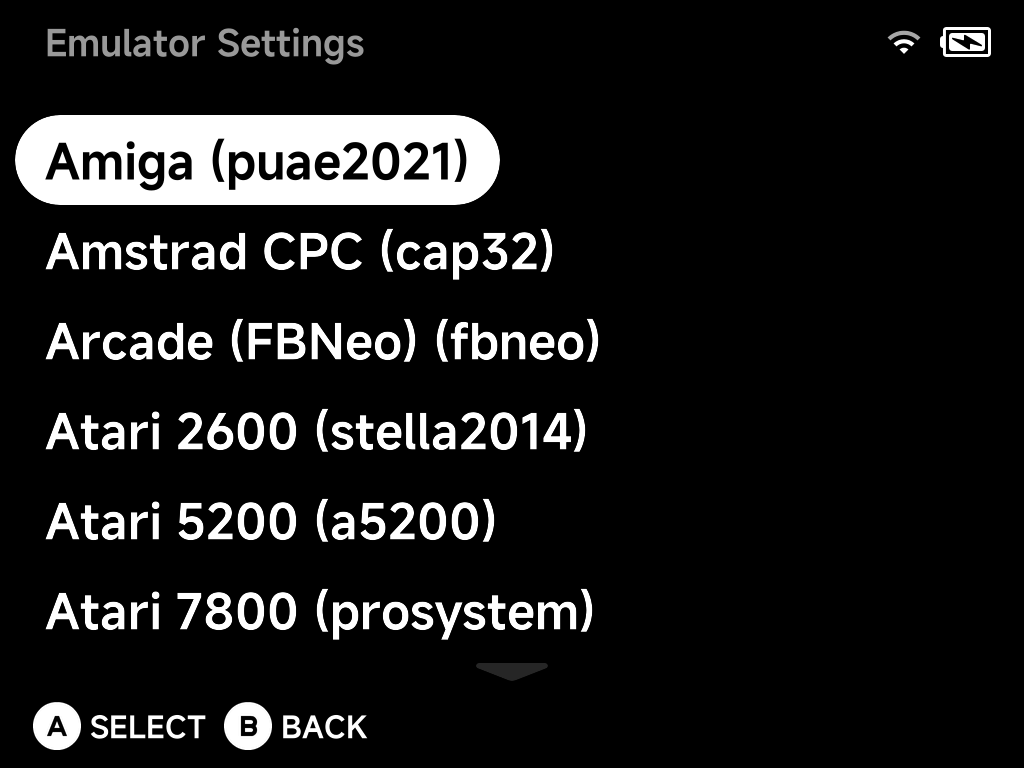
This editor shows the complete option set for the emulator, including options that require a core restart to apply.
Per-game: the context menu
Emulator Options in a game's context menu edits the same complete option set, but the result is saved for that game only — overriding the system-wide defaults:
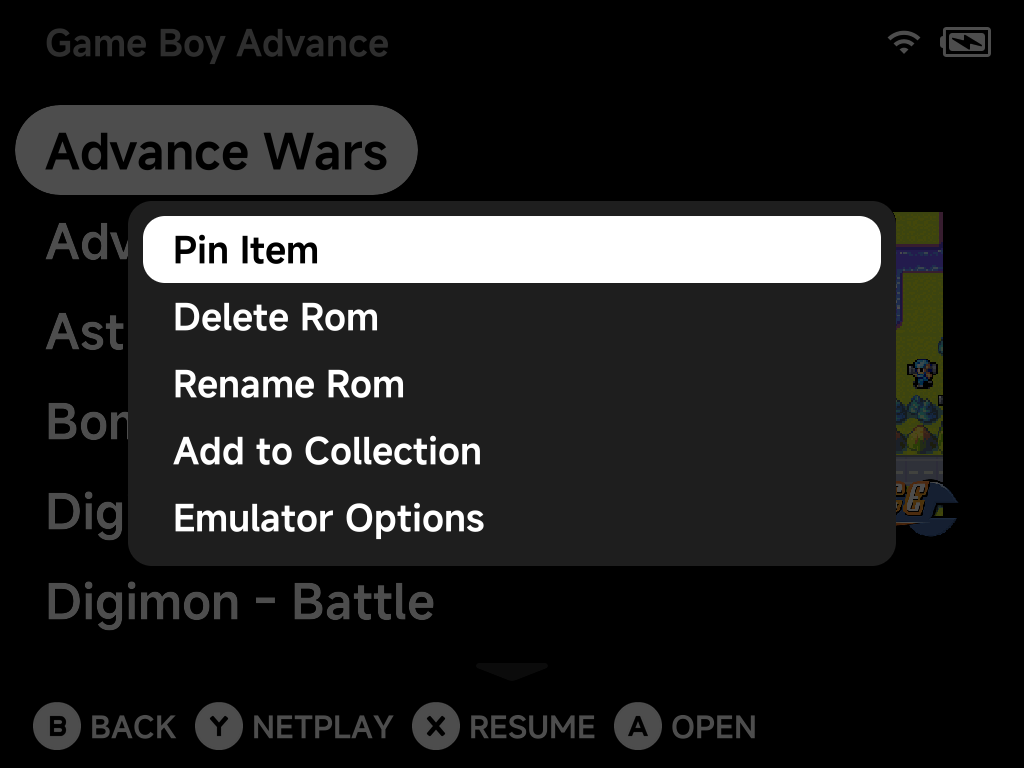
Use this for the one game that needs a different scaler, region or performance tweak without touching the rest of the library.
In-game: the pause menu
While playing, press MENU and choose Options to change settings
live — Frontend (video/UI), Core Options, Shaders, Cheats and Controls:
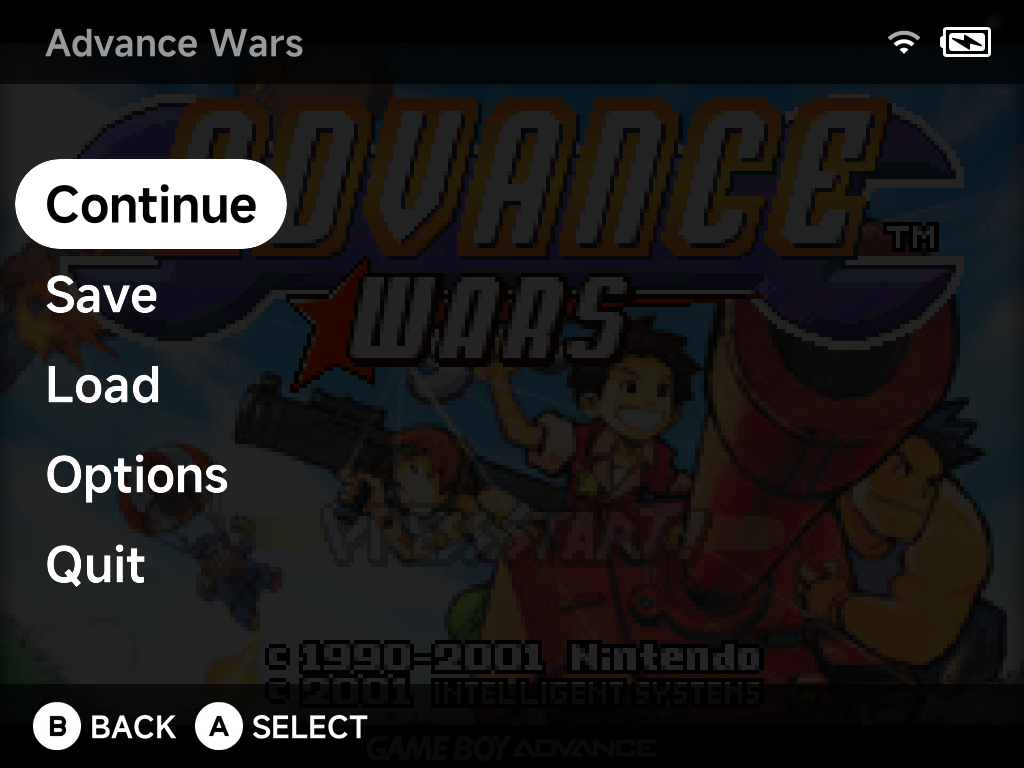
The in-game Core Options list shows only the options that apply without restarting the core — changes take effect immediately as you play. Options that need a core restart or content reload are hidden here; if you're looking for an option and can't find it in-game, set it from the context menu or Emulator Settings instead, which always show everything.
How the layers combine
- Emulator Settings writes the system-wide config for that emulator.
- Emulator Options (context menu) writes a per-game config next to it — when present, the per-game file wins for that game.
- In-game changes save to whichever config the game is currently running on (per-game if it has one, system-wide otherwise).