Launch Options
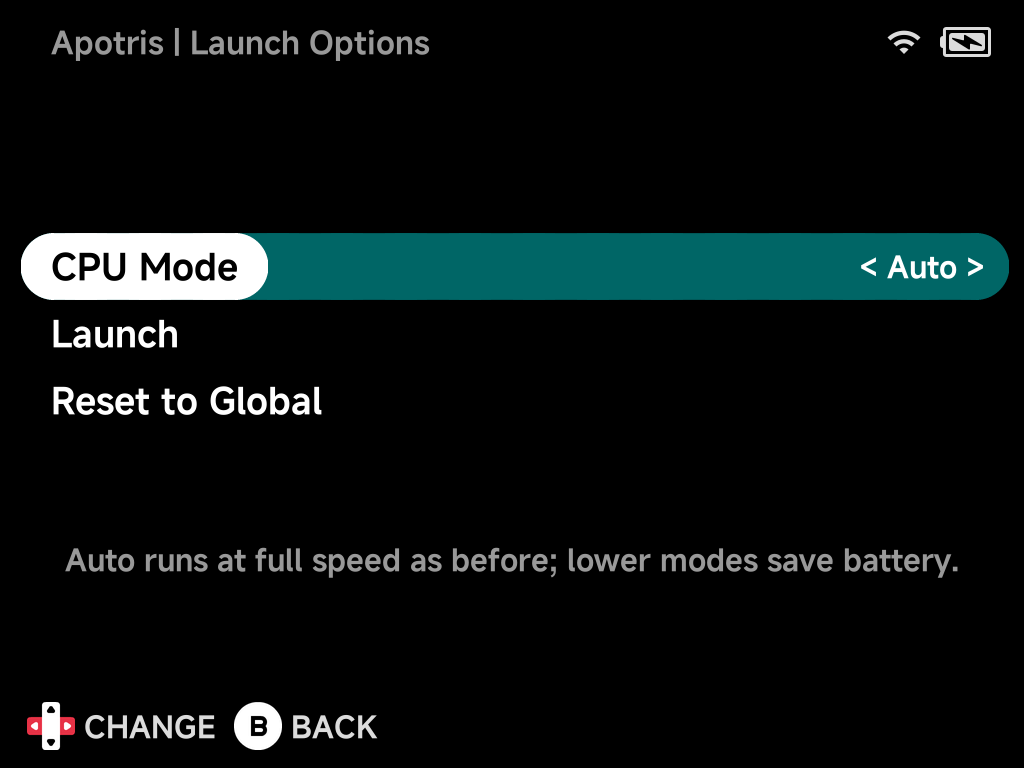
Launch Options set how much of the hardware a game gets: CPU cores, CPU speed and GPU speed. Lower settings save battery on light games. The highest settings keep heavy ones smooth. Each game remembers its own choice.
Launch Options are available for PortMaster ports.
Opening Launch Options
- Highlight a port in Ports (or on Home) and press
MENUto open its context menu. - Choose Launch Options.
- Change the settings with
LEFT/RIGHT(orA). - Choose Launch to start the game with these settings. Or press
Bto save them and go back to the list.
The game keeps the settings. Launching it later with A uses them too, so
you only need this page when you want to change something.
The settings
| Setting | Choices | Devices |
|---|---|---|
| CPU Cores | Auto, 2 Little, 4 Little, 4 Little + 2 Big, All 8 | Smart Pro S only |
| CPU Mode | Auto, Powersave, Normal, Performance | All devices |
| GPU Mode | Auto, Powersave, Performance | Smart Pro S only |
- CPU Cores (Smart Pro S): 4 Little turns the fast big cores off, the biggest battery saving and plenty for most 2D games. 2 Little is for very light games, 4 Little + 2 Big for games that need a little more, All 8 turns every core on.
- CPU Mode: Powersave, Normal and Performance each hold the CPU at one fixed speed, the same speeds as the in-game CPU Speed option.
- GPU Mode (Smart Pro S): Powersave lets the graphics chip slow down when the game doesn't need it. Performance keeps it at full speed.
- Auto keeps what ports have always used, so nothing changes until you pick something else.
More detail: speeds and Auto
| Device | Auto |
|---|---|
| Brick, Brick Pro | CPU held at full speed (2000 MHz) |
| Smart Pro S | All 8 cores on, CPU speed follows the load, GPU at full speed |
| CPU Mode | Brick, Brick Pro | Smart Pro S |
|---|---|---|
| Powersave | 1200 MHz | 1200 MHz |
| Normal | 1608 MHz | 1680 MHz |
| Performance | 2000 MHz | 2160 MHz |
- On the Brick and Brick Pro, Performance is the same as Auto.
- The little cores on the Smart Pro S top out at 1416 MHz. With 4 Little or 2 Little, Normal and Performance both run at that speed.
- GPU Mode Auto is the same as Performance.
Finding the right setting
Start with 4 Little and Powersave on a light game. If it slows down or stutters, raise CPU Mode first, then add cores. Games built on Godot, Mono or GameMaker use several threads and may stutter on 2 Little.
A default for every port
To change the starting point for all ports, open Tools → Emulator Settings and choose Ports (Launch Options). A port uses these settings until you give it its own. Settings you've made for a single game always win over them.
Reset to Global
Reset to Global at the bottom of the page puts a game's settings back to
the default for all ports. Settings that differ from that default are marked
with *.
More detail
- Where it's saved. The settings for all ports are in
.userdata/<platform>/PORTS-launch/launch.ini. A game's own settings are in<script name>.iniin the same folder, for exampleApotris.sh.ini. That file holds only the settings that differ from the default, and Reset to Global deletes it. - When it applies. The Ports launcher sets the cores and speeds just before the game starts. When you quit, the device goes back to its normal menu settings, and the next game or emulator starts fresh.
- Ports that set their own speed. A few port scripts change the CPU speed themselves. For those, the port's own setting wins.
- No in-game menu. Ports don't have NX Redux's in-game menu, so change these settings from the context menu before launching.