Image Viewer
A built-in browser and fullscreen viewer for images on the SD card, including your OSD screenshots. Open it from Tools → Image Viewer.
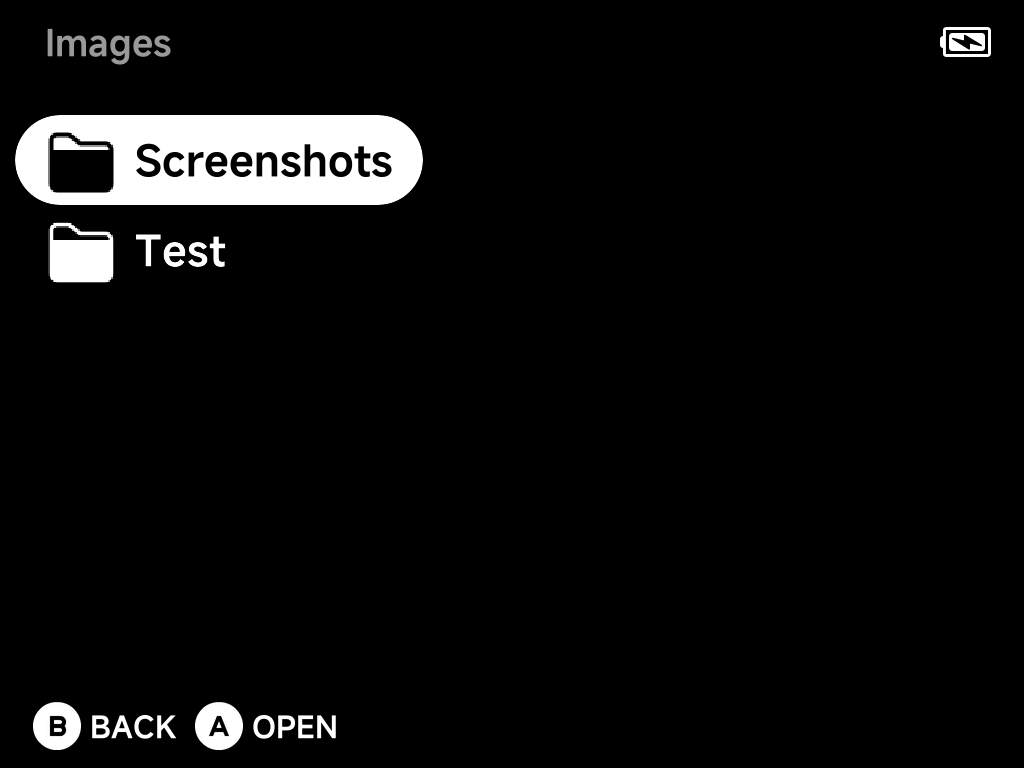
Library
Image Viewer browses the Images folder on the SD card.
- Screenshots taken with the OSD land in
Images/Screenshotsautomatically. - Any other pictures you drop into
Images(subfolders included) show up here too.
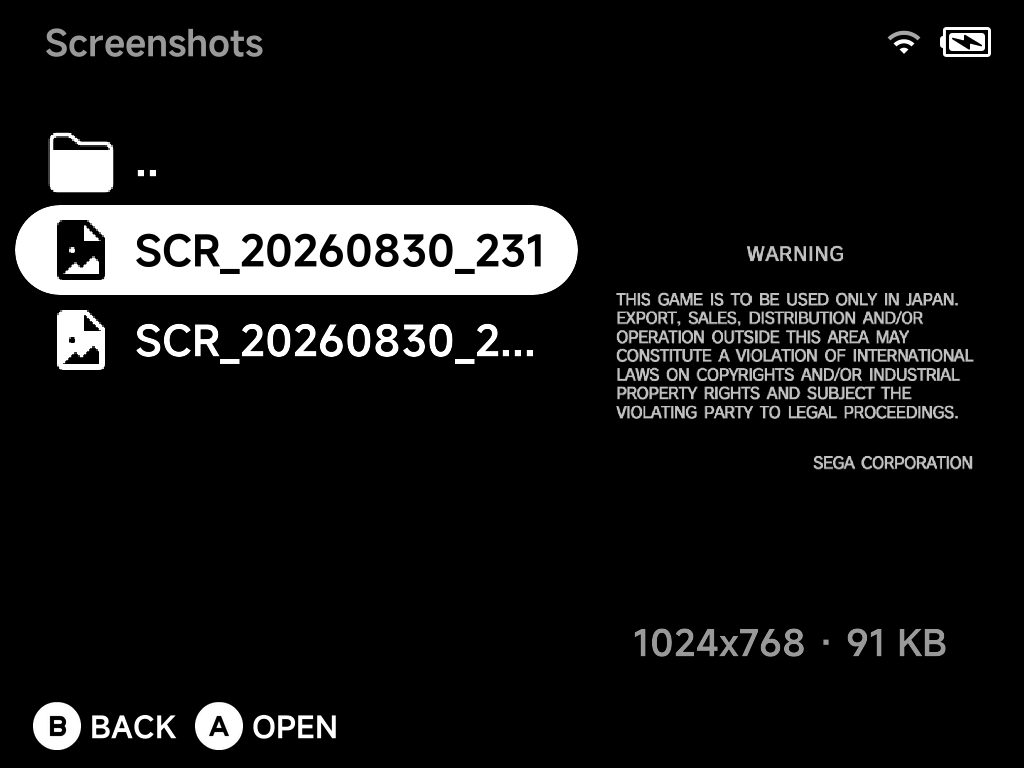
Folders show a folder icon, images a picture icon. Select an image to see a
live preview on the right, with its resolution and file size (for example
1024x768 · 91 KB).
Aopens a folder, or opens an image fullscreen.Bgoes up one folder. At theImagesroot, it exits the app.
Supported formats: png, jpg, jpeg, bmp, gif (animated GIFs show
their first frame only).
Viewing
Opening an image switches to a fullscreen viewer, fit to the screen by default:

| Button | At fit size | While zoomed in |
|---|---|---|
Left / Right |
Previous / next image in the folder (wraps around) | Pan |
Up / Down |
— | Pan |
R1 / L1 |
Zoom in / out | Zoom in / out |
A |
Toggle the info overlay | Toggle the info overlay |
B |
Back to the browser | Back to fit size, then back to the browser |
Zoom steps through fit → 100% → 200% → 400%.
The info overlay shown above lists the file name, resolution, zoom level and
your position among the folder's images (e.g. 1 / 2).
More detail
Zoom skips the 100% step when the image is already at or below screen size, since that step wouldn't change anything.
Rename & Delete
Press MENU on a folder or image in the browser for its context menu:
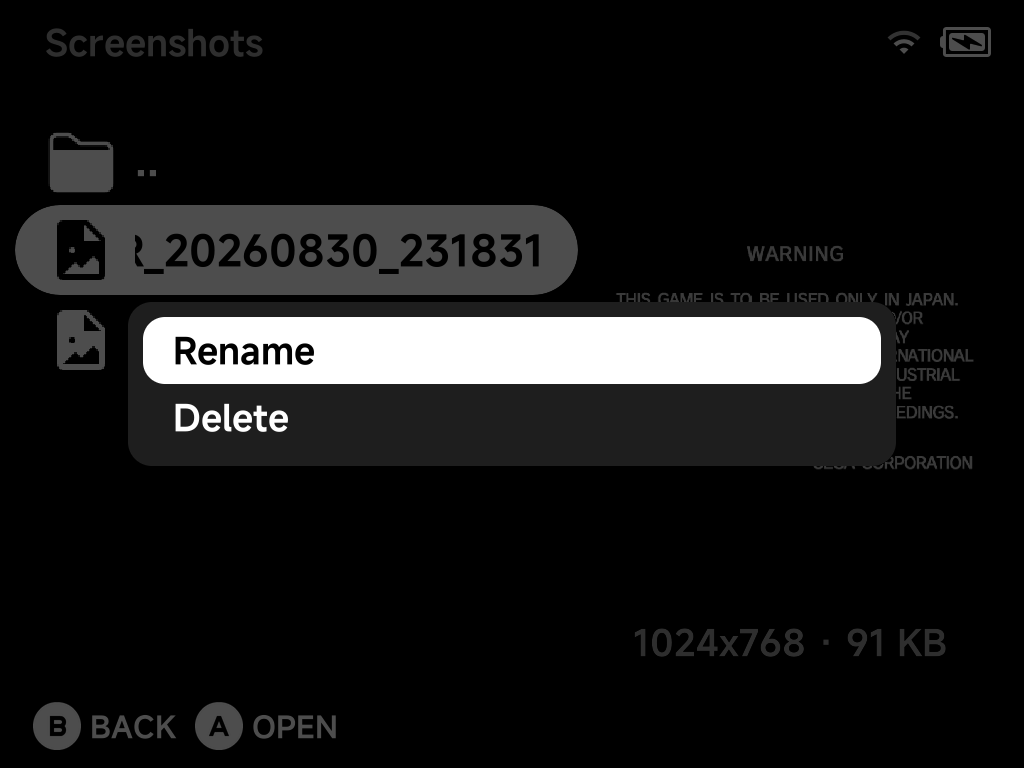
- Rename: opens the on-screen keyboard. The file's extension is kept automatically, so retyping it won't double it up. A name already in use is refused.
- Delete: asks for confirmation first. Deleting a folder removes everything inside it, and the dialog warns you before it does.
Limits
- Anything over 32 MB or 40 megapixels shows an "Image too large" message instead of opening.
- A file that can't be decoded shows a "Couldn't load image" message.