In-game Menu
While a game is running, open the in-game menu in any of these ways:
- press
MENUon the on-screen pad or a controller, - hold
SELECTandSTARTtogether, - use Android's Back gesture or button.
The game pauses while the menu is open.
Bgoes back one page.Bon the first page, orMENUon any page, returns to the game.
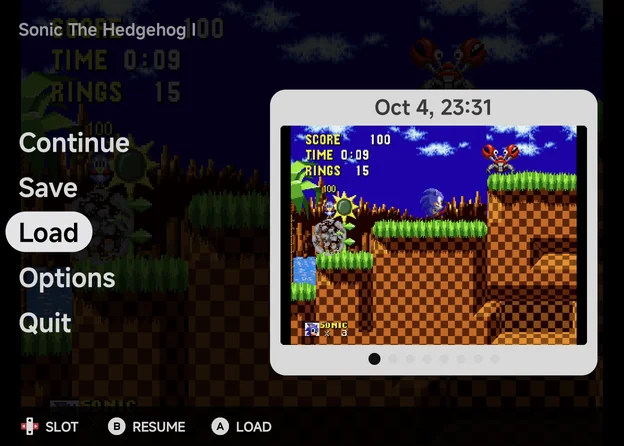
The menu uses your Accent and Secondary accent from Appearance: the highlighted row sits on the accent, and the value bar on the secondary accent.
On a wide landscape screen, such as an unfolded foldable held sideways or a phone in landscape, the menu shows two pages side by side. See Foldables & Large Screens.
The first page
| Row | What it does |
|---|---|
| Continue | Return to the game. |
| Disc | Only for games with more than one disc. Shows the disc in the drive, such as 1/2. LEFT / RIGHT change the disc, as opening the lid and swapping it would. |
| Save | Save a state to the chosen slot. |
| Load | Load the state in the chosen slot. |
| Options | Open the options pages below. |
| Quit | Leave the game. |
There are 8 save state slots. On Save and Load:
LEFT/RIGHTchoose the slot.- The preview shows the slot's screenshot and date, or Empty Slot.
Asaves or loads.
Quitting also saves a hidden resume state, and so does leaving the app with the game open. That is what lets the Game Switcher resume a game where you left it.
Options
| Row | When it shows | What it's for |
|---|---|---|
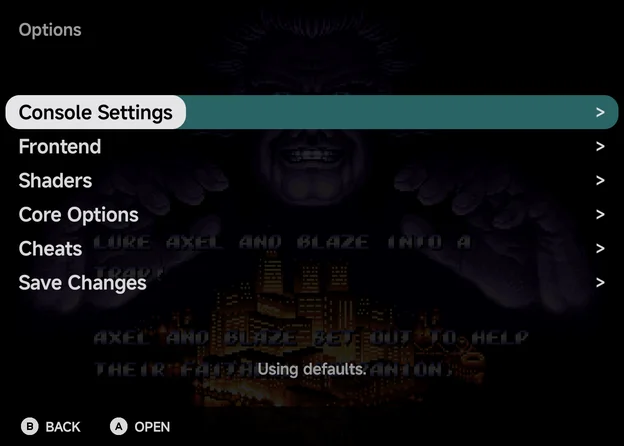
| Console Settings | Every console except Nintendo 64 | The controller rows, and the Nintendo DS screen layouts. |
| Frontend | Always | Scaling, sharpness, overlay, screen offset, pad opacity and the debug HUD. |
| Shaders | Always | Shader presets and their parameters. |
| Core Options | Always | The emulator core's own settings. |
| Cheats | When the core takes cheats | Turn the game's cheats on and off. |
| Achievements | When the game's RetroAchievements session has started | The game's achievements. Your progress, such as 12 / 40 unlocked, shows in the description lines when the row is highlighted. |
| Save Changes | Always | Keep your changes for this console or this game, or restore defaults. |
The line under the list says which settings the game uses right now: Using defaults., Using console config. or Using game config.
Changes aren't saved until you use Save Changes
Changes in Options apply straight away but last only for this session. To keep them, use Save Changes before you quit. To undo a change, quit without saving.
More detail
Two things are saved straight away instead: the Nintendo DS layout
hotkeys (see Nintendo DS) and achievement mutes
(X on the Achievements page).
To set these before a game starts, for a whole emulator or one game, use Emulator Settings.
Console Settings
The console's own rows. LEFT / RIGHT change a value.
| Row | Consoles | Values | Default |
|---|---|---|---|
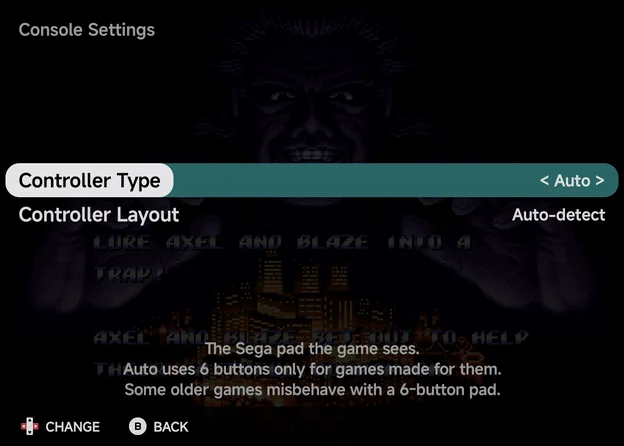
| Controller Type | Sega Genesis, Sega CD, 32X | Auto, 3 buttons, 6 buttons | Auto |
| Controller Layout | Every console except Nintendo 64 | Auto-detect, Xbox (A at the bottom), Nintendo (B at the bottom) | Auto-detect |
| Layout (portrait) and the other screen rows | Nintendo DS | See Nintendo DS |
Controller Type is the Sega pad the game sees. Auto uses 6 buttons only for games made for them. Controller Layout tells the app which way round your controller's face buttons are. See Controls for both.
Frontend
Settings handled by NX Redux Mobile rather than the core. The list is the
same for every console. LEFT / RIGHT change a value.
| Option | Values | Default | What it does |
|---|---|---|---|
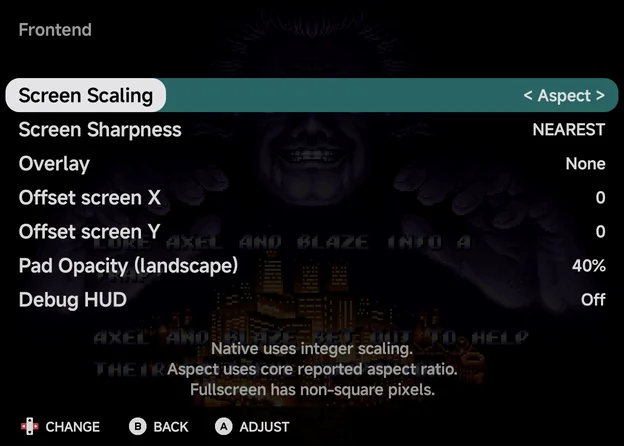
| Screen Scaling | Native, Aspect, Fullscreen | Aspect | Native uses integer scaling. Aspect uses the aspect ratio the core reports. Fullscreen fills the screen, with non-square pixels. |
| Screen Sharpness | NEAREST, LINEAR | NEAREST | LINEAR smooths lines. It works best when the final image is high resolution: a core that outputs a high resolution, or upscaling with shaders. |
| Overlay | None, or an overlay bundled for this console | None | A frame image drawn around the game. |
| Offset screen X / Offset screen Y | −64 to 64 | 0 | Move the game image by this many pixels. |
| Pad Opacity (landscape) | 100%, 60%, 40%, 25% | 40% | How opaque the on-screen buttons are in landscape, where they sit over the game. The portrait pad has its own band and is not affected. |
| Debug HUD | Off, On | Off | Show frames per second, the core, the resolution and scaler information. |
Overlays are bundled for Game Boy, Game Boy Color, Game Boy Advance (GBA
and MGBA), NES, Super Nintendo (SFC and SUPA), Mega Drive (MD),
Game Gear, Atari Lynx and Neo Geo Pocket Color. None is shown until you pick
one.
Shaders
| Row | What it does |
|---|---|
| Shader | The shader preset to run, or None (the default). Screen Sharpness is used where the preset leaves the filter unset. |
| Shader Parameters | The settings the active shader exposes, each with its own values. Shows No settings for this shader. when it has none. |
| Reset Parameters | Restore the shader's default parameter values. |
The bundled presets include crt/crt-geom, crt/zfast-crt, crt/crt-pi,
crt/crt-easymode, handheld/dot, handheld/lcd3x, handheld/gameboy,
interpolation/sharp-bilinear, xbrz/xbrz-freescale, nx/line and
nx/grid, plus the single shaders in glsl/ (such as lcd-perfect,
crt-perfect and pixel-perfect). Unlike the handheld, you can't add your
own shaders.
Adjust mode
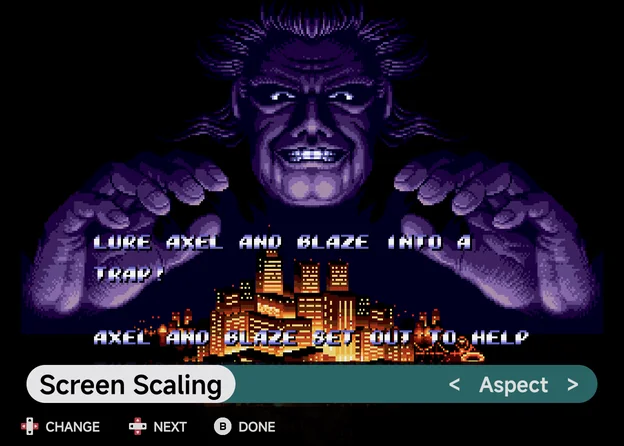
On a row that changes the picture, press A to see each change on the game
as you make it.
More detail
In adjust mode the menu shrinks to a strip over the paused game.
LEFT/RIGHTchange the value.UP/DOWNmove to the previous or next picture setting on the same page.Breturns to the page, andMENUreturns to the game.
These rows open adjust mode: Screen Scaling, Screen Sharpness, Overlay, Offset screen X and Y, Shader, each shader parameter, and the Nintendo DS screen rows in Console Settings.
Descriptions
The three lines under the list describe the highlighted row.
- When a description is cut off,
Xopens it in full. UP/DOWNscroll a long one.- On a row that doesn't change the picture,
Aalso opens its description.
Core Options
The running core's own settings, grouped into the categories the core
defines. LEFT / RIGHT change a value.
Only options that can change while the game runs are listed (except the DS Render Mode; see Nintendo DS). If there are none, the menu says This core has no options that can be changed while running.
Cheats
Lists the cheats found for the game. LEFT or RIGHT turns the highlighted
cheat On or Off, and it applies straight away. A shows a cheat's full
description.
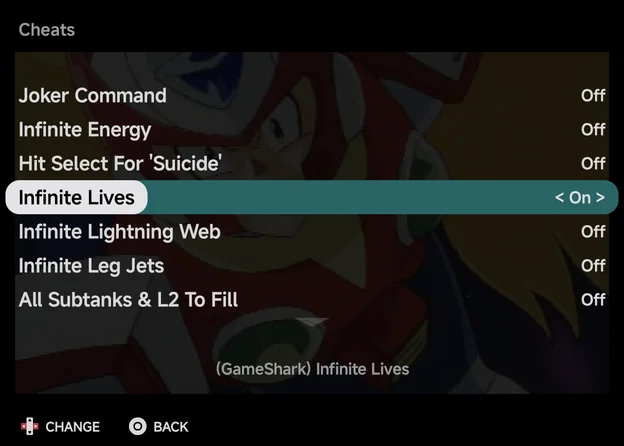
To keep the cheats you turned on, use Save Changes → Save for game. See Cheats for where the cheat files come from.
- With no cheats for the game, the page says No cheats for this game. and names the file it looked for.
- The row is hidden for Arcade (
FBN), ColecoVision and Dreamcast (with NAOMI and Atomiswave), whose cores don't take cheats.
Achievements
The row shows once the game's RetroAchievements session has started: RetroAchievements is on, you are signed in, and the game is on a system RetroAchievements covers. It shows the game's achievements, in the order set by Achievement sort order. Each row shows Unlocked, Pending sync or Locked · N pts.
Aopens an achievement's details.LEFT/RIGHTstep to the previous or next one.Yswitches between all achievements and only the locked ones.Xmutes or unmutes the achievement's notifications. A muted achievement shows[M]before its name.
If the game isn't recognised or has no achievements, a message says so.
Save Changes
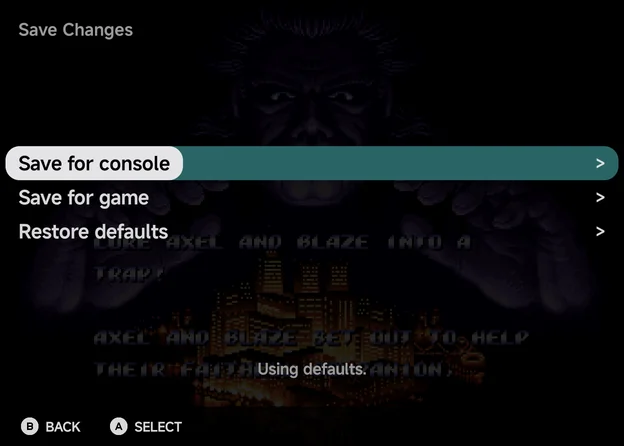
Keeps what you changed in Console Settings, Frontend, Shaders and Core Options.
| Choice | What it does |
|---|---|
| Save for console | Save as the settings for every game on this console. If this game had its own settings, they are removed, so it follows the console again. That also removes the cheats kept with Save for game and any DS layout hotkey changes. |
| Save for game | Save for this game only. This also keeps the cheats you turned on. |
| Restore defaults | Delete the saved settings the game is using now and go back one level: from game to console, or from console to the defaults. |
When a game has its own settings, it uses only those. The console's settings apply only to games without their own.
Notifications
In-game notifications, such as achievement unlocks, show in the top-left and bottom-left corners of the game. While the landscape pad is over the game, they move to the top centre, between the pad's system buttons, so they don't cover the controls.