On-Screen Display
The On-Screen Display (OSD) gives quick access to common actions from anywhere, in the menus or in-game, without quitting what you're doing.
Opening the OSD
| Device | How to open it |
|---|---|
| Smart Pro S | Press the HOME button |
| Brick / Brick Pro / Smart Pro | Long-press the MENU button |
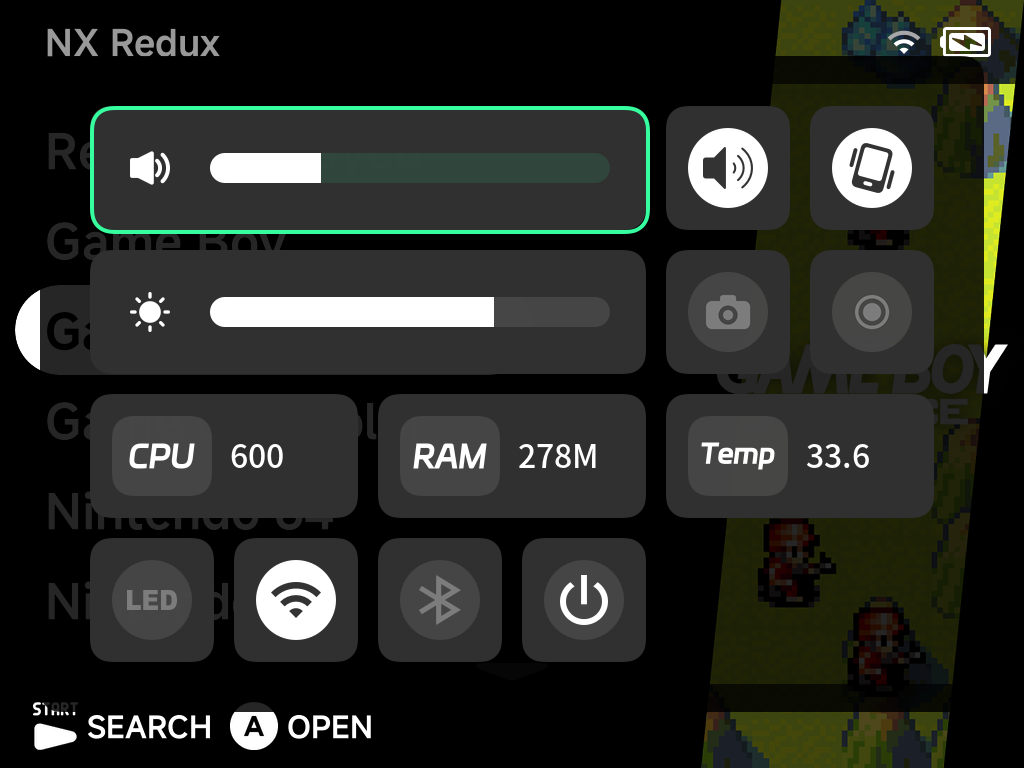
The OSD overlays the screen with a grid of widgets:
| Widget | What it does |
|---|---|
| Music | Shows what the Music Player is playing in the background, with play/pause, previous and next. With nothing playing it offers to open the Music Player. |
| Game / Music balance slider | Sets how loud games and music are relative to each other. Press Down in the Music widget to reach it. It stays adjustable whether or not music is playing. |
| Mute toggle | Speaker mute: silences the audio output only |
| Brightness slider | Screen brightness |
| Motor toggle | Master vibration switch. On by default. |
| Wi-Fi, Bluetooth, LED toggles | Turn each on or off, with live state |
| Screenshot, Screen Recorder toggles | See Screenshots and Screen recording below |
| System monitors | CPU frequency, memory usage and temperature (plus fan control on the Smart Pro S) |
| Power off | Turn the device off |
More detail
- Mute works independently of the FN switch, and any volume-key press clears it.
- Motor off silences every vibration on the device: game rumble, the sleep and wake pulses and the shutdown tap. It is remembered across reboots.
- The entire OSD (layout, widgets, icons) ships on the SD card, so it stays consistent regardless of the stock firmware version.
Screenshots
- Enable Screenshot in the OSD to arm the capture daemon. A camera icon appears in the status bar while it is armed. The OSD closes itself when you arm the capture, so it never gets in the way.
- Press
L2+R2to capture the screen. An on-screen hint shows the shortcut when you arm it, and a toast confirms each saved capture.
Captures are saved to Images/Screenshots on the SD card.
Screen recording
- Enable Screen Recorder in the OSD. Recording runs automatically in the background, and the record icon in the status bar turns red.
- Turn the toggle off to stop.
Recordings are saved as MP4 to Videos/Recordings on the SD card.
Note
Where a capture isn't possible (some third-party content on certain devices), the screenshot tool shows a "Capture not available here" toast instead of saving a black image.