Main Menu & Home
The main menu is split into four tabs: Home, Consoles, Collections and Tools. The app opens on Home.
Consoles, Collections, Tools and the game lists can each be drawn as a list, a grid or a carousel, and game lists have a fourth style, Backdrop. Menu Layouts shows them all.
You can drive every screen with the on-screen pad, a controller or touch. See Controls.
Tabs
| Tab | What it holds |
|---|---|
| Home | Your last game, play stats, and the games and tools you pinned |
| Consoles | One entry per system that has games in it |
| Collections | Your collections |
| Tools | The built-in tools, Settings included |
- Switch tabs with
L1/R1, or tap a tab. The tab order wraps around. Left/Rightalso switch tabs:- in List style and in a Vertical Carousel, always;
- in Grid and a Horizontal Carousel, when you push past the first or last item;
- on Home, when you push past the left or right edge.
- Home and Tools always show. A Consoles or Collections tab with nothing in it, such as Collections before you make one, is left out.
The tab row
Press Up from the top of a tab to move the highlight onto the tab row.
| Button | What it does |
|---|---|
Left / Right, L1 / R1 |
Switch tabs |
Down, A or B |
Go back into the content |
Up |
Jump to the bottom of the content |
SELECT Recent |
Open the Game Switcher |
Home
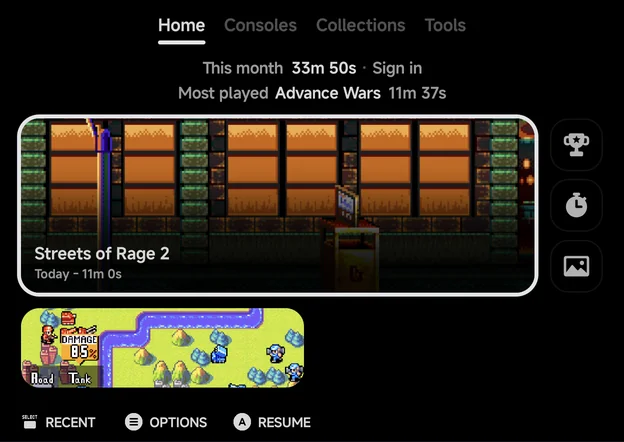
Home is the starting point: your most recent game, this month's play time, and everything you pinned. It looks the same whatever layouts you pick.
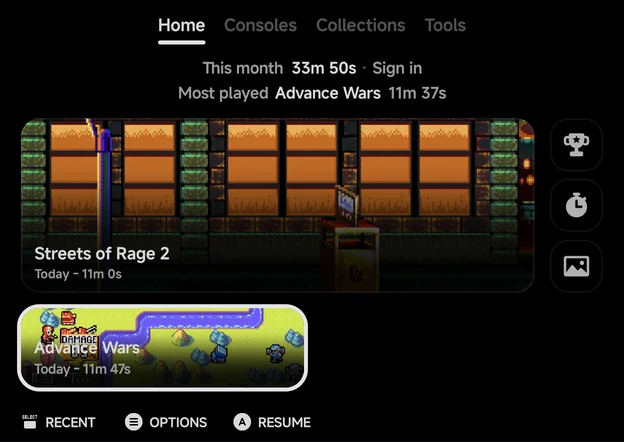
- Stats strip. The top line shows This month's total play time and the RetroAchievements you unlocked this month. It reads Sign in while you are signed out of RetroAchievements. The second line shows the month's Most played game and its time. A month without play shows No play yet. "This month" is the calendar month.
- Continue card. Your most recent game, with when you last played it and
for how long. Press
Ato jump back in. - Pick a game. On a fresh install the Continue card is replaced by Pick a game ("Nothing played yet"), which opens the Consoles tab.
- Pinned tools sit beside the Continue card as square icon tiles. When more tools are pinned than fit, the last square becomes +N, which opens the Tools tab.
- Pinned games fill the rows below. Home scrolls when there are more. The selected pin shows its name and play time.
- Games without art get a generated abstract picture, so every card looks different.
| Button | What it does |
|---|---|
| D-pad | Move between the cards |
A Resume / Play |
Start the selected game. Resume continues from its auto-save; Play shows when it has none |
A on a pinned tool |
Open the tool. The hint names the tool, e.g. Game Tracker |
A More tools |
On +N: open the Tools tab |
MENU Options |
Pin or Unpin the selected game or tool |
SELECT Recent |
Open the Game Switcher |
Touch on Home
- Tap a card to select it, then tap it again to play or open it. This goes for the Continue card, pinned games and pinned tools.
- A long press opens the same menu as
MENU. - Drag up and down to scroll without selecting anything.
On an unfolded phone or a tablet in landscape, Home adds shelves of games to pick from. See Foldables & Large Screens.
Pinning games and tools
- Pin a game: press
MENUon it in a game list and choose Pin Item. Unpin Item removes it again. On Home,MENUon the Continue card offers Pin, and on a pinned game Unpin. - Pin a tool: press
MENUon it in the Tools tab and choose Pin. Unpin removes it. - You can pin up to 12 games. At the limit the app says "Pins are full (12). Unpin one first."
Consoles, Collections and Tools
These three tabs list their entries in the style chosen in Layouts. By default Consoles and Collections are a carousel, and Tools is a grid.
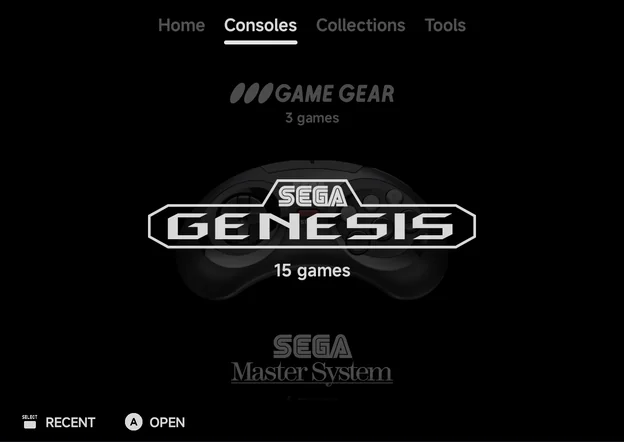
- Consoles show their logo and how many games they hold. In the List and Carousel styles the selected console's controller shows too, unless you set Controller to Hide in Layouts.
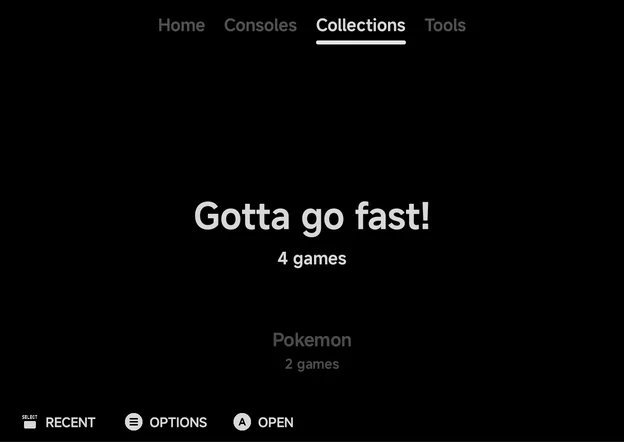
- Collections show their name and game count.
- Tools show an icon for each tool: RetroAchievements, Game Tracker, Artwork, Cheat Database and Settings, plus any Android apps you choose to show there (see Launcher Mode & Android Games).
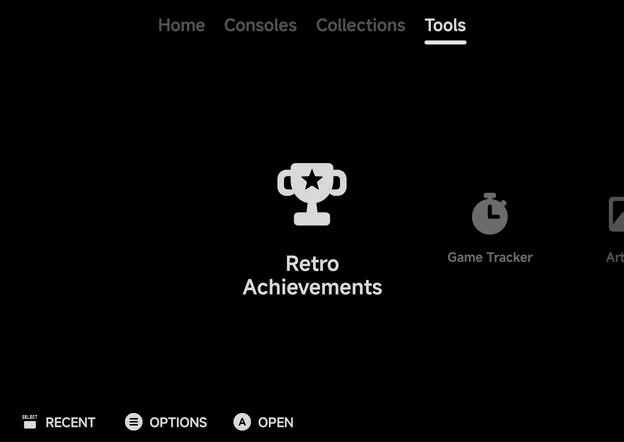
| Button | What it does |
|---|---|
A Open |
Open the console, collection or tool |
MENU Options |
Rename / Delete on a collection, Pin / Unpin on a tool |
SELECT Recent |
Open the Game Switcher |
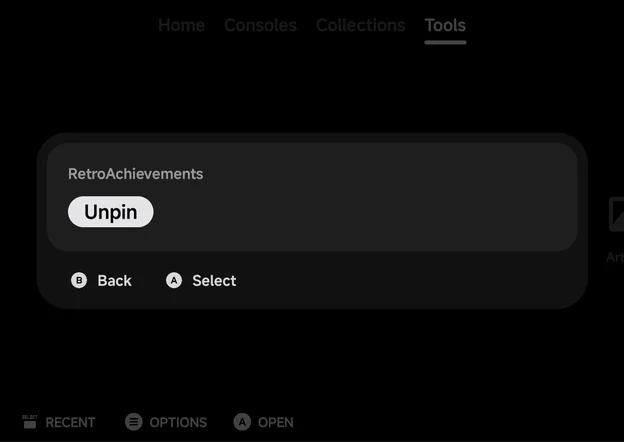
The tools have their own pages: RetroAchievements, Game Tracker, Artwork, Cheat Database and Settings.
Game lists
Opening a console or a collection shows its games. The page title says where you are, e.g. Consoles | Sega Genesis.
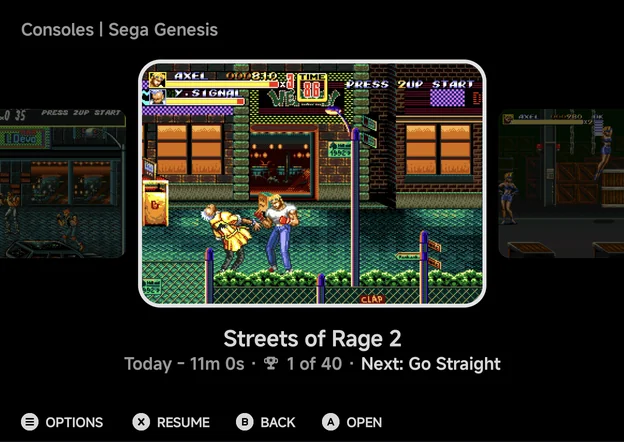
Under the selected game you see when you last played it and your total play time ("Today - 11m 0s"). For games with achievements, the line adds your progress and the next achievement to go for. Game names leave out the region and version text in brackets.
| Button | What it does |
|---|---|
A Open |
Launch the game |
X Resume |
Jump straight back into your auto-saved session (shown when the game has one) |
B Back |
Return to the tab |
SELECT |
Open the Game Switcher |
MENU Options |
Open the game's context menu |
A long press on a game opens the context menu too.
Context menus
Press MENU on a game to see what you can do with it. The menu depends on
where the game is listed.
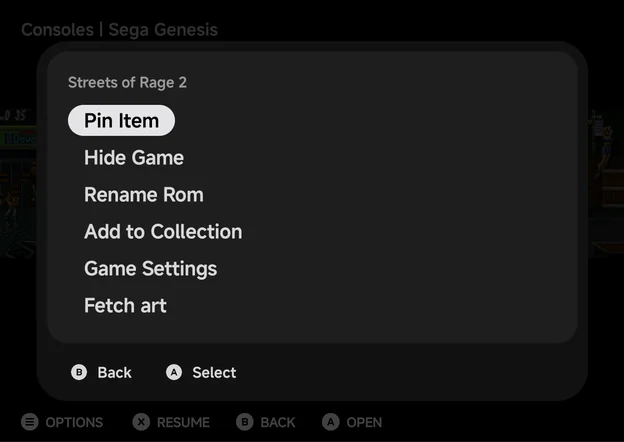
| Item | What it does |
|---|---|
| Pin Item / Unpin Item | Pin the game to Home, or take it off |
| Hide Game | Hide the game from its list |
| Rename Rom | Change the name the list shows |
| Add to Collection | Add the game to a collection, or start a new one |
| Game Settings | This game's own emulator settings. See Emulator Settings |
| Fetch art | Download art for this game. See Artwork |
| Emulator | Pick which emulator runs this game. See Emulators |
| Remove from Collection | Take the game out of the collection you are in |
Not every item shows everywhere:
| List | Items |
|---|---|
| A console | Pin Item, Hide Game, Rename Rom, Add to Collection, Game Settings, Fetch art, and Emulator on systems with more than one emulator |
| A collection | The same, with Remove from Collection at the end |
| Unassigned games | Hide Game, Rename Rom, Console |
| The Android console | Pin Item / Unpin Item only |
- Fetch art shows only for systems the art sources know.
- Unassigned games are files in an extra ROM folder that the app could not match to a system. Open them from Tools → Settings → Library → Unassigned games, and use Console to say which system a game belongs to. See Library & ROM folders.
- Hidden games are listed in Tools → Settings → Library → Hidden games.
Press
AUnhide there to bring one back. - The Android console holds the Android games you added. See Launcher Mode & Android Games.
Collections
Build your own game collections from a game list:
- Press
MENUon a game. - Choose Add to Collection.
- Pick an existing collection, or New Collection… to make one and name it.
Your collections live on the Collections tab, each with its game count.
The tab appears once you have a collection. Collections are saved in the
Collections/ folder in your home folder.
Press MENU on a collection, or long-press it, to Rename or Delete
it. Delete asks first, and removes only the list: the games stay in your
library.