Nintendo DS
Nintendo DS games run on the bundled melonDS DS core. The core draws both screens and the app lays them out.
| melonDS DS | |
|---|---|
| Folder | Roms/Nintendo DS (NDS)/ |
| BIOS | Not needed: free BIOS and firmware are built in. Real ones in Bios/NDS/ are used when present. |
| File types | nds (also inside a zip or 7z) |
Screen layouts
The layout options are in the in-game menu under Options → Console Settings. Like the other options, they are kept per game or console with Save Changes. Screen Scaling and the screen offsets don't apply to the DS screens.
Portrait layouts
Layout (portrait) sets how the two screens share a portrait screen:
| Layout | What you see |
|---|---|
| Auto (default) | Stacked when both screens fit the width, else Picture in picture. |
| Picture in picture | One screen big, the other small in a corner. |
| Stacked | One screen above the other. |
| Single screen | Only the big screen. |
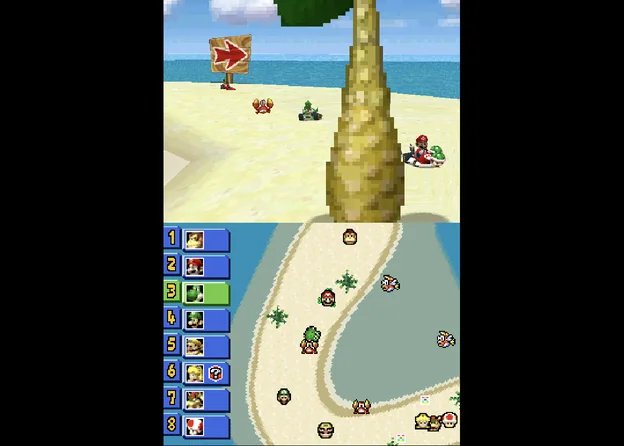
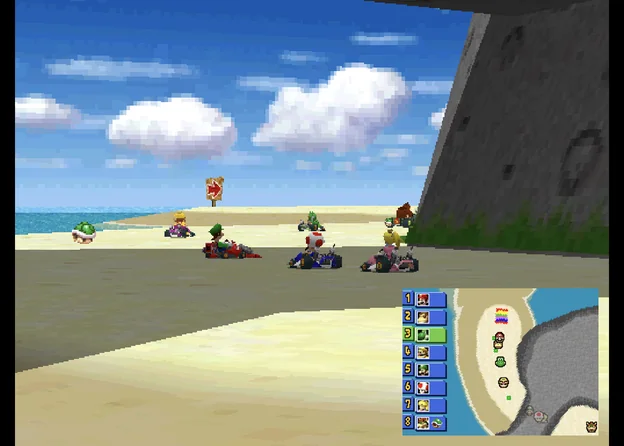
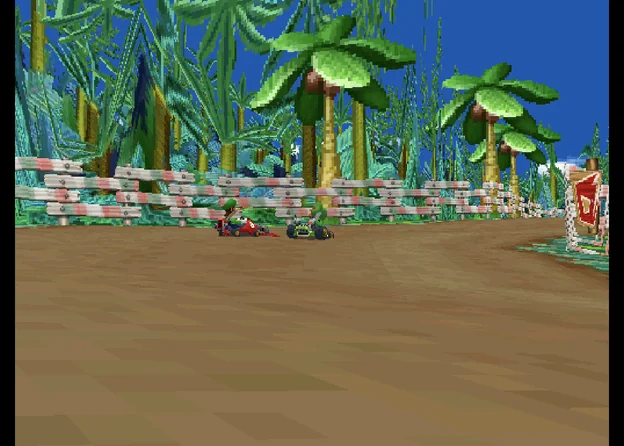
With a controller connected in portrait, the on-screen pad band goes away, so the screens get the full height. Layout (portrait, controller) is used instead. Its choices are the same, and its default is Stacked.
A clip-on controller that holds the phone keeps the pad band and the normal portrait layout. The GameSir Pocket Taco is recognised as one. The 8BitDo FlipPad is expected to be recognised too.
Landscape layouts
Layout (landscape) sets how the two screens share a landscape screen:
| Layout | What you see |
|---|---|
| Side by side (default) | Each screen takes half the width. |
| Single screen | The big screen only, centred. |
| Picture in picture | The big screen centred, the other small in a corner. |
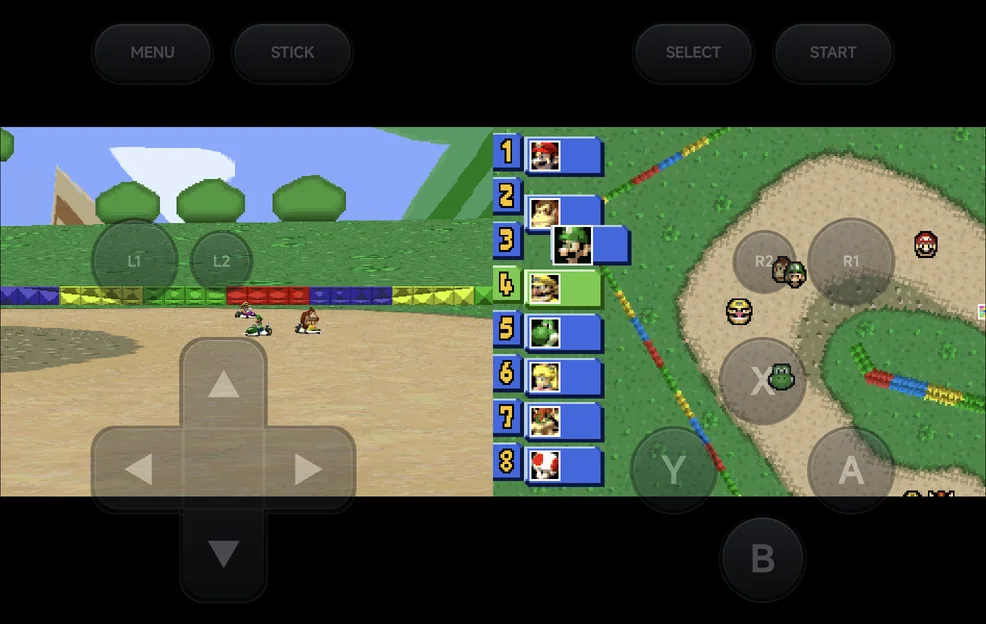
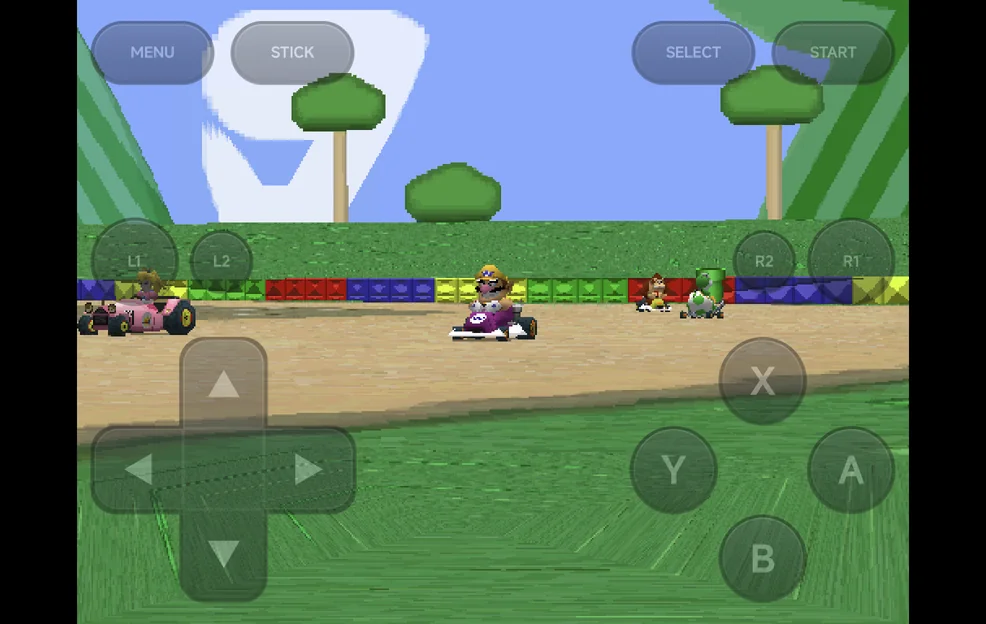
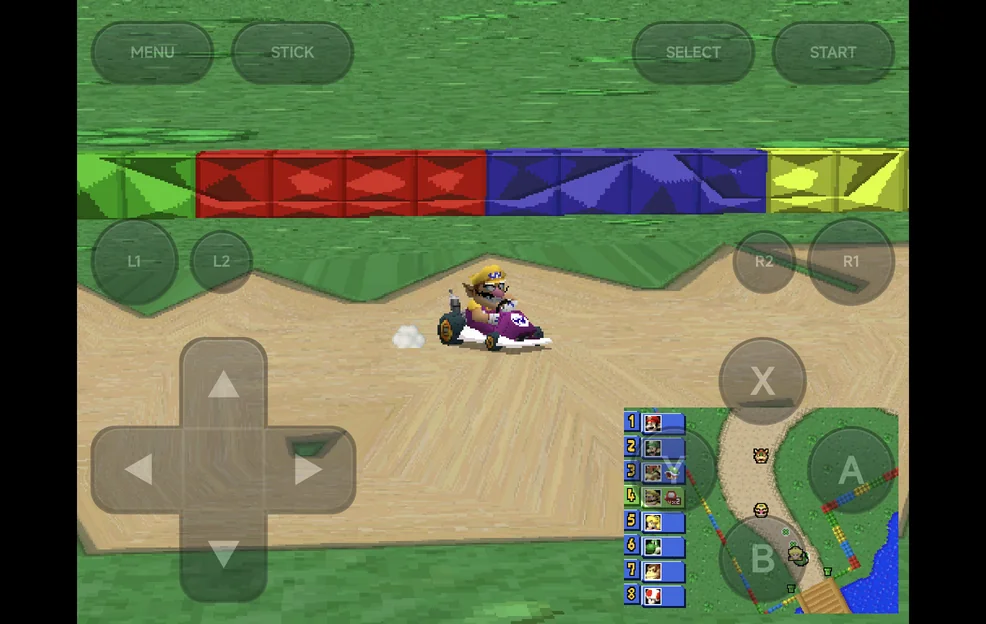
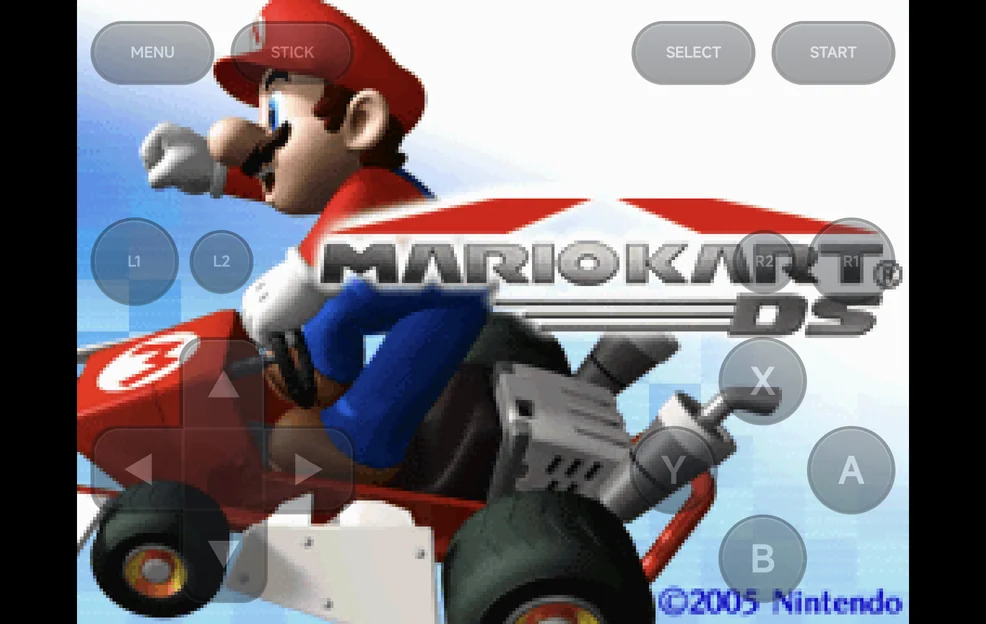
Without a controller, the on-screen buttons sit over the game in landscape. Pad Opacity (landscape) in Options → Frontend sets how opaque they are: 100%, 60%, 40% or 25%, 40% by default.
Big screen and inset
These apply in both orientations:
| Option | Values | Default | What it does |
|---|---|---|---|
| Big Screen | Top screen, Bottom screen | Top screen | The screen shown big in picture in picture and single screen, and first in stacked and side by side. |
| Inset Corner | Top left, Top right, Bottom left, Bottom right | Bottom right | Where the small screen sits in picture in picture. |
| Inset Size | Small, Medium, Large | Medium | The small screen's width: 25%, 33% or 40% of the big screen's width. |
| Inset Opacity | 100%, 75%, 50% | 100% | How opaque the small screen is. Below 100%, the big screen shows through it. |
- The small screen in picture in picture never takes touches.
- Overlays are off while the DS screens are drawn apart. The Overlay row shows Unavailable.
- Shader presets apply to the big screen, and to both screens in stacked and side by side.
Controls
The face buttons, d-pad, L1, R1, START and SELECT are the DS's own.
On top of that, with a controller or the on-screen pad:
| Buttons | What they do |
|---|---|
R2 |
Swap the big screen. |
SELECT + LEFT / RIGHT |
Change the layout of the orientation you're in. In portrait this steps through Picture in picture, Stacked and Single screen. |
SELECT + UP / DOWN |
Move the inset to the previous or next corner, clockwise. |
L2 |
Turn stylus mode on or off, or start touch mode (see below). |
MENU, or SELECT + START |
Open the in-game menu. |
L2andR2never reach the game: the DS has no such buttons.SELECTon its own still reaches the game. OnlySELECT+ a direction is kept by the app.- A controller's left stick works as the d-pad, except in stylus mode, where it moves the pen.
A short label shows the new setting. The layout hotkeys (R2 and SELECT +
a direction) are saved straight away, without Save Changes. Stylus mode and
touch mode are not saved.
More detail
Saving a layout hotkey gives the game its own settings, copied from the console's if it had none. From then on the game uses only its own settings. Later Save for console changes don't reach it until you use Restore defaults in that game.
Stylus mode
In stylus mode, the d-pad or left stick moves a pen on the bottom screen,
faster the longer you hold it, and A touches at the pen. Stylus mode is off each time a
game starts.
Touch
You can touch the bottom screen whenever it is drawn full size. You can't when it is the small inset in picture in picture.
- Touch works in portrait.
- In landscape it works with a controller, or in touch mode.
- While the on-screen buttons sit over the game in landscape, the DS screens take no touches.
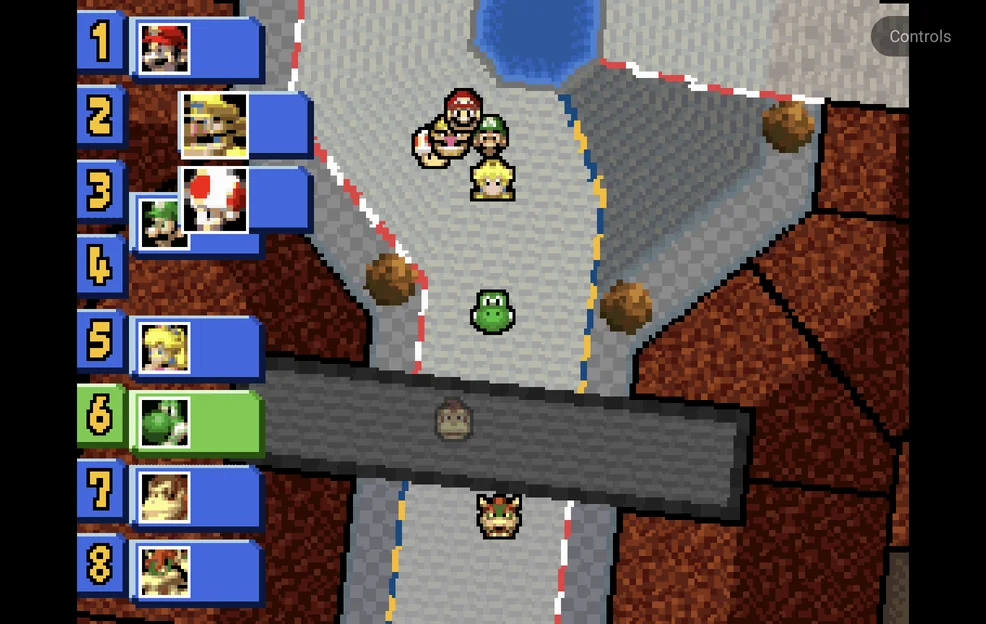
Touch mode: in landscape with the on-screen buttons shown and stylus mode
off, L2 hides the buttons and shows the bottom screen big, so you can touch
it. A Controls button in a free corner brings the on-screen buttons back.
- In single screen and picture in picture, the bottom screen becomes the big one. Side by side already shows it full size.
- Rotating the phone, or connecting or disconnecting a controller, also ends touch mode.
R2does nothing in touch mode, and touch mode is not saved.- With stylus mode on,
L2turns stylus mode off first.
3D rendering
Internal Resolution in Core Options → Video upscales 3D: 1× to 8×, 2× by default. Some games slow down at 4× or higher.
More detail
- 3D renders on the GPU on devices with OpenGL ES 3.2, else in software.
- Internal Resolution works with the GPU renderer only. The 2D layers stay at native resolution.
- A Render Mode change in Core Options applies the next time the game starts, once you keep it with Save Changes.
- If the GPU renderer can't start, the game runs in software and the app shows GPU renderer unavailable — using software once. The next launch tries the GPU again.
Saves from other DS emulators
Battery saves from the older melonDS core and from DraStic carry over
(converted to .srm on a game's first launch). Save
states from the older melonDS core don't load.
More detail
Battery saves from the older melonDS core (.sav) and from DraStic
(.dsv) are converted to .srm on a game's first launch.