Five-Game Menu
Turn the main menu into a tiny, distraction-free screen of just the games you actually play. Pick up, pick one of five, play. Inspired by the "Five Game Handheld" idea.
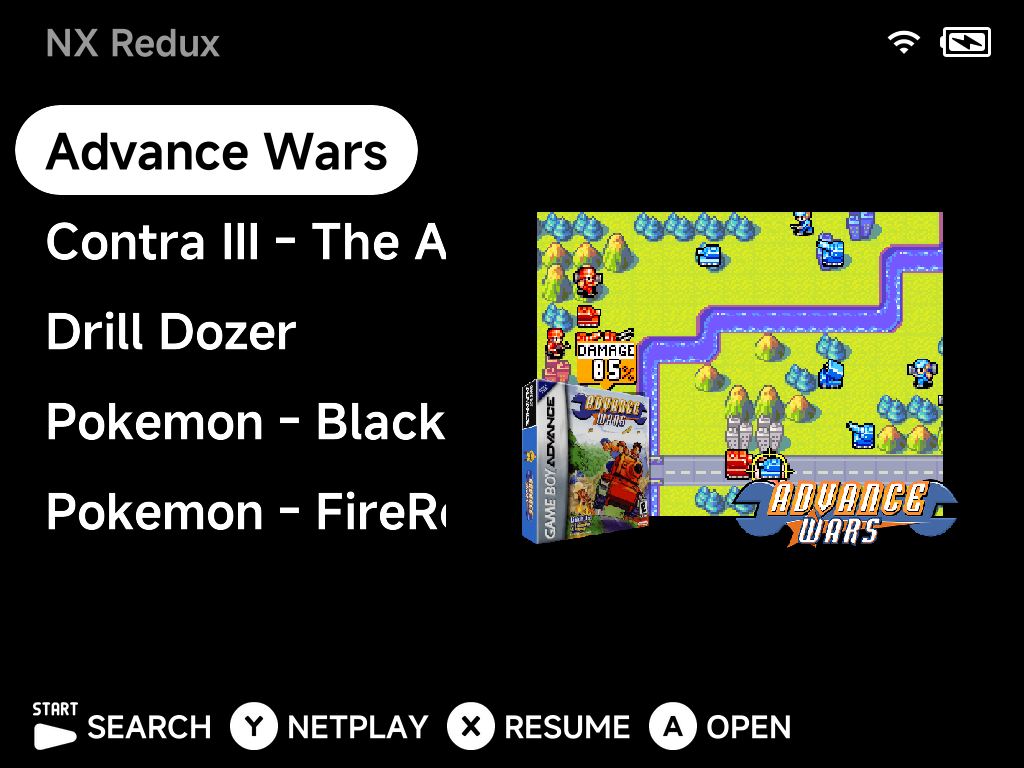
The whole menu is Home: your last game, your pinned games and your pinned tools. There are no Consoles, Collections or Tools tabs. It takes two steps:
1. Pin your games
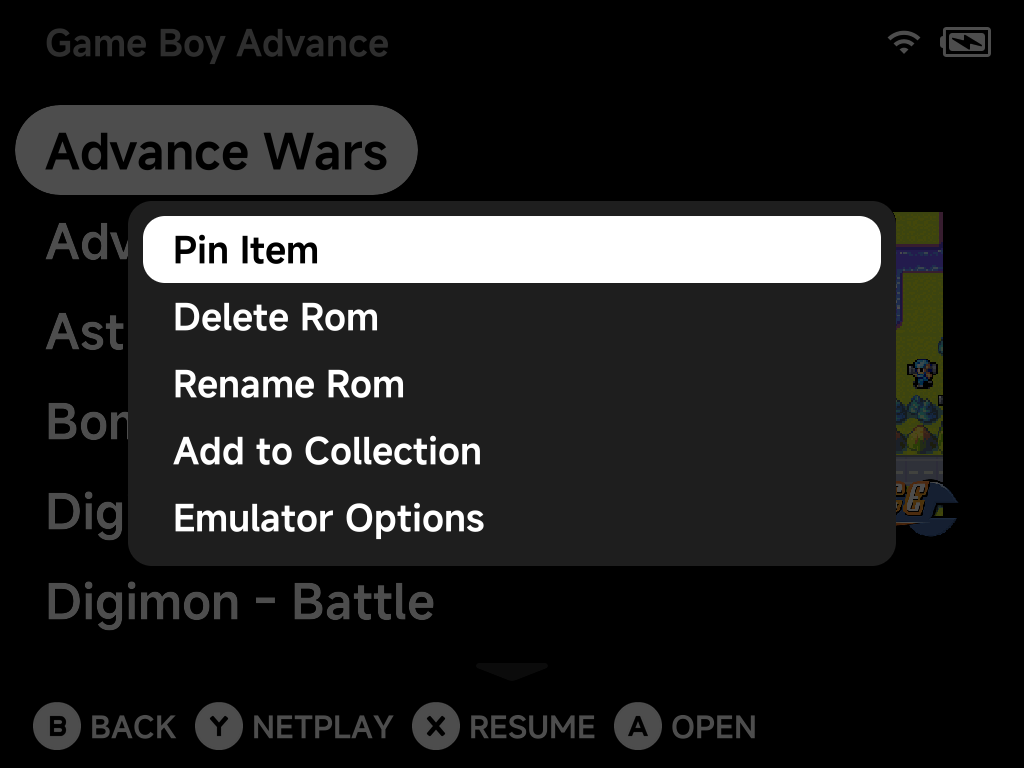
For each game you want on the menu, press MENU on it in its game list and
choose Pin Item (see the context menu). Pinned games
appear on Home, in the order you pin them. Up to 12
games and tools can be pinned.
2. Hide the other tabs
In Settings → Appearance → Layouts, set these to
Hide:
| Setting | What it hides |
|---|---|
| Consoles tab | All the system folders |
| Collections tab | Your collections |
| Tools tab | The Tools tab |
That leaves only Home.
Getting back to Tools
Nothing is locked away. Press MENU on Home and the context menu still
offers Tools:
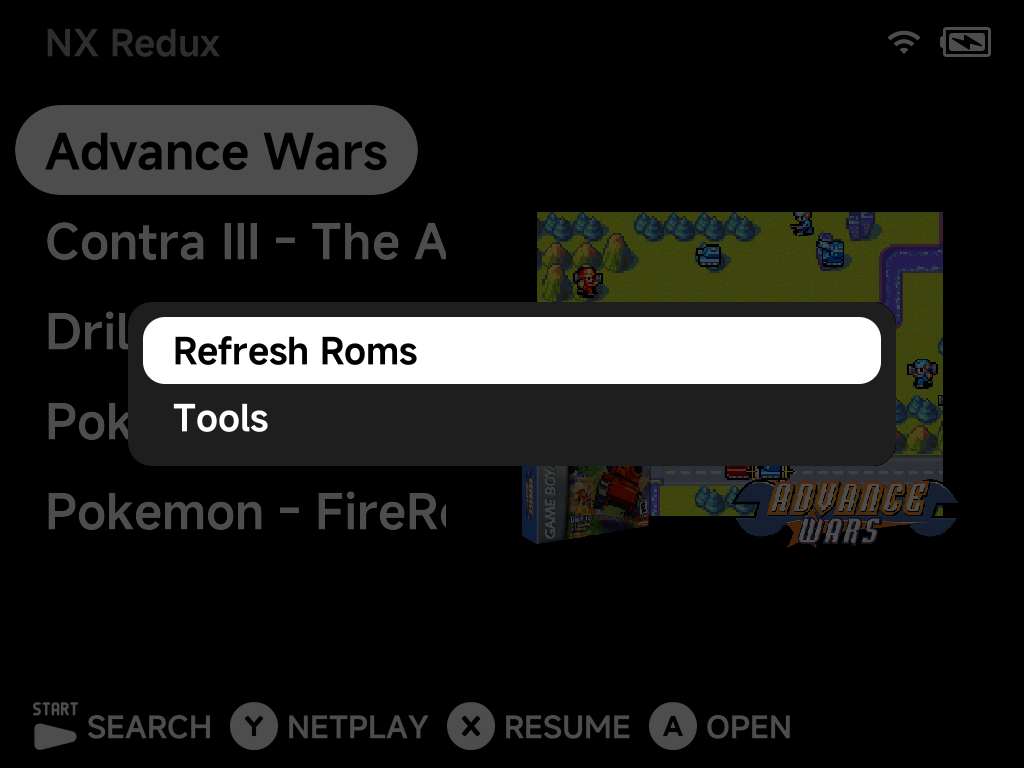
Pinned tools stay on Home too. Pin Settings and it is always one press away whenever you want to add a game, adjust something, or bring the tabs back.
Handing the device to a child?
The five-game menu is a convenience, not a lock. Tools is one MENU
press away. For a setup that actually locks Settings behind a PIN, use
Simple Mode (the two combine nicely).