Library & ROM folders
Home folder and extra folders
The library comes from two kinds of folder:
- The home folder, laid out as
Roms/<Name (TAG)>/. The app created it and writes only inside it. - Extra folders, any number of them, scanned in place and never written to.
The app matches the files in an extra folder to a console by the folder's name or the file's extension. Anything left over lands in Unassigned games until you pick its console.
More detail
Files in an extra folder are matched to a console:
- by a
(TAG)or an alias in the folder name (a short alias such asGBAmay be followed only by roms, games or isos, singular or plural), - then by an extension only one console uses (a zip by its first entry, a 7z only by its folder).
The console you pick for an Unassigned game is saved in a systems.txt
(<file><TAB><TAG>). For extra folders this file lives in the home folder
under Roms/.sources/, so the extra folder itself is never changed.
Settings → Library
Tools → Settings → Library shows what the library holds, then its rows.
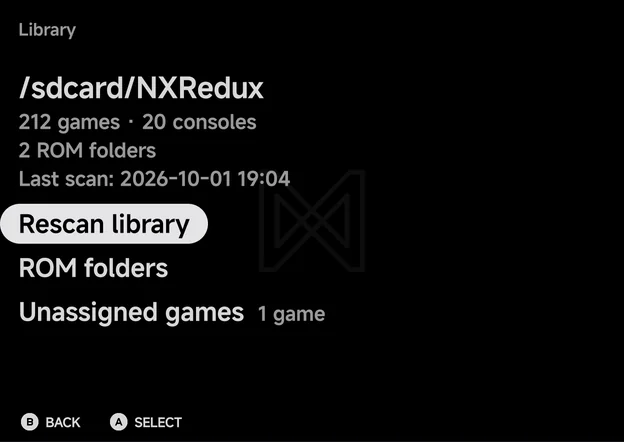
The lines at the top show:
- the home folder's path,
- how many games and consoles the library has, such as 212 games · 20 consoles,
- how many ROM folders it reads, the home folder included,
- Last scan: with the date and time of the last full scan.
| Row | What it does |
|---|---|
| Rescan library | Scan every folder again. A notice then says how many games the library has. |
| ROM folders | Open the ROM folders page. |
| Unassigned games | Only when some games have no console. Shows how many, and opens their list. See Unassigned games. |
| Hidden games | Only when some games are hidden. Shows how many. A on a game shows it again. |
ROM folders
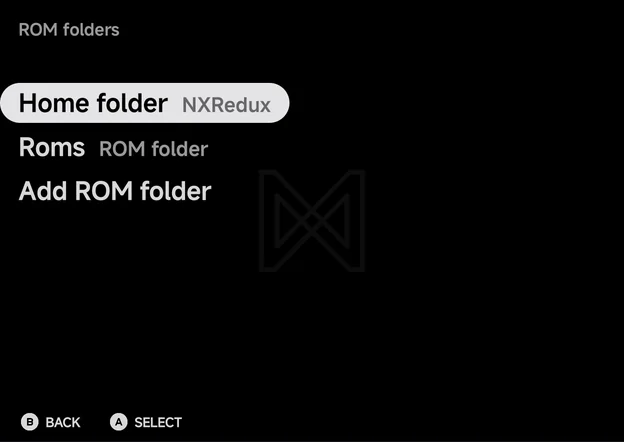
Tools → Settings → Library → ROM folders lists every folder the library reads.
| Row | What it does |
|---|---|
| Home folder | Shows the home folder's name. A picks a different one. |
| One row per extra folder | Shows the folder's name and its state. A offers to remove it. |
| Add ROM folder | Pick another extra folder to scan. |
An extra folder's row reads:
| State | Meaning |
|---|---|
| ROM folder | The folder was found at the last scan. |
| Not available | Its storage was missing, such as an SD card taken out. |
| Not ready yet | Its storage is in, but Android didn't list it in time. Use Rescan library in a moment. |
While the home folder's storage is missing, its row reads
"
Removing an extra folder opens the Remove folder dialog: Stop scanning this folder? Its ROMs stay where they are. Choose Remove to stop scanning it. Nothing in the folder is deleted.
Unassigned games
Games the app couldn't match to a console are listed under Tools → Settings → Library → Unassigned games. The row shows only while there are some. They don't show on the main menu.
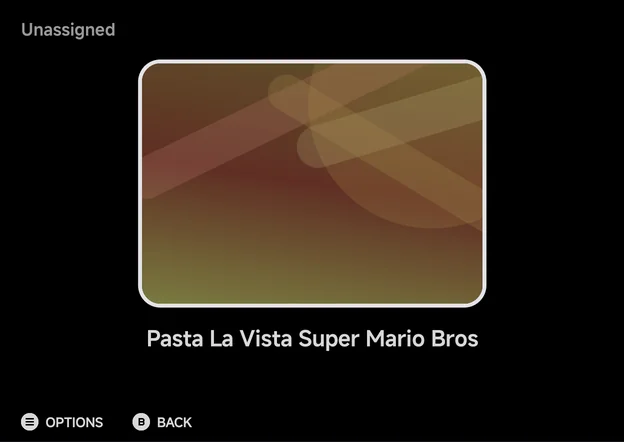
An Unassigned game can't start until it has a console. To give it one:
- Highlight the game and press
MENU, or long-press it. - Choose Console. It lists every console whose emulator can run the file's type. A zip or 7z file is unpacked at launch, so every console is offered for it.
- Pick the console. The game moves to that console's list, using the console's default emulator.
The context menu for an Unassigned game offers only Hide Game, Rename Rom and Console.
Default emulators
Two consoles have two emulators, each with its own tag:
| Console | Tags | Default |
|---|---|---|
| Game Boy Advance | GBA (gpSP), MGBA (mGBA) |
GBA |
| Super Nintendo ES | SFC (Snes9x), SUPA (Supafaust) |
SFC |
Sega Genesis has one tag, MD, on Genesis Plus GX. An older Sega Genesis (GPGX) folder uses a legacy tag and still lists under Sega Genesis.
Tools → Settings → Emulators → Default emulators sets the tag for games in
a folder without a (TAG), such as an extra folder named My Game Boy
Advance, and for Unassigned games you give a console. A folder with a tag, in
the home folder or an extra one, always uses that tag. See
Emulator Settings.
To run one game on the other emulator, use Emulator in its context menu.
For consoles whose saves work on both emulators, the app then offers to copy
the newer save across, keeping a timestamped .bak of the save it replaces.
Disc games in their own folder
A game with several files, such as a Dreamcast .gdi with its tracks, can
sit in its own subfolder of the console's folder. The subfolder is listed as
one game when it holds a .m3u, .cue or .gdi named after it:
Roms/Dreamcast (DC)/
└── Soulcalibur/
    ├── Soulcalibur.gdi
    ├── track01.bin
    ├── track02.raw
    └── track03.bin
A sheet named anything else, such as a TOSEC disc.gdi, doesn't make the
folder a game. Saves, states and the VMU are keyed by that name, so every such
game would share them. Rename the sheet after its folder. See
Dreamcast.
Android games as a console
Android games you add show as an Android console on the Consoles tab. Add them on first setup, or later in Tools → Settings → Launcher → Android games. See Launcher Mode & Android Games.
Rescanning
The app keeps the scanned library in an index, so it starts without walking your folders. After adding or removing games outside the app, use Rescan library in Tools → Settings → Library.
- An extra folder that was deleted, or whose access was revoked, is dropped with a notice.
- A home folder that is lost returns you to the folder picker.
If you take out an SD card:
- An extra folder's games are left out until the card is back.
- A home on that card keeps the last index on screen, and ROM folders
shows "
· not available" .
Game names
Bracketed region and version text is dropped from names, as on the handheld: "Tetris (World) (Rev 1)" shows as "Tetris". If two games would end up with the same name, both show their file names.
Custom display names (map.txt)
To rename games without touching the files, drop a map.txt inside the
system folder. Each line maps a filename to a display name, separated
by a single tab:
Roms/Game Boy Advance (GBA)/map.txt:

Advance Wars 2 - Black Hole Rising (USA).gba    Advance Wars 2
Legend of Zelda, The - The Minish Cap (USA).gba Zelda: Minish Cap
The list re-sorts by the new display names. Since the files themselves are
untouched, save files, states and box art all stay matched. An alias starting
with a dot (e.g. Track01.bin .hidden) hides the entry from the list
entirely.
Rename Rom in the game-list context menu writes these aliases for you.
More detail
For games in an extra folder, the alias goes into a map.txt under
Roms/.sources/ in the home folder. It overrides the extra folder's own
map.txt.
Collections
Use Add to Collection in the game-list context menu.
Under the hood each collection is a plain text file at
Collections/<Name>.txt, with one path per line, relative to the top of your
library (the SD card on a handheld). You can also build them on a computer:
Collections/RPG Nights.txt:

/Roms/Game Boy Advance (GBA)/Golden Sun.gba
/Roms/Sony PlayStation (PS)/Final Fantasy VII/Final Fantasy VII.m3u
Entries whose file is missing are silently skipped.
Saves
Battery saves are mirrored to Saves/<TAG>/ in the home folder.
Replace saves only while the game is closed
Replace files in Saves/<TAG>/ only while that game is not running. The
app's working copy wins on the next write.
- BIOS files are read from
Bios/<TAG>/before each launch. - Pinned and hidden games are stored inside the app. Hidden games can be shown again from Tools → Settings → Library → Hidden games.
- Nothing in the app deletes a ROM.
More detail
Cores play from a private working copy of each battery save. The mirror in
Saves/<TAG>/ is updated after each save write and when you quit.
Unpacked games cache
Zip and 7z games are unpacked into the app's cache on their first launch. The app trims this cache on its own. Clearing the app's cache in Android's settings is safe too: games are unpacked again when needed.
More detail
- Some cores get a copy of the game file in the cache too.
- The app trims the cache when it starts and after Download all game data in RetroAchievements.
- Anything not used (played or checked for achievements) in 30 days goes first. Then the least recently used goes, until the cache holds at most 256 MiB.
- The game that is running is never removed. A file bigger than the cap on its own stays while its game runs, and goes at the next trim.