Main Menu & Game Lists
The main menu is split into four tabs: Home, Consoles, Collections and Tools. Home is hidden until you turn it on in Layouts; the device powers on to the first tab that shows.
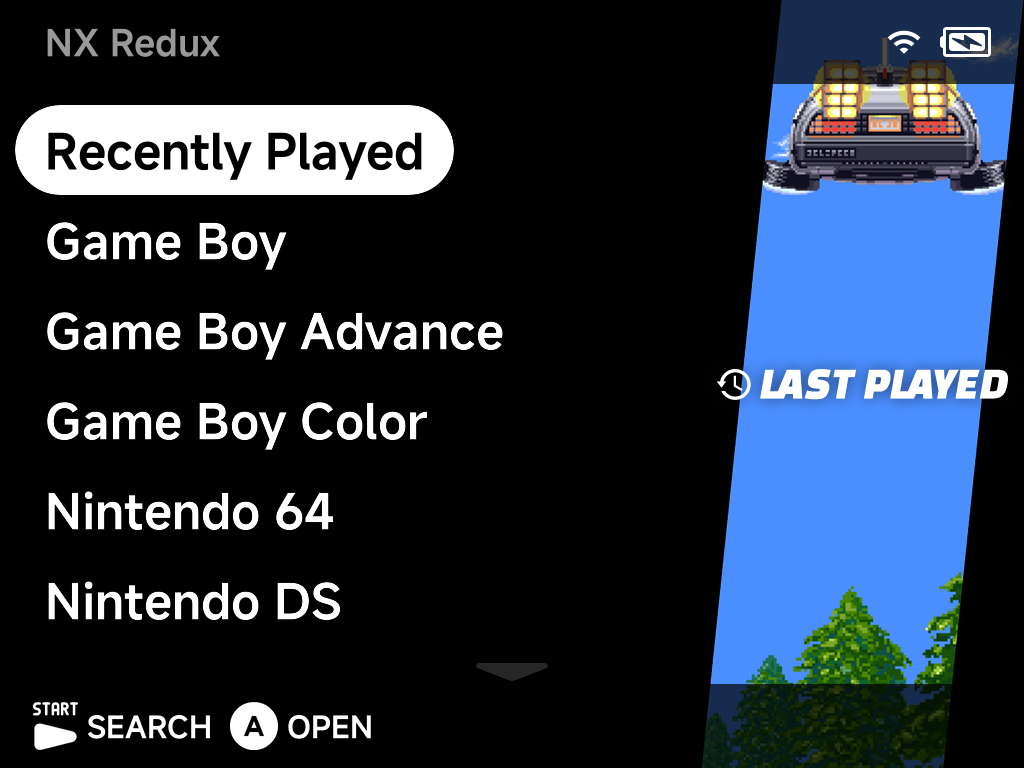
Each tab except Home can be drawn as a list, a grid or a carousel, and game lists have a fourth style, Backdrop. Menu Layouts shows them all.
Tabs
| Tab | What it holds |
|---|---|
| Home | Your last game, play stats, and the games and tools you pinned |
| Consoles | One entry per system folder that has games in it |
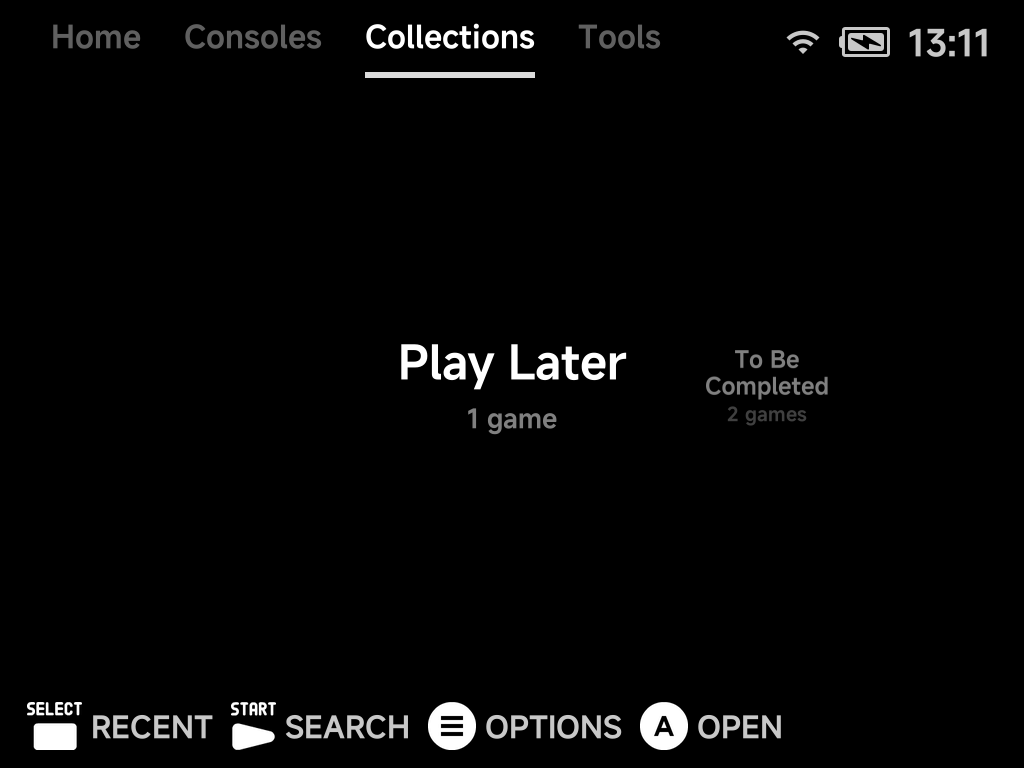
| Collections | Your collections |
| Tools | The built-in apps, Settings included (Tools Overview) |
- Switch tabs with
L1/R1. The tab order wraps around. Left/Rightalso switch tabs:- in List style, always;
- in Grid and Carousel, when you push past the first or last item.
- Show or hide tabs in Settings → Layouts. A tab with nothing in it, such as Collections before you make one, is left out automatically. With a single tab left, the tab row shows an NX Redux title instead.
The tab row
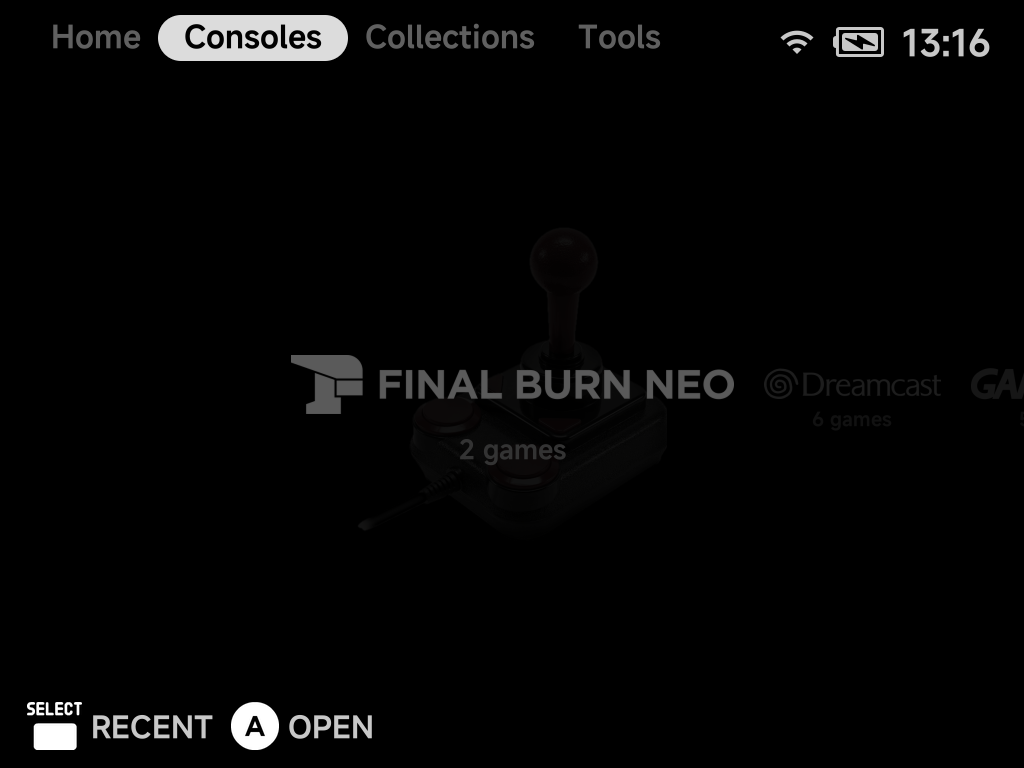
In the Grid and horizontal Carousel styles, press Up from the top of a tab to
move the highlight onto the tab row (List and vertical carousels wrap to their
last item instead). The content dims while the row is focused. With
Page title hidden there is no tab row to
focus.
| Button | What it does |
|---|---|
Left / Right, L1 / R1 |
Switch tabs |
Down, A or B |
Go back into the content |
Up |
Jump to the bottom of the content |
More detail
- Each tab keeps its own selection while you move between tabs.
- After a game, you come back to the tab you launched it from: Home's Continue card for a game started from Home, or the same row in its list. A game launched from Search or the Game Switcher returns you to the tab that lists it.
- The last tab is remembered until the device powers off. A cold boot opens the first tab that shows (Home when it is on).
Home
Home is the starting point: your most recent game, this month's play time, and everything you pinned.
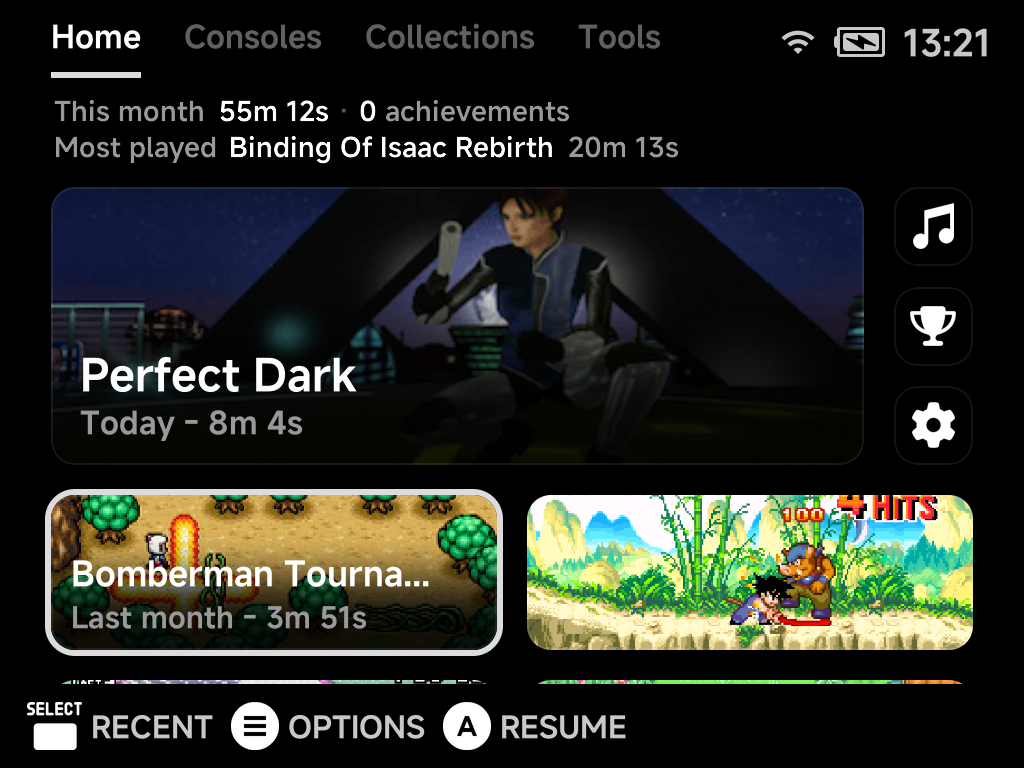
- Stats line. The top lines show This month's total play time, your RetroAchievements unlocked this month (left out when you are signed out), and the month's Most played game. A month without play shows No play yet.
- Continue card. Your most recent game, showing where you left off (the
save-state picture, else the game's artwork), its name and when you last
played it. Press
Ato jump back in. On a fresh install it is replaced by a Pick a game card that opens the Consoles tab. - Pinned tools sit beside the Continue card as square icon tiles. Every pinned tool is shown.
- Pinned games fill the rows below, two per row on the Brick and Brick Pro and four on the Smart Pro S. The selected pin shows its name and play time.
- On the Brick and Brick Pro the Continue card and the tool tiles (in
columns of four) always fill the screen, and the pinned games sit below it:
press
Downto scroll to them. - On the Smart Pro S the tools stand in columns of three and a row of pinned games shares the screen; Home scrolls when there are more. With no pinned games the top section fills the screen and the tool tiles grow, in columns of four, and one or two pinned games stand in a column beside the Continue card instead of a row.
- Home keeps the same size whatever the UI scale is set to.
| Button | What it does |
|---|---|
| D-pad | Move between the cards |
A Play / Resume / Open |
Start the game (resuming its auto-save when it has one), or open the tool |
MENU Options |
The context menu for the selected game or tool, plus Refresh Roms |
SELECT Recent |
Open the Game Switcher |
START |
Open Search |
Pinning games and tools
- Pin a game: press
MENUon it in a game list (or on Home's Continue card) and choose Pin Item. Unpin Item removes it again. - Pin a tool: press
MENUon it in the Tools tab and choose Pin Tool. - Pins appear on Home in the order you pinned them.
- You can pin up to 12 items in total, games and tools together. Up to 9 of them can be tools (8 while no game is pinned), so Home always has room for every pin. At the limit, Pin Item / Pin Tool is not offered: unpin something first.
- Multi-disc game folders can be pinned like single games.
- F1/F2 keys (Brick and Brick Pro) can each launch a tool of your choice from anywhere in the menu. Assign them in Settings → F1 / F2 Keys.
- Want a minimal menu with only hand-picked games? See the Five-Game Menu guide.
Consoles, Collections and Tools
These three tabs list their entries in the style chosen in Layouts. By default Consoles and Collections are a carousel, and Tools is a grid.
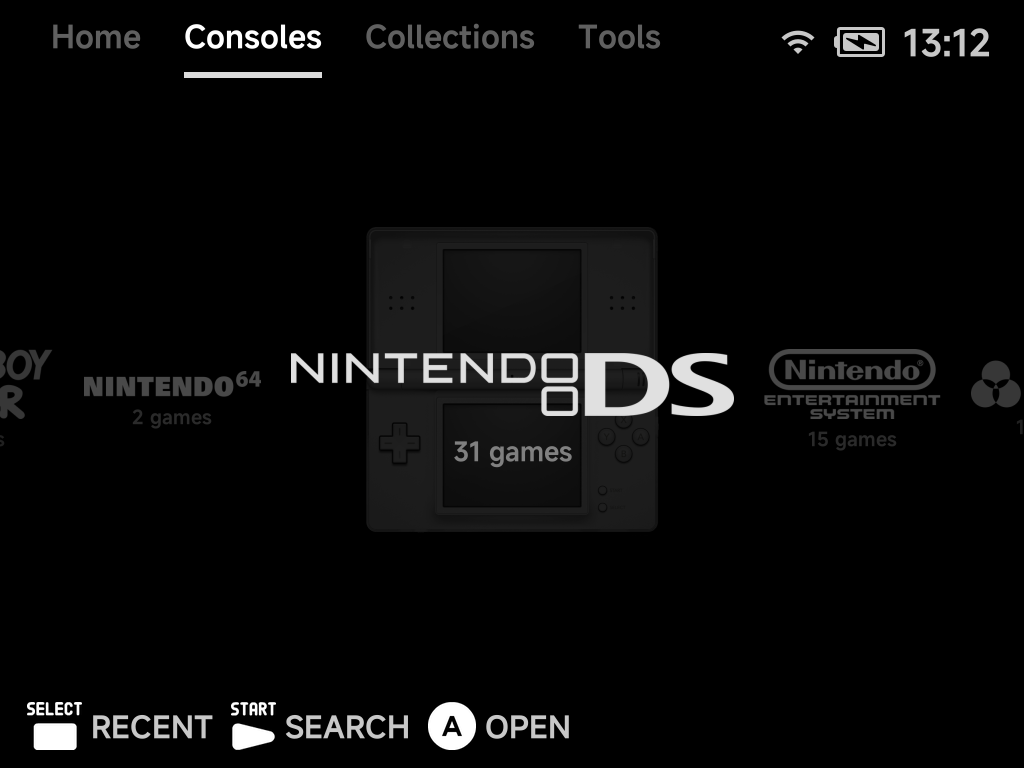
- Consoles show their logo and how many games they hold. Behind the selected console you see its controller, unless you turn Controller off in Layouts. A system without a logo shows its name under a cartridge emblem.
- Collections show their name and game count.
- Tools show an icon for each app.
| Button | What it does |
|---|---|
A Open |
Open the console, collection or tool |
MENU |
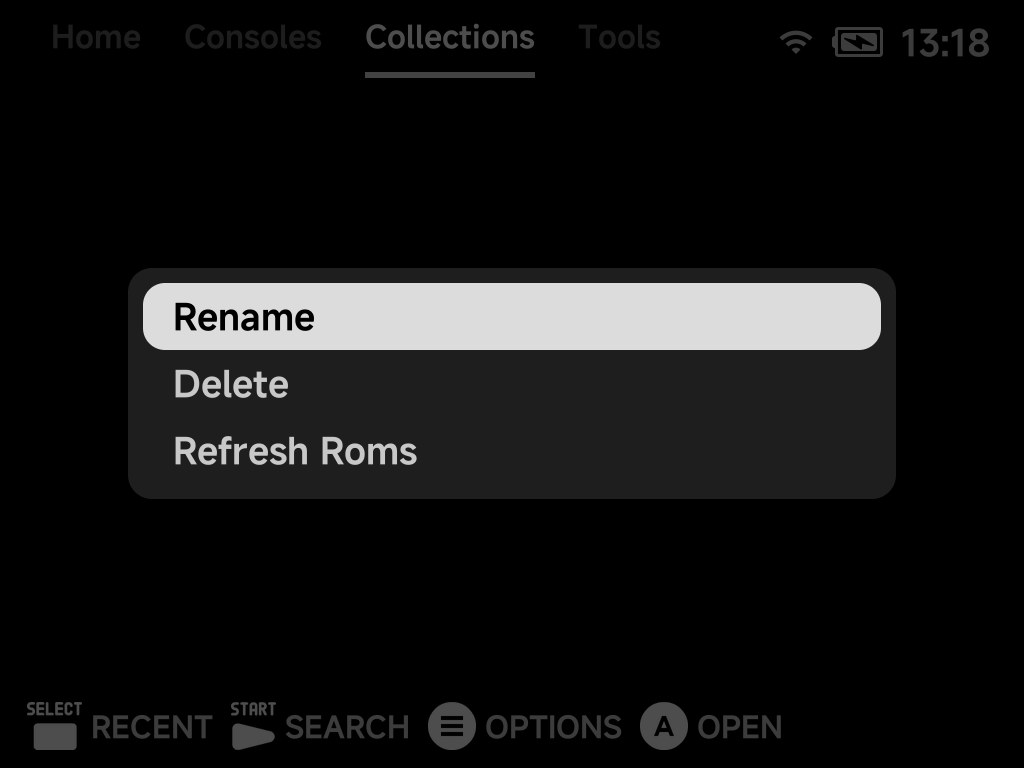
Refresh Roms, plus Rename / Delete on a collection and Pin Tool on a tool |
START Search |
Search your whole library |
SELECT Recent |
Open the Game Switcher |
Game lists
Opening a console or a collection shows its games. The page title says where you are, e.g. Consoles | Game Boy Advance.
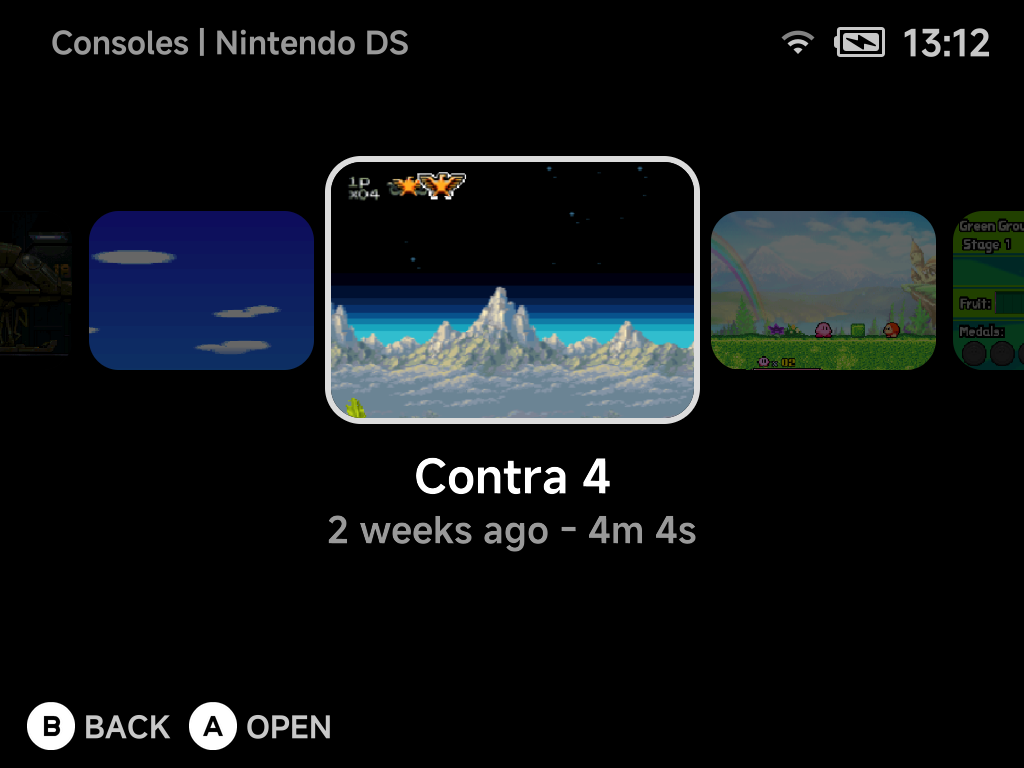
Under the selected game you see when you last played it and your total play time ("Last week - 4m 58s"). For games with achievements, the line adds your progress ("🏆 3 of 40") and the next achievement to go for. Games without any fetched artwork get a generated abstract picture so every tile looks different.
The hint bar shows what is available for the selected game:
| Button | What it does |
|---|---|
A Open |
Launch the game |
X Resume |
Jump straight back into your auto-saved session (shown when the game has one) |
Y Netplay |
Host or join a local wireless session for supported systems |
B Back |
Return to the tab |
L1 / R1 |
Jump to the previous / next letter |
MENU |
Open the game context menu |
In the List style, Left / Right page up and down, and Up / Down
wrap around at the ends.
Duplicate names
When two games in the same list share a name, each row shows what sets it apart. The extra text appears in a dimmer colour after the name.
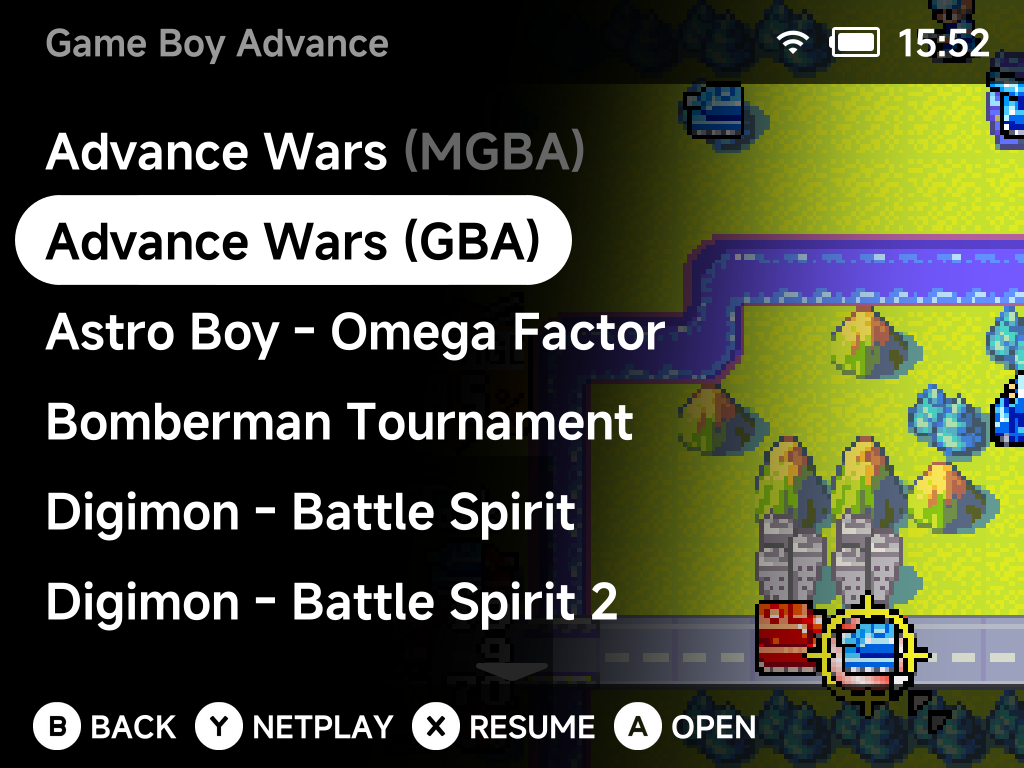
Names that are unique in their list are unaffected.
More detail
| Case | Example | What the list shows |
|---|---|---|
| Same file in two emulator folders (the list shows them together) | Advance Wars.gba in both Game Boy Advance (GBA) and Game Boy Advance (MGBA) |
The emulator tag: Advance Wars (GBA) and Advance Wars (MGBA) |
| Different files in two emulator folders | The full filename without its extension, plus the tag, so you can tell both the version and the core apart: Astro Boy - Omega Factor (USA) (MGBA) |
|
| Different files in one folder | Tetris.gb next to Tetris (1).gb |
The filenames without extensions: Tetris and Tetris (1) |
The extension is kept only when it is the sole difference, such as
Tetris.gb next to Tetris.gbc.
Search
Press START on any tab to search your entire library.
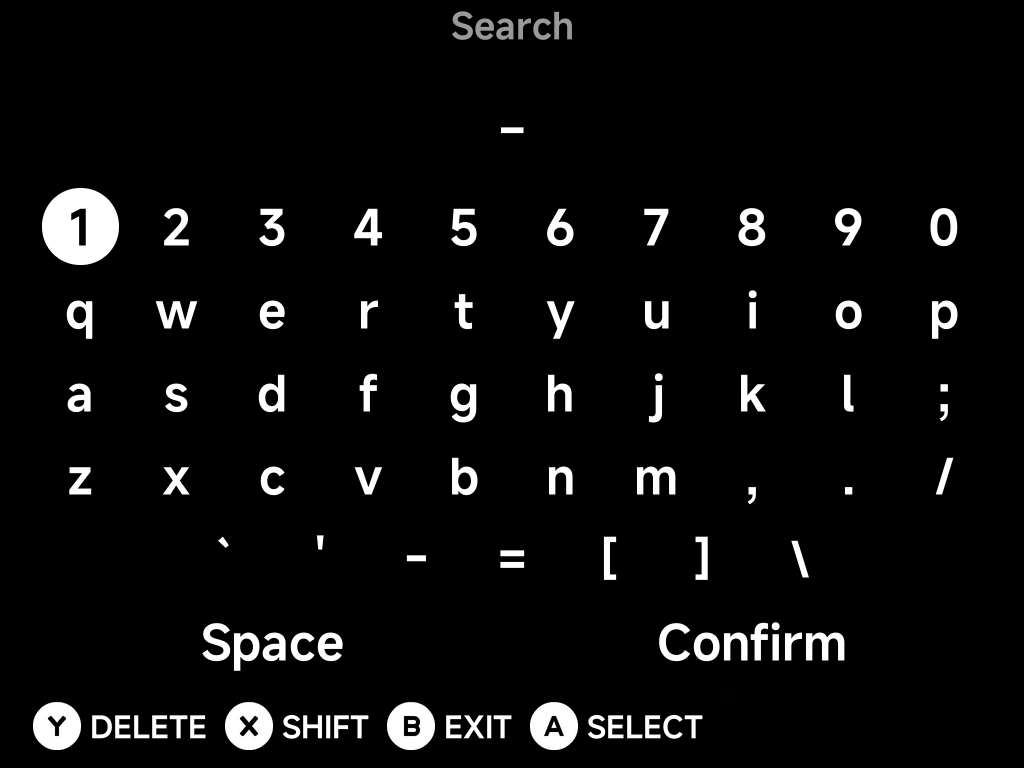
- Type your search with the on-screen keyboard.
- Confirm to see matching games from every system.
- Tap
STARTagain, from the keyboard or the results list, to close the search and return to the menu.
Reordering systems
The Consoles tab lists systems alphabetically by folder name. To put your
favorites first, add a number prefix to the folder names under Roms/:
Roms/
├── 1) Game Boy Advance (GBA)
├── 2) Super Nintendo ES (SFC)
├── 3) Sony PlayStation (PS)
└── Sega Genesis (MD)          ← unnumbered folders follow, alphabetically
The number is only used for sorting. It never shows in the menu, which still displays "Game Boy Advance", "Super Nintendo ES" and so on. Rename the folders from a computer, or on the device with the Files tool.
Keep the tag in parentheses
Leave the tag (e.g. (GBA)) untouched. It's what links the folder to its
emulator. Only add the prefix at the front.
The same trick works on files and folders inside a system. Prefix game names
with 1), 2) to control their order in the game list.
More detail
- Sorting is alphabetical, so with ten or more numbered folders use
zero-padding (
01),02), …10)). Otherwise10)sorts before2). - Only the tag matters. The folder name itself is free-form. The
uppercase tag in parentheses at the end is the only part that links
the folder to its emulator.
Roms/GBA Games (GBA)orRoms/1) My Handheld Picks (GBA)work exactly likeRoms/Game Boy Advance (GBA). Rename the front part to whatever you want the menu to show. The tag values are listed on Cores & BIOS Files.
Multi-disc games
Put a multi-disc game in its own folder inside the system folder. The folder then behaves as a single game:
- It shows as one entry in the game list and launches disc 1 when opened.
- It can be pinned to Home.
- It shares one save/resume identity across discs.
While playing, swap discs from the in-game pause menu, which shows the current Disc N. Save states remember which disc they belong to.
More detail
The folder holds the disc images plus an .m3u file named exactly after
the folder, listing one disc file per line:
Roms/Sony PlayStation (PS)/Final Fantasy VII/
├── Final Fantasy VII.m3u      ← contains the three .cue names, one per line
├── Final Fantasy VII (Disc 1).cue / .bin
├── Final Fantasy VII (Disc 2).cue / .bin
└── Final Fantasy VII (Disc 3).cue / .bin
The same folder trick works for single-disc .cue/.bin games too. A
folder containing a matching folder-named .cue shows and launches as one
game instead of exposing the file pair.
Custom display names (map.txt)
To rename games without touching the files, drop a map.txt inside the
system folder. Each line maps a filename to a display name, separated
by a single tab:
Roms/Game Boy Advance (GBA)/map.txt:

Advance Wars 2 - Black Hole Rising (USA).gba    Advance Wars 2
Legend of Zelda, The - The Minish Cap (USA).gba Zelda: Minish Cap
The list re-sorts by the new display names. Since the files themselves are
untouched, save files, states and box art all stay matched. An alias starting
with a dot (e.g. Track01.bin .hidden) hides the entry from the list
entirely.
A map.txt at the top level (Roms/map.txt) does the same for the
system folders. It's an alternative to renaming the folders themselves.
The context menu's Rename Rom writes these aliases for
you. Renaming on the device edits the map.txt rather than the file.
More detail
- The number-prefix trick above works inside aliases too.
- Arcade folders don't need a
map.txtfor readable names. Games in an Arcade (FBN) folder, and Naomi/Atomiswave zips in the Dreamcast folder, show their full titles automatically and their BIOS zips are hidden. Amap.txtalias still overrides those titles.
Refreshing the ROMs list
Added, renamed or reorganized ROMs while the device is running (over USB, ADB or a network share)? The menus won't see the changes yet. Rebuild the list:
- Press
MENUon any tab. - Choose Refresh Roms.
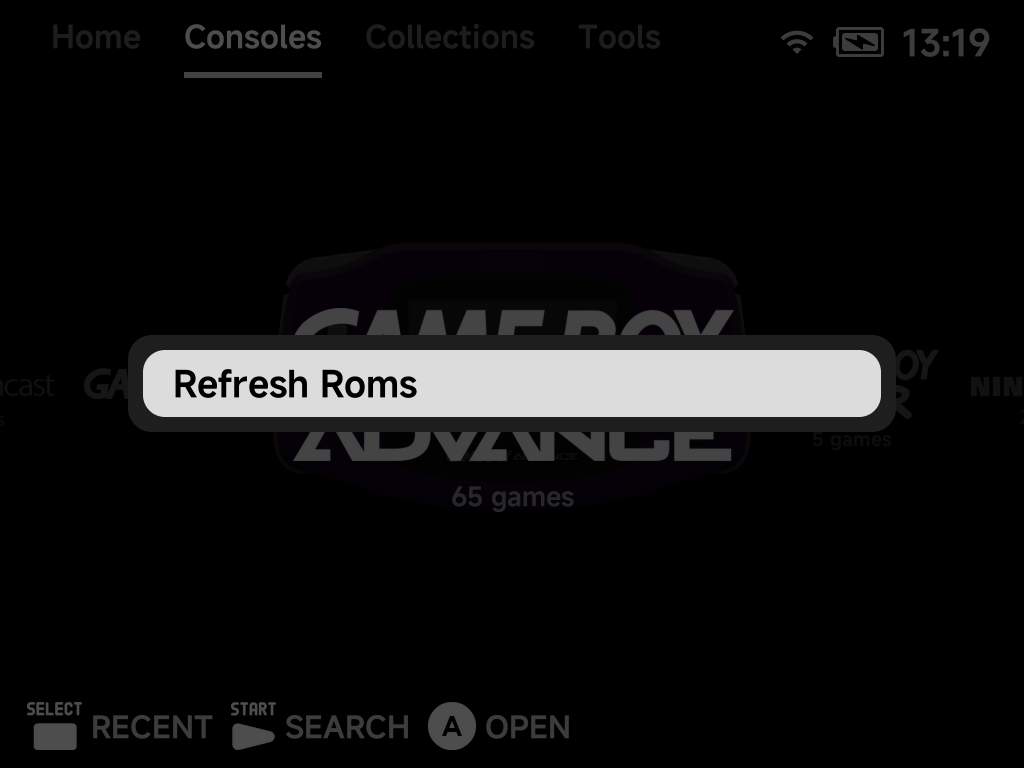
The same action is in a game's context menu (Refresh Roms) and in Settings → System (Refresh emulator/roms list).
More detail
The system and ROM lists are cached for fast boots. The cache refreshes itself on startup whenever files changed while the device was off.
Collections
Build your own game collections from the game list:
- Press
MENUon a game. - Choose Add to Collection.
- Add it to an existing collection, or create a new one on the spot.
Your collections live on the Collections tab, each with its game count. The tab appears once you have a collection. Hide it in Settings → Layouts if unused.
Press MENU on a collection to Rename or Delete it. Deleting a
collection removes only the list, never the games in it.
More detail
Under the hood each collection is a plain text file at
Collections/<Name>.txt, with one path per line, relative to the top of your
library (the SD card on a handheld). You can also build them on a computer:
Collections/RPG Nights.txt:

/Roms/Game Boy Advance (GBA)/Golden Sun.gba
/Roms/Sony PlayStation (PS)/Final Fantasy VII/Final Fantasy VII.m3u
Entries whose file is missing are silently skipped.
A Collections/map.txt can alias the displayed names, in the same format
as a system folder's map.txt.