System
Tools → Settings → System is the last Settings section. It holds the app-wide settings, the app's version and your device's details, and the licenses. The settings come first, then the About and Licenses groups:
| Group | Rows |
|---|---|
| The settings | Player name, Pause when unfocused, Screen care, Use as home screen, Keyboard and Debug log |
| About | The version and device rows, Copy device info, and Check for updates in the build from GitHub |
| Licenses | What the app is made of and its licenses, and Full list of licenses |
Player name
Player name is the name games show for you, such as in local
multiplayer. Until you set one, it is your device's name. Press A on the
row to type a new one, up to 10 characters, with the
keyboard. Clear it to go back to the device's name.
| Console | Where the name shows |
|---|---|
| Nintendo DS | The console's nickname, which games show in local wireless play |
| Nintendo 3DS | The console's profile name, and the name of its own Mii, which games such as Mario Kart 7 show |
| PSP | The name the other players see in ad hoc play |
More detail
- It applies from the next game you start.
- A game that saved a name in its own save keeps that one.
- On the 3DS, a Mii you made or imported keeps its own name.
Pause when unfocused
Pause when unfocused (On by default) pauses a game when another app takes over while the game is still on screen: in split screen, in a desktop window such as Samsung DeX, or with an app open on a second screen. Go back to the game, by tapping or clicking it, and it plays on by itself.
Turn it off to keep a game running while you use another app beside it.
More detail
- The game's sound and rumble stop with it.
- If you open the in-game menu before going back, the game stays paused until you choose Continue.
- Your own screens don't count: the game panel, the DS or 3DS bottom screen and the in-game menu never pause it.
- In a netplay match, the other player sees you paused, as when you leave the app.
- Leaving the app, such as to Home, always pauses the game, whatever this setting says.
- While a game is paused this way, the screen can sleep on your device's screen timeout.
Screen care
Screen care (On by default) keeps OLED screens from marking. A game's pad skin, frame and panel stay in the same place for hours, which can burn into an OLED screen.
- Everything shifts a little. Every 2 minutes, everything on each screen moves by a tiny step, too little to notice: the picture, the pad skin, the frame, the panel and the menus. It does this in the main menu and in games.
- An idle game dims. After 5 minutes in a game with no button, stick or touch, the screens go dark under a dim layer. Press anything or touch a screen to bring them back at once.
- Then the screen sleeps. After 10 minutes with no input, the game lets your device's screen timeout turn the screens off.
More detail
- The shift walks a small square of steps, 1 dp at a time, and comes back to the middle. Touch follows it.
- It works on both screens of a dual-screen handheld.
- During a live netplay session the screens dim, but never sleep: the other player plays on.
- The main menu doesn't dim: it never keeps the screen on, so your device's screen timeout already turns it off. Only Netplay's host and join pages and a running Device Sync keep the screen on.
- A running game keeps the screen on until Screen care lets go. A game paused under the in-game menu sleeps on your device's timeout.
- Turn it off and everything goes back to its place, undimmed.
Use as home screen
Use as home screen makes the app your Android home screen. See Launcher Mode & Android Games.
Keyboard
Keyboard picks how you type into the app's text prompts: search, Rename, a new collection or folder, the Player name, and the RetroAchievements, ScreenScraper and art-site sign-ins and keys.
| Value | What it is |
|---|---|
| NX (default) | The app's own keyboard, for the pad or touch |
| Android | Your phone's keyboard, for password managers and swipe typing |
A field on the top screen of a dual-screen handheld always uses the NX keyboard.
The NX keyboard
The NX keyboard comes up along the bottom of the screen, with the prompt's
box above it. It has a number row, the letters with @ and _, a shift key
and a delete key, and a bottom row:
| Key | What it does |
|---|---|
#+= |
The symbols page; abc goes back to the letters |
., space, - |
Type them |
| Paste | Puts what you copied at the cursor, as one line |
| Next | Moves to the next field, in a prompt with two (a sign-in) |
| The prompt's word | Confirms, such as Search, Sign in or OK. In the accent |
With a controller or the on-screen pad:
| Button | What it does |
|---|---|
| D-pad or stick | Move the highlight on the keys |
A |
Type the highlighted key |
X |
Delete the letter before the cursor |
Y |
Space |
L1 / R1 |
Move the cursor |
SELECT |
The next field |
START |
Confirm; in a sign-in's first field, go on to the password |
B or MENU |
Cancel |
UP from the top row moves into the field, where LEFT / RIGHT move
the cursor and DOWN goes back to the keys. The hint row under the keys
shows what the buttons do, with the prompt's word on START and Cancel
on B.
By touch, tap a key to type it, or tap a field to type in it. Back, or a tap outside the box, cancels.
More detail
- The prompt's box has no buttons of its own: the keyboard's last key,
STARTandBanswer it. Typed with Android's keyboard, the box keeps its buttons. - Shift lasts one letter.
- A held direction stops at the end of a row; it never wraps or leaves the keys.
- Delete on an empty field does nothing, and a held
Bdoesn't cancel. - A password shows as dots. In its field,
A, or a tap on Show, shows it as typed, and Hide turns it back to dots. - Each key gives a light tick as you tap it, when your phone's touch feedback is on.
- A physical keyboard types too: Enter confirms, Tab moves to the next field, and Ctrl+V pastes.
- The keyboard takes at most a bit over half the screen's height; on a short screen its keys shrink to fit. Where less than about 200 dp is left above it, the prompt shows only its fields, each named inside it.
- On a dual-screen handheld, the keyboard and the prompt open on the bottom screen.
- Over a pad skin or the on-screen pad, the keyboard covers the pad while you type, so the prompt keeps the screen above it.
Debug log
Debug log (Off by default) saves the app's and the emulators' detailed
logs to a Logs folder in your
home folder, for a bug report.
With it off, only errors reach Android's system log and no file is written.
It takes effect at once.
Each time the app or a game starts, a new file begins:
| File | Written by |
|---|---|
20261109-203147-app.log |
The main menu |
20261109-203153-game-PS2-armsx2.log |
A game, named after its console and emulator |
Attach the file to your bug report.
More detail
- A file's first line names the app's version, the device, its chip and its Android version.
- The newest 20 files are kept. A file over 4 MB carries on in
.1and.2files. - Device Sync doesn't copy
Logs. - A RetroAchievements log line can include your username, never your password.
- When the app crashes, the crash is written into the file. After an emulator crashes, the file's last line or two can be missing.
About
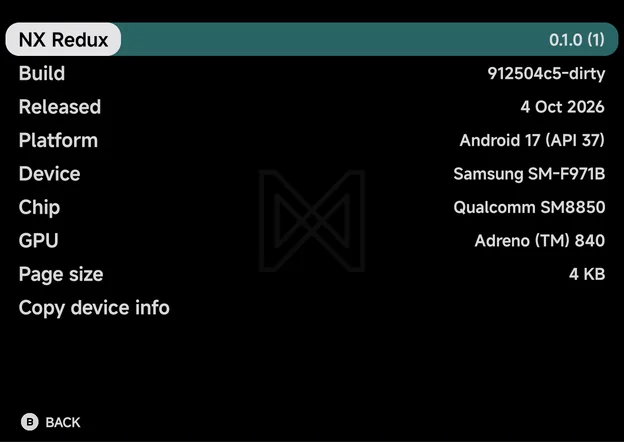
The About rows show the app's version and your device's details. They are read-only.
| Row | What it shows |
|---|---|
| NX Redux | The app's version, with its build number in brackets |
| Build | The commit the app was built from |
| Released | The date of that commit |
| Platform | The Android version and its API level |
| Device | The phone's maker and model |
| Chip | The phone's processor |
| GPU | The graphics chip |
| Page size | The memory page size, e.g. 4 KB |
More detail
- GPU reads … for a moment while the app asks for it.
- A row the app can't read shows Unknown.
Copy device info
Select Copy device info and press A Copy, then paste the text into
a bug report so the details are exact.
More detail
It copies every About row as text. The app shows "Device info copied".
Check for updates
In the build from GitHub, the last About row is Check for updates.
A Check looks for a newer version. When there is one, the row reads
Update to and the version: A Update downloads and installs it.
More detail
- While it works, the row shows what it is doing, such as Checking for updates… or Downloading with a percentage.
- With nothing newer, it reads Up to date with your version.
- The app also looks for a newer version on the main menu, once a day at most, and asks Update available with Update and Not now. Not now stops it asking about that version.
- An update is only downloaded from GitHub, and only when GitHub gives its checksum. Without one the row reads Update not verified: GitHub sent no checksum. A download that doesn't match its checksum isn't installed.
Licenses
A few short paragraphs say what NX Redux is made of and under which licenses: the app itself (GPL-3.0), the MiSans font by Xiaomi, the libretro emulator cores, the game runner and its libraries, and the Kotlin and Android libraries.
Full list of licenses opens the Licenses page of this site in your browser.
More detail
- The paragraphs credit MiSans as its license asks.
- The ? icon on Full list of licenses shows the address it opens.