Appearance
Change how the interface looks: UI scale, menu layouts, colors (with live swatches) and animations.
UI scale
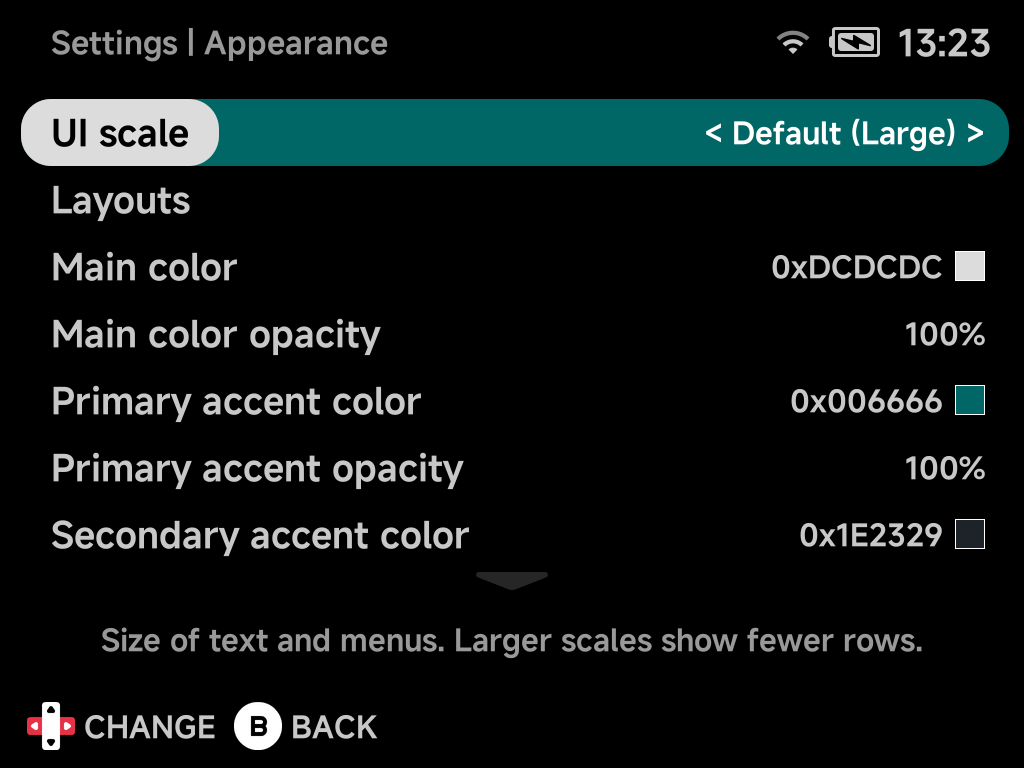
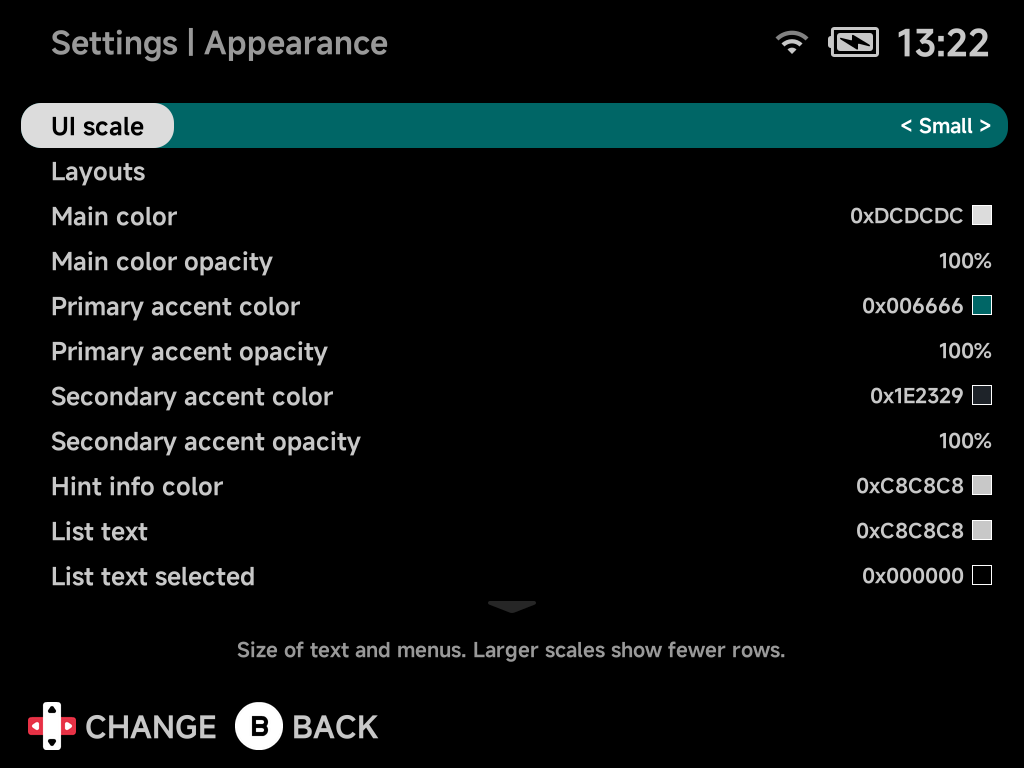
Size of text and menus across the whole UI.
| Choice | What it does |
|---|---|
| Default | Follows the device and shows which scale that is: Default (Large) on the Brick, Default (Small) on the Brick Pro and Smart Pro S. |
| Small | Smaller, shows more rows. |
| Large | Larger, shows fewer rows. |
- Settings redraws at the new scale straight away.
- The main menu, the other tools and the in-game menus pick it up the next time they start. For the main menu, that is as soon as you leave Settings.
- The main menu's tab row, page titles and hint bar keep their size at every scale.
- The Nintendo 64 in-game menu uses the same scale.
Default (Large) on the Brick
Small on the Brick
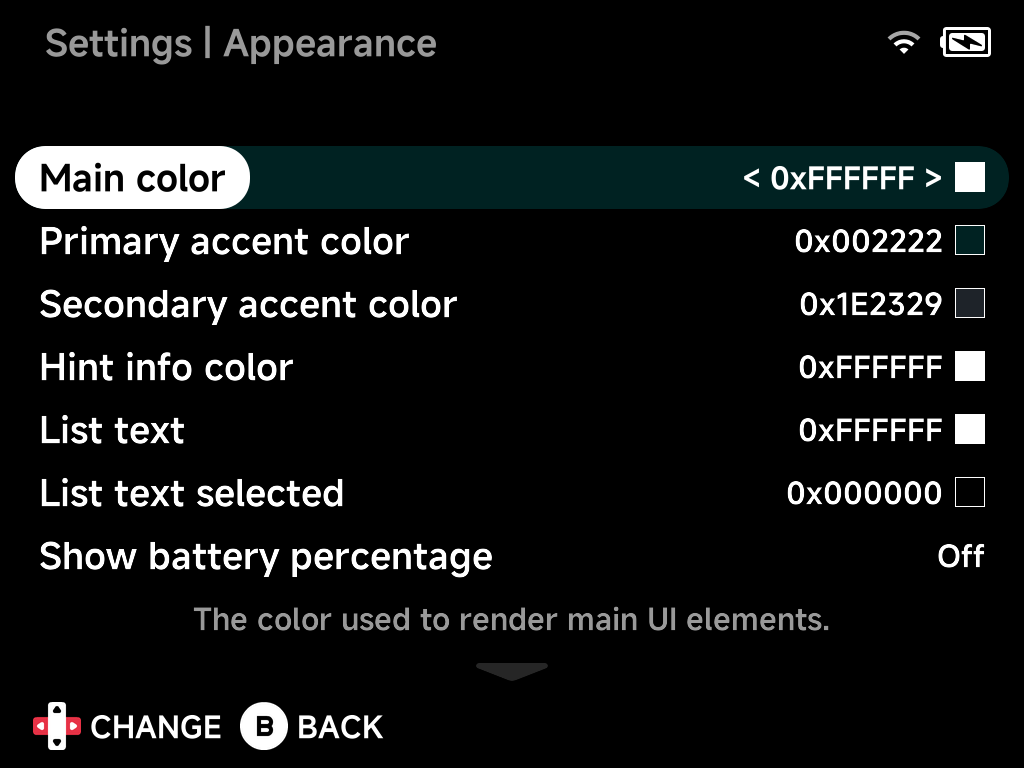
Main color
The color used to render main UI elements.
Main color opacity
Opacity of the main color, 10%–100% in 10% steps. Below 100%, the pills
and selection capsules turn translucent and show the wallpaper through them.
The wallpaper is bg.png at the SD card root.
Primary accent color
The color used to highlight important things in the UI.
Primary accent opacity
Opacity of the primary accent color, 10%–100%. Below 100% accented
elements become translucent and show the wallpaper through them.
Secondary accent color
A secondary highlight color.
Secondary accent opacity
Opacity of the secondary accent color, 10%–100%. Below 100% accented
elements become translucent and show the wallpaper through them.
Hint info color
Color for button hints and info text.
List text
List text color.
List text selected
Color of the selected list entry's text.
Show battery percentage
Show the battery level as a percentage in the status pill.
Show search hint
Show or hide the START search button hint on the main menu tabs. Hiding it
only removes the hint: pressing START on a tab still opens search.
Show recent hint
Show or hide the SELECT recent games button hint on the main menu. Hiding it
only removes the hint: pressing SELECT still opens the
Game Switcher.
Show menu animations
Enable or disable menu animations.
Show menu transitions
Enable or disable the animated slide transitions between screens.
Bootlogo
Change the device boot logo.
- Scroll through the images with left/right.
- Press
Ato apply one. The device reboots to show it.
The NX Redux mark is the default logo. The previous NextUI logo is still in the list.
Reset to defaults
Resets all options on this page, and on the Layouts page, to their default values.
Options that moved or were removed
The main menu redesign replaced several older options:
| Old option | Now |
|---|---|
| Show Emulators, Show Collections, Show Tools | Consoles tab, Collections tab, Tools tab in Layouts |
| Show Recents | Removed. Your last game is Home's Continue card, and the Game Switcher lists the rest. |
| Game art visible / style / type / width / corner radius, Use folder background for ROMs | Removed. Each layout places the art itself. |
| Show folder names at root | Removed. Names always show. |