Artwork
Tools → Artwork fetches box art and screenshots for your games. It works through your whole library in the background, and you can keep playing while it runs.
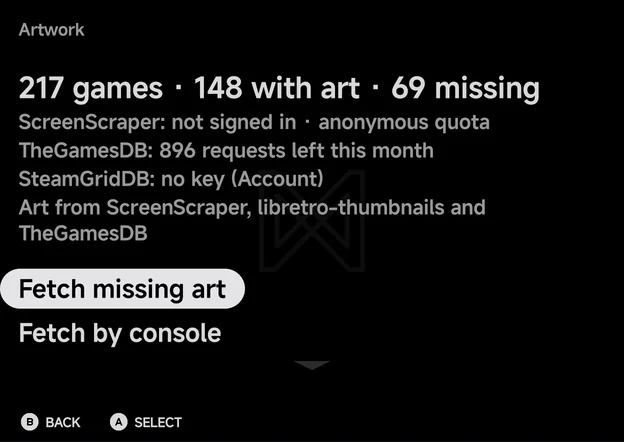
The page opens with your counts, such as 217 games · 148 with art · 69 missing, then one line per art source and a credit line naming the sources in use. Below them are its rows:
| Row | What it does |
|---|---|
| Resume art fetch (d/t) | Carries on a paused fetch. Only shown while one is paused. |
| Fetch missing art | Fetches art for every game that has none. Reads Fetch all art when Replace existing art is on. |
| Fetch by console | Fetches art for one console. |
| Progress | Shows the current or last fetch. Only shown once a fetch has run. |
| Account | Your ScreenScraper sign-in and the SteamGridDB and TheGamesDB keys. |
| Art settings | Replace existing art and Reset artwork…. |
Unassigned games, and folders whose tag no art source knows, are left out of the counts and are never fetched.
Where the art comes from
The app asks up to four sources, in this order, and stops as soon as a game has what it needs:
| Art | Sources, in order |
|---|---|
| Box art | ScreenScraper 3D box, ScreenScraper 2D cover, libretro-thumbnails, TheGamesDB, then a SteamGridDB grid |
| Screenshot | ScreenScraper, libretro-thumbnails, then TheGamesDB |
- A game is only asked for what it lacks. A game with box art and a screenshot is skipped, unless Replace existing art is on.
- When no source has a screenshot, SteamGridDB stands in: a wide hero image for landscape backgrounds, and a tall grid image for portrait ones.
- libretro-thumbnails needs nothing from you. SteamGridDB needs your own API key, and ScreenScraper and TheGamesDB go further with your own account or key. See Account.
- When a source runs out of requests or stops answering, the fetch carries on with the others. The Artwork page shows a note for the source that stopped.
Fetching art
The whole library or one console
Choose Fetch missing art for everything, or Fetch by console to pick
one. Fetch by console lists each console with how many of its games lack
art, such as Dreamcast 6 missing. Press A Fetch on one.
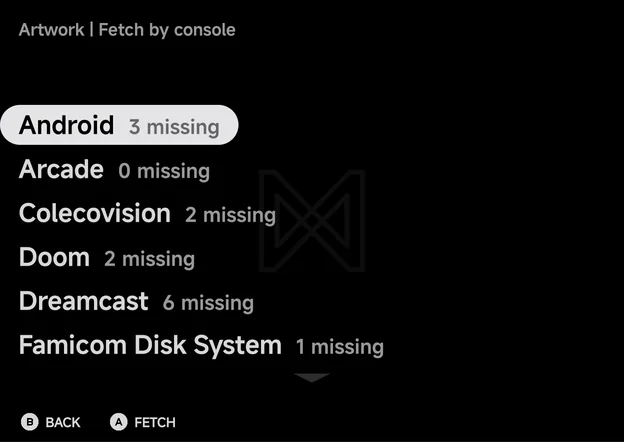
If there is nothing to fetch, the app says Every game has art, or Every console game has art for one console.
Progress
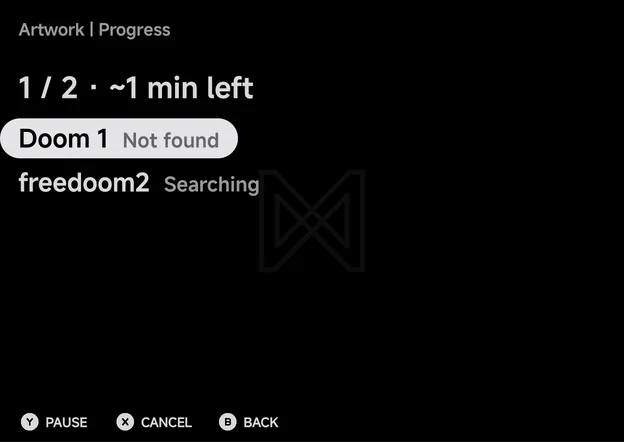
Starting a fetch opens Progress. Its first line shows how far it is and the time left, such as 1 / 2 · ~1 min left. Each game shows its status:
| Status | Meaning |
|---|---|
| Waiting | Queued |
| Searching / Downloading | Being fetched now |
| Done | Box art and a screenshot were found, followed by the sources used. It adds no screenshot when a SteamGridDB hero stands in for the screenshot |
| Partial | Only one was found, followed by no box or no screenshot |
| Not found | No source had art for it |
| Skipped | It already has art, or no source covers its console |
| Error | Something went wrong, followed by the reason |
| Button | What it does |
|---|---|
Y Pause / Resume |
Pauses the fetch, or carries it on |
X Cancel |
Asks Cancel art fetch? Games already fetched keep their art. Stop ends the fetch. |
B Back |
Leaves the page. The fetch keeps running. |
In the background
A fetch keeps running when you leave the page, start a game or switch to another app. A Fetching artwork notification shows its progress, with Pause and Cancel buttons.
- Android asks once whether the app may show notifications. If you say no, the fetch still runs, just without the notification.
- A fetch pauses by itself when the connection drops, or when it cannot write to your home folder.
- A paused fetch is kept, even after the app closes. Resume art fetch (d/t) on the Artwork page carries on from where it stopped.
Art shows up in the menus as each game finishes. There is no need to rescan.
One game
Open a game's context menu with MENU in a game list, and choose Fetch
art. The app fetches that game straight away while Fetching art…
shows. B cancels. It then says Art fetched, No art found, or
Already has art (Replace existing art is off).
Fetch art is only offered for games in a console an art source knows. See Context menus for the rest of the menu.
Account
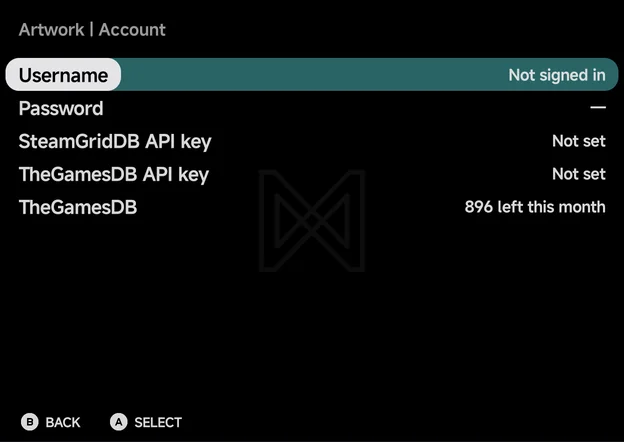
Artwork → Account holds what lets the app ask for more.
| Row | What it does |
|---|---|
| Username / Password | Opens Sign in to ScreenScraper. Signing in is optional. |
| Requests today | Your ScreenScraper requests used today, out of your daily limit. Shown when signed in. |
| Sign out | Forgets your ScreenScraper sign-in. Shown when signed in. |
| SteamGridDB API key | Reads Set or Not set. A asks for the key. |
| Remove SteamGridDB key | Shown when a key is set. |
| TheGamesDB API key | Reads Set or Not set. A asks for the key. |
| Remove TheGamesDB key | Shown when a key is set. |
| TheGamesDB | How many TheGamesDB requests are left this month, such as 896 left this month. |
- ScreenScraper works without an account, on a shared anonymous allowance. A free ScreenScraper account gives you your own daily allowance, which goes much further. The Artwork page reads ScreenScraper: not signed in · anonymous quota until you sign in, then your username and the requests used today.
- TheGamesDB can work without your own key, when the app has one built in. The Artwork page then shows its monthly allowance, such as TheGamesDB: 896 requests left this month. A free key from TheGamesDB gives you your own allowance.
- SteamGridDB is only used with your own free key from SteamGridDB. Until then, the Artwork page reads SteamGridDB: no key (Account).
- A key is checked before it is saved. If the source turns it down, the app says so and does not save it.
Art settings
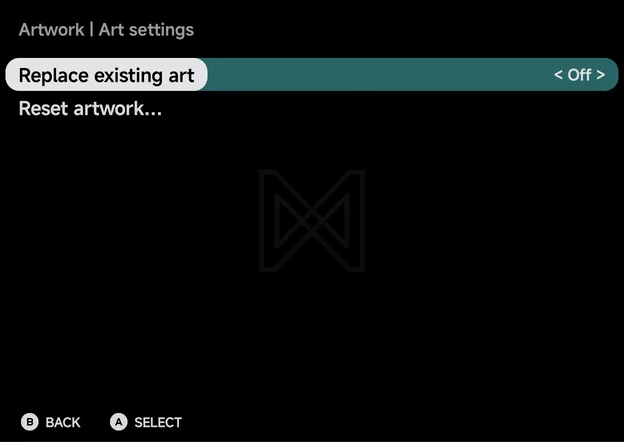
Artwork → Art settings has two rows.
| Row | Values | Default | What it does |
|---|---|---|---|
| Replace existing art | On, Off | Off | Fetch art again for games that already have it. Fetch missing art then reads Fetch all art. |
| Reset artwork… | — | — | Delete art the app fetched |
Reset artwork… opens a list: All, then each console. Pick one, and the app asks Delete fetched art for console? Art you added yourself is kept. Delete removes it and says how many files went.
- Only art the app fetched itself is deleted. Images you put in the folders yourself stay.
- A fetch running for the same games is paused first.
Where art is kept
Fetched art goes in the .media folder next to the games, one folder per
kind of image:
| Folder | Image |
|---|---|
.media/boxart/ |
3D box art |
.media/box2d/ |
Flat 2D cover |
.media/screenshot/ |
In-game screenshot |
.media/grid/ |
SteamGridDB grid (tall cover) |
.media/hero/ |
SteamGridDB hero (wide banner) |
Each image is named after the game's file without its extension, as a
.png or .jpg:
Roms/Game Boy Advance (GBA)/Golden Sun.gba
Roms/Game Boy Advance (GBA)/.media/boxart/Golden Sun.png
Roms/Game Boy Advance (GBA)/.media/screenshot/Golden Sun.png
- Your own art: put images in the same folders by hand. The app uses them like fetched art. After adding them, use Rescan library in Tools → Settings → Library so the app picks them up.
- Art from the handheld: the
.media/boxart/and.media/screenshot/folders made by the handheld's Artwork Manager work here too. Its old Mix image (.media/<game>.png) is ignored. - Multi-disc games kept in their own folder: the art goes in the
.mediaof the folder above it, named after the game's folder. - Extra ROM folders: the app writes only inside your home folder. Art it
fetches for a game in an extra folder goes in
Roms/.sources/<id>/<folder>/.media/in your home folder. A.mediafolder you keep next to the games in the extra folder is still read, and its images win.
Where each image shows
| Place | What it shows |
|---|---|
| Grid and Carousel tiles, Home's pinned games | The screenshot. Without one, the SteamGridDB hero on a wide tile or the grid on a tall one. |
| Game list backgrounds (List and Backdrop) | The screenshot. Without one, the hero in landscape or the grid in portrait. |
| The box in Backdrop | The 3D box art. Without it, the 2D cover, then the grid, drawn in a case. Without any, an empty case. |
| The Game Switcher, when a game has no resume screenshot | The 3D box art, then the 2D cover or the grid in a case. Without any, No Preview. |
| Home's Continue card | The game's last frame, then the screenshot, the hero, then the grid |
| RetroAchievements game list | The screenshot, then the 3D box art, then the 2D cover |
| Game Tracker | The 3D box art, then the 2D cover, then the screenshot |
Abstract art
A game with nothing to show gets generated abstract art: a soft gradient with a few large shapes. It is the same for the same game every time, and fills any place above that has no real image. It does not count as art, so the game still shows as missing and is still fetched.
Android games
Games in the Android console get their art here too, through Fetch missing art or Fetch by console → Android.
- Only a screenshot is fetched, from ScreenScraper only.
- It is kept inside the app's own storage, not in your home folder.
- Until it has one, an Android game shows abstract art in its icon's colours, with the icon in the middle.
See Android games for adding them.
Credits
Art comes from these sources. The Artwork page's last line names the ones in use, such as Art from ScreenScraper, libretro-thumbnails and TheGamesDB.
- ScreenScraper: box art and screenshots
- libretro-thumbnails: box art and screenshots, from the libretro project
- TheGamesDB: box art and screenshots
- SteamGridDB: grid and hero images