Artwork Manager
Tools → Artwork Manager fetches screenshots and box art for your ROMs in bulk.
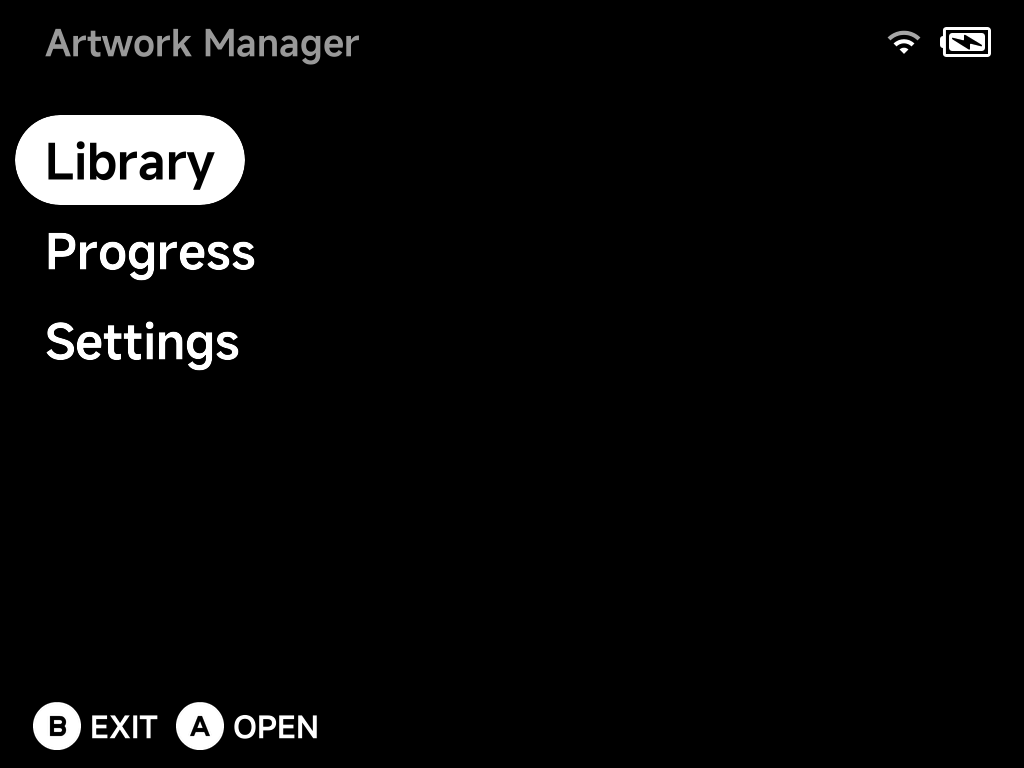
Library
The Library lists every system with its artwork coverage (games with art / total games).
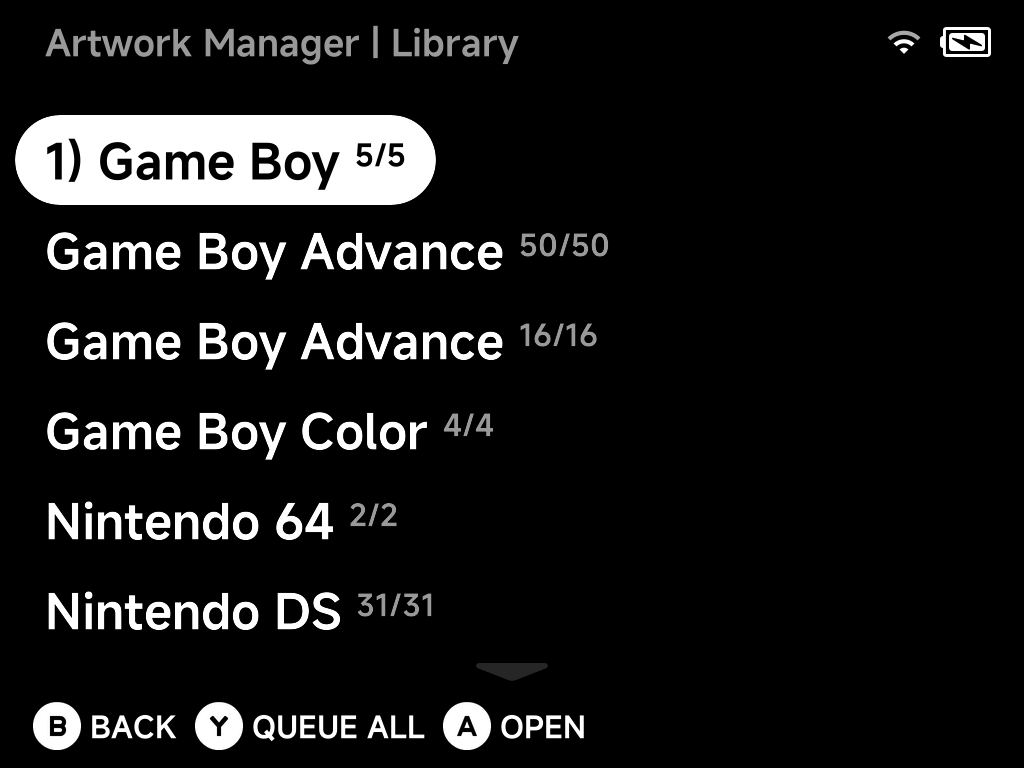
A system is any folder directly under Roms whose name ends in a tag in
parentheses, for example Virtual Boy (VB). The tag picks the system. A folder
marked Unsupported has a tag ScreenScraper has no system for, so you can
rename it.
| Button | What it does |
|---|---|
A Open |
Drill into a system to queue individual games |
Y Queue All |
Queue every missing artwork in the selected system |
B Back |
Go back |
More detail: how systems and games are matched
System tags. The tag picks the ScreenScraper system; the folder name
before it is only a label. Common tags and their aliases (SNES/SFC,
PSX/PS1, TG16/PCE, SS/SATURN, …) are recognised. A folder whose
tag ScreenScraper has no system for still appears, marked Unsupported,
so you can rename it rather than wonder why it is missing. Empty folders
are skipped.
Sega and arcade. The Sega MD and
GPGX tags cover several systems,
so each game there is matched by its file extension instead:
| Extension | Matched as |
|---|---|
.sms |
Master System |
.gg |
Game Gear |
.sg |
SG-1000 |
.chd, .cue, .m3u, .iso (CD images) |
Sega CD |
| everything else | Mega Drive / Genesis |
Keeping all your Sega games under (GPGX) folders therefore scrapes
correctly without renaming anything. Likewise the
Naomi and Atomiswave
zips in the DC folder are matched as Arcade sets by their short zip name,
the same way FBN games are.
What counts as a game. Inside a system folder the scanner sees exactly what the game list shows:
- Every file that is not hidden counts as a game, whatever its extension.
- Sub-folders are searched too.
- A multi-disc folder that holds a
.cueor.m3unamed after the folder counts as one game. - A game you have renamed (with Rename Rom in its context menu) is listed under its new name, just like on the main game list.
Art for a game in a sub-folder lands in that sub-folder's .media. A
multi-disc folder's art lands next to the folder.
Queue games in a system
Opening a system lists its games with the artwork already on the card for each one:
| Status | Meaning |
|---|---|
| Done | Both the screenshot and the box art are present |
| No screenshot / No box art | Only one of the two is there (ScreenScraper had no such image) |
| (nothing) | No art yet. Once queued, it shows its live status (Queued, Downloading…, Done, Not Found, …) |
In the game list:
| Button | What it does |
|---|---|
A Queue |
Queue just the highlighted game. This re-fetches even if it already has art, so use it to fill in a missing screenshot or box art, or replace a bad match, for one game |
Y Queue All |
Queue every game in the system that has no art yet |
B Back |
Go back |
Progress
Queued downloads run in the background. The Progress page shows what's being fetched. Art is placed alongside the ROMs, so it shows up in the game lists immediately.
Single game instead?
For one game, use Fetch Artwork in the game's context menu. No need to open the Artwork Manager at all.
What gets saved
Each fetch stores up to two images per game: the in-game screenshot and the box art. Each menu layout uses what it needs: the screenshot for List, Grid and Carousel, and both for Backdrop.
More detail
Both images come from a single set of ScreenScraper downloads and go
inside the system's .media folder:
| File | Content |
|---|---|
.media/screenshot/<game>.png |
the in-game screenshot |
.media/boxart/<game>.png |
the box art |
An image is skipped when ScreenScraper has none for the game. A game with no art at all gets a generated placeholder picture in the menus instead.
Art fetched by older releases
Releases up to v1.13.0 also made a Mix image (the screenshot with
the box art and logo over it) at .media/<game>.png, and releases up to
v1.9.0 made only the Mix. The menus no longer use it, and a game with only
a Mix counts as having no art: queue it again to fetch the screenshot and
box art.
Settings — reset
Reset artwork deletes every fetched image (screenshot, box art and any old Mix)
after a confirmation. The folder backgrounds bg.png and bglist.png are
kept. It is refused while a queue is still running.
More detail
Reset covers the .media folder of every system folder under Roms. That
includes systems the scraper does not recognise, folder games and
leftovers from renamed ROMs.
Fixing one game? Don't reset everything
Reset artwork wipes the whole library. To redo the art for a single
game (one whose status reads No screenshot or No box art, or that
matched the wrong game), open its system from the Library, highlight it and
press A. That re-fetches just that game and overwrites its images,
without touching anything else.
Settings — your ScreenScraper account
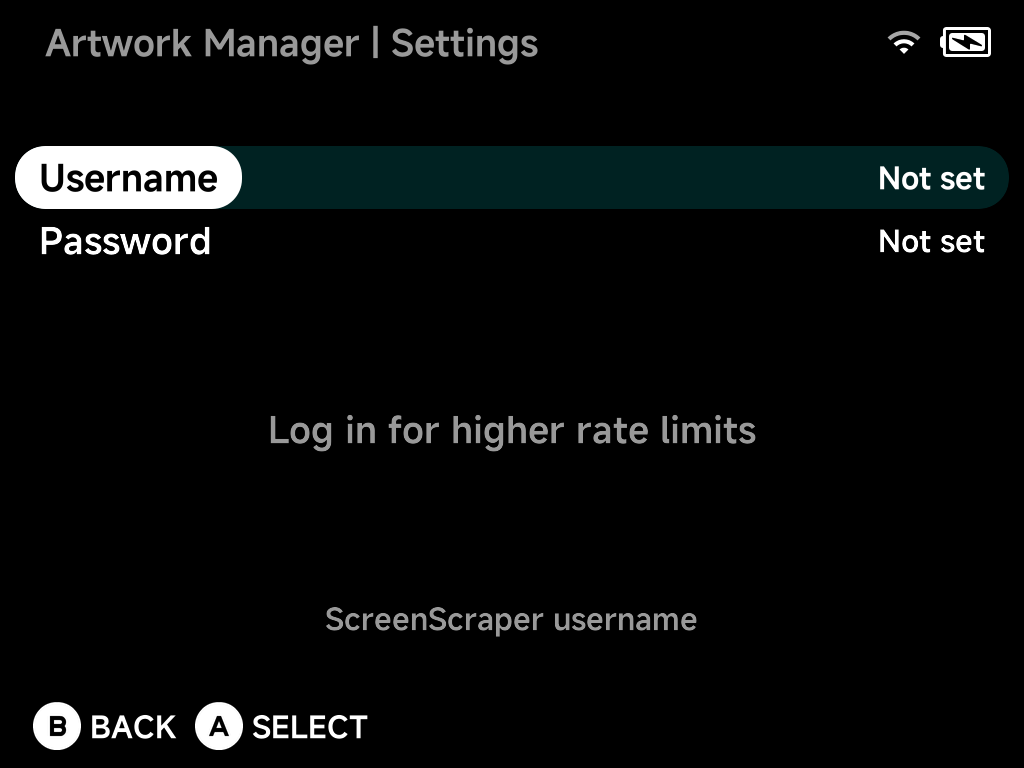
Artwork comes from ScreenScraper. Fetching works without any account. But anonymous access shares a limited request budget: fine for a game here and there, slow going for a whole library.
Enter your own (free) ScreenScraper username and password here. Every fetch then runs on your account's allowance:
| You get | What it means |
|---|---|
| Higher rate limits | Your account's own daily request quota, which for registered users is well above the shared anonymous budget |
| Live quota display | Once logged in, the page shows Requests Today and Max Requests (your account's daily limit), fetched straight from your ScreenScraper account |
| Logout | A logged-in page gains a Logout entry that clears the saved credentials from the device |
Type both fields with the on-screen keyboard. The password is stored on the SD card and always displayed masked.