Dual Screens & External Displays
On a handheld with a second screen, NX Redux uses both, by one rule: the bottom screen is where you act, and the top screen shows you things. In the main menu, you browse on the bottom screen while the top screen shows the highlighted game's details. Nintendo DS and 3DS games get one screen each, like the real console. Other games show the game on the top screen and a game panel on the bottom one, with your play time, achievements, shortcuts and save states.
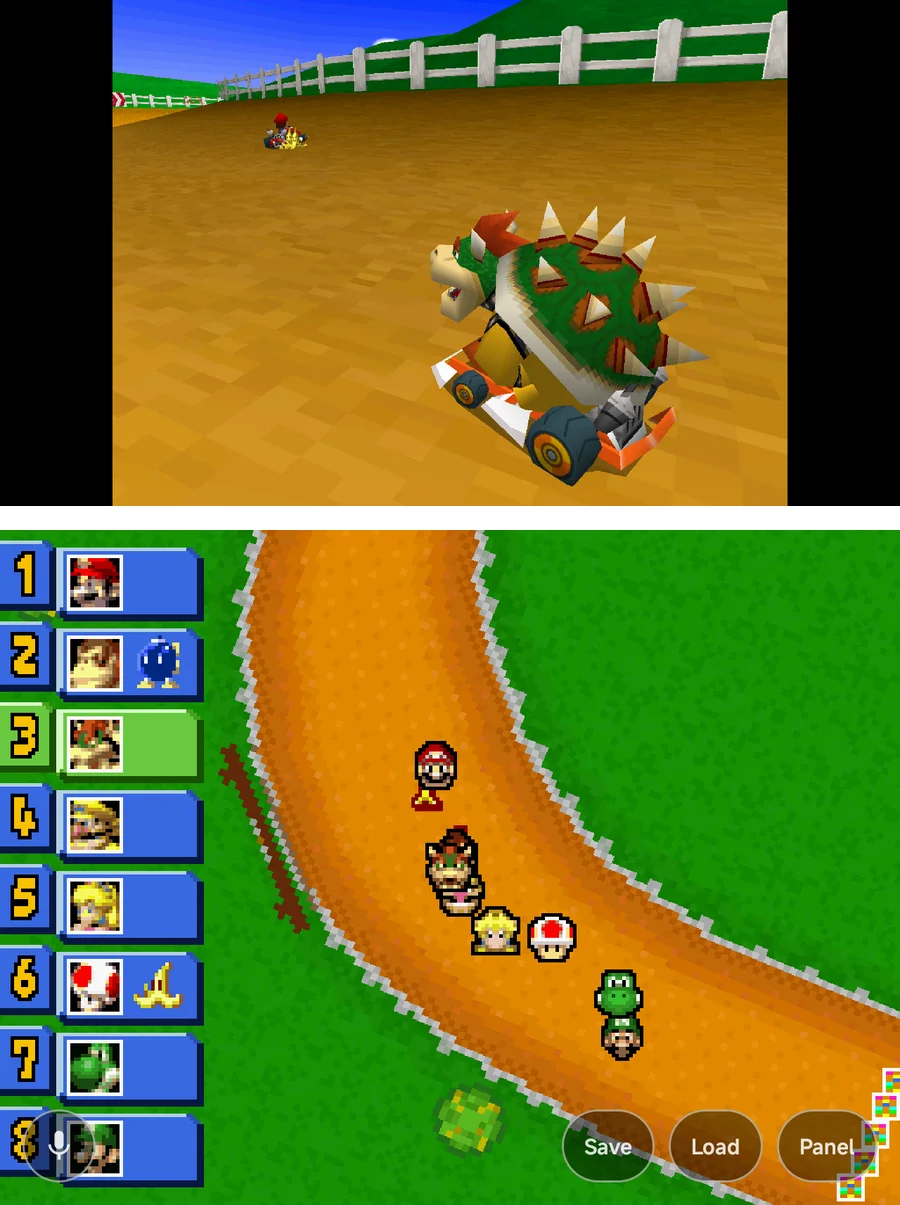
Two kinds of second screen count:
- A built-in second screen, as on dual-screen Android handhelds.
- A wired display on USB-C, such as a clip-on screen add-on, a monitor or a TV.
Casting and wireless displays, and a foldable's cover screen, are never used. On a phone with one screen, nothing on this page applies, and the panel's tabs show in the in-game menu instead.
More detail
- Plug a display in or unplug it during a game and the game carries on: the layout switches straight away.
- Android doesn't tell an add-on screen from a monitor or a TV, so a wired monitor counts as a second screen too.
Which screen is which
One screen is the top screen and the other the bottom screen:
- The top screen shows the game, or the DS or 3DS top screen. In the main menu it shows details of what you have highlighted.
- The bottom screen is the one you touch. It shows the DS or 3DS bottom screen, or the game panel. In the main menu it shows the menu, and every list, tool, prompt and the in-game menu opens there.
By default the wider screen is the top screen. When both have the same shape, the second screen is the top one. To choose yourself, set Bottom screen to the screen you want to touch.
While the second screen is in use, the game stays in landscape, either way up. Unplug the display, or turn the second screen off, and the game gets its usual orientation back.
More detail
- Games drawn on their side, such as vertical arcade and WonderSwan games, are turned the right way on the second screen too.
- While the game panel fills the main screen, the on-screen pad is hidden: it would cover the panel. Dual-screen handhelds have their own buttons.
- Screen care shifts and dims both screens.
First-run setup
On a handheld with a built-in second screen, setup asks Which is the bottom screen? right after the text size. Both screens show a This is the bottom screen button: tap the one on the screen below. Skip leaves it on Auto.
A wired display never gets this question. Change the answer any time in Settings.
The main menu
With a second screen in use, everything you do in the main menu happens on the bottom screen: the tabs, game lists, Tools, Settings, the Apps drawer and every prompt. The top screen follows what you highlight.
- A game, in a game list, on the Games tab, on Home or in the Game Switcher: the top screen shows the game's details.
- A console or a collection: the top screen shows its stats.
- Anything else, such as a tool or a Settings page: the top screen shows the backdrop with the NX logo.
Your buttons always work on the bottom screen, and the button hints show there only. Text is typed there too, on the NX keyboard.
Game details
For the highlighted game, the top screen shows:
- its name, then its genre, year, publisher and console;
- a synopsis, up to five lines;
- its play time, sessions and when you last played it;
- with a RetroAchievements set, your count, a bar and the next achievement to earn;
- one picture on the right: the save you would resume from, else the game's screenshot, else its box art.
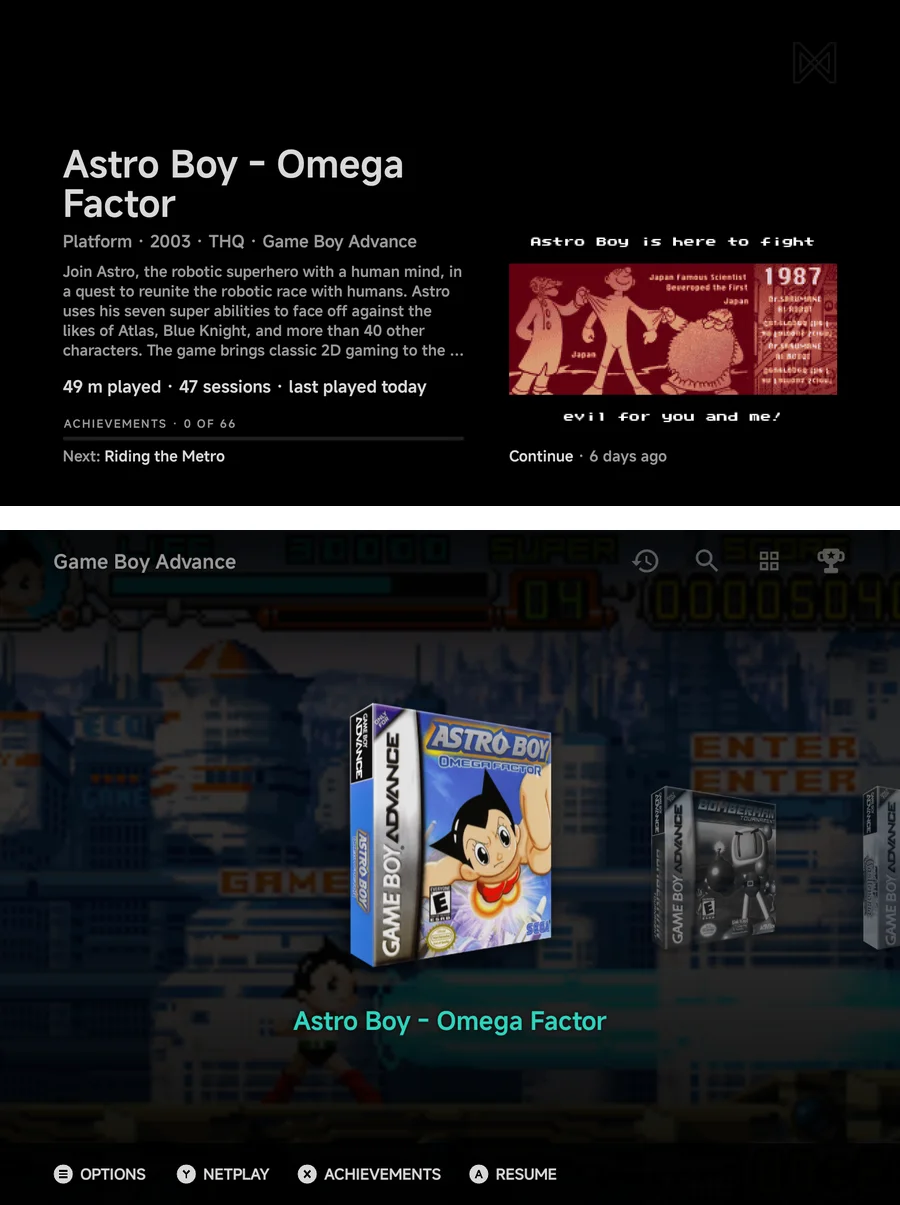
The genre, year, publisher and synopsis come with the art. See Game info.
Console and collection stats
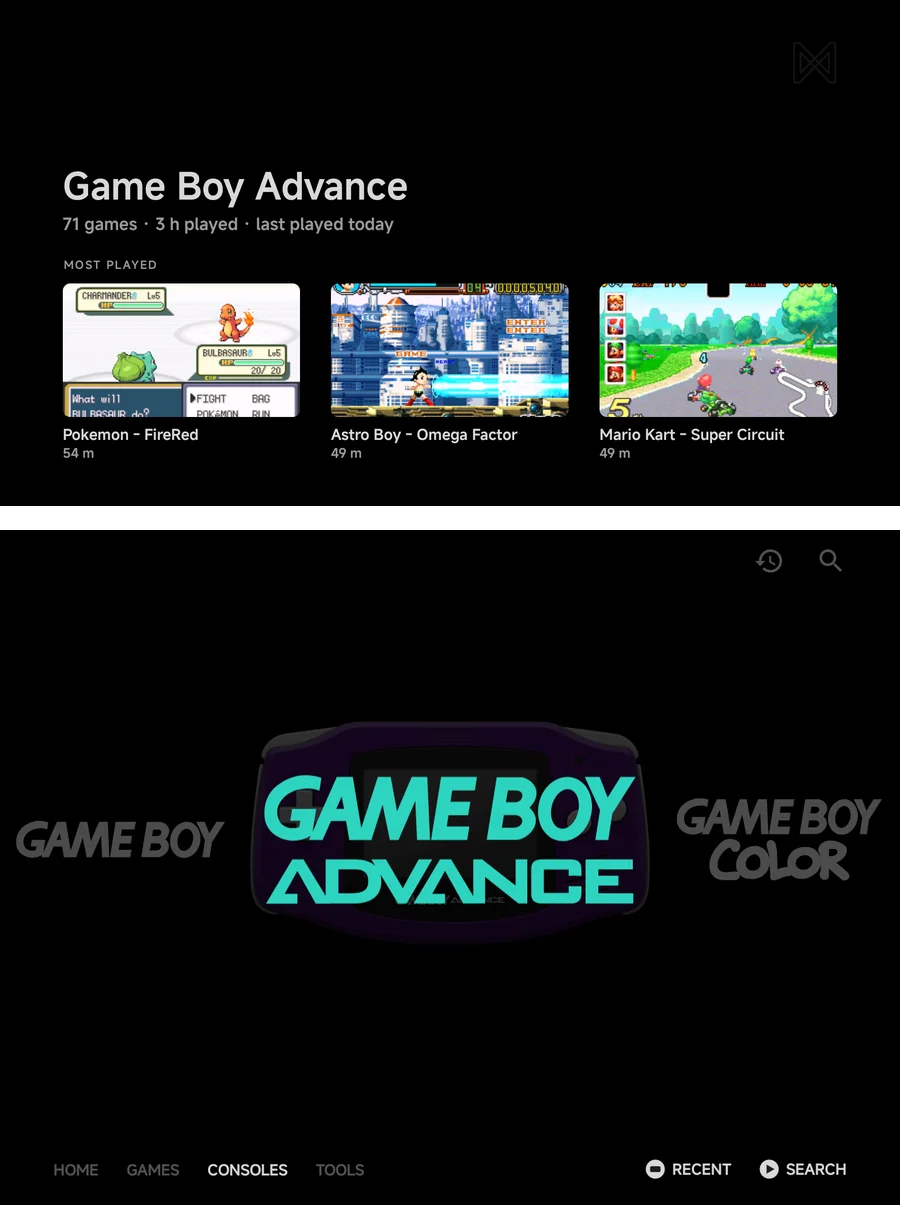
For the highlighted console or collection, the top screen shows one line of facts, such as 71 games · 3 h played · last played today, and a shelf of up to three games: the most played, filled up with the newest added. A game on the shelf shows its play time, or Not played yet. Tap a game on the shelf to start it.
More detail
- Game lists on the bottom screen leave out each game's stats line and the N games counts, since the top screen shows them. A vertical Carousel or Backdrop runs across the screen instead, and the vertical layouts are not offered.
- The achievements panel opens on the bottom screen: from the trophy icon, from the game's context menu, or with a tap on the achievements on the top screen.
- On a short top screen the details drop parts to fit: the synopsis first, then the picture, then the next achievement.
- A collection's line also counts its consoles. A console with a missing BIOS shows a BIOS missing pill.
- Only a tap starts a game from the shelf. A resting finger, a drag or a long press does nothing.
- Signed out of RetroAchievements, the details show the game's info only.
- With Enable off, the main menu uses one screen.
Apps on the top screen
With a second screen in use, apps you open from NX Redux open on the top screen, and the menu stays on the bottom one. This covers apps in Tools, tools pinned to Home, and Android games.
While an app has the top screen:
- The menu keeps working below it. Tools and game lists open on the bottom screen as usual.
- A one-screen game plays on the bottom screen only, so you can watch the app while you play. Use top screen, in the in-game menu, moves the game up anyway.
- A DS or 3DS game takes the top screen, since it needs both.
To have the top screen back, close the app or press Home. You can also tap the floating Top screen button on the main menu, or choose Use top screen at the end of the main menu's context menu.
More detail
- Home brings the menu's top screen back over the app. The app stays open behind it.
- After a game that took the top screen, the menu has it again.
- The Top screen button shows on a touchscreen only.
- Highlighting Apps in Tools shows nothing on the top screen.
Aopens it on the bottom screen, like any other tool.
Settings
Tools → Settings → Second screen has the system-wide settings. The Second screen section, between Controls and System, shows only while a second screen is connected.
| Row | Values | Default | What it does |
|---|---|---|---|
| Enable | On, Off | On | Off leaves the second screen alone, free for another app. |
| Bottom screen | Auto, Main screen, Second screen | Auto | Which screen is the bottom screen, the one you touch. Auto picks by shape. |
With Enable off, DS and 3DS games use their usual single-screen layouts and other games show no panel.
For one console
Each console has its own Bottom screen row, in the Display group of its settings: System default, Main screen or Second screen. System default follows the setting above. Set it in Emulator Settings, or during a game in Options → Display, where it applies straight away.
More detail
- The console's Bottom screen row shows only while a second screen is connected, like the system-wide rows. Values you set are kept while it's hidden.
- Keep an in-game change with Save Changes, for the game or the console.
Nintendo DS and 3DS
With a second screen, a DS or 3DS game starts split across both screens: its top screen on your top screen and its bottom screen on your bottom screen.
- Touch goes to the game's bottom screen, on whichever screen it shows. Touching its top screen does nothing.
- SWAP,
L3orSELECT+L1swaps the two screens over. On the DS,L2works too. - In stylus mode the DS stylus dot follows the bottom screen to whichever screen shows it.
The Panel and Game pills
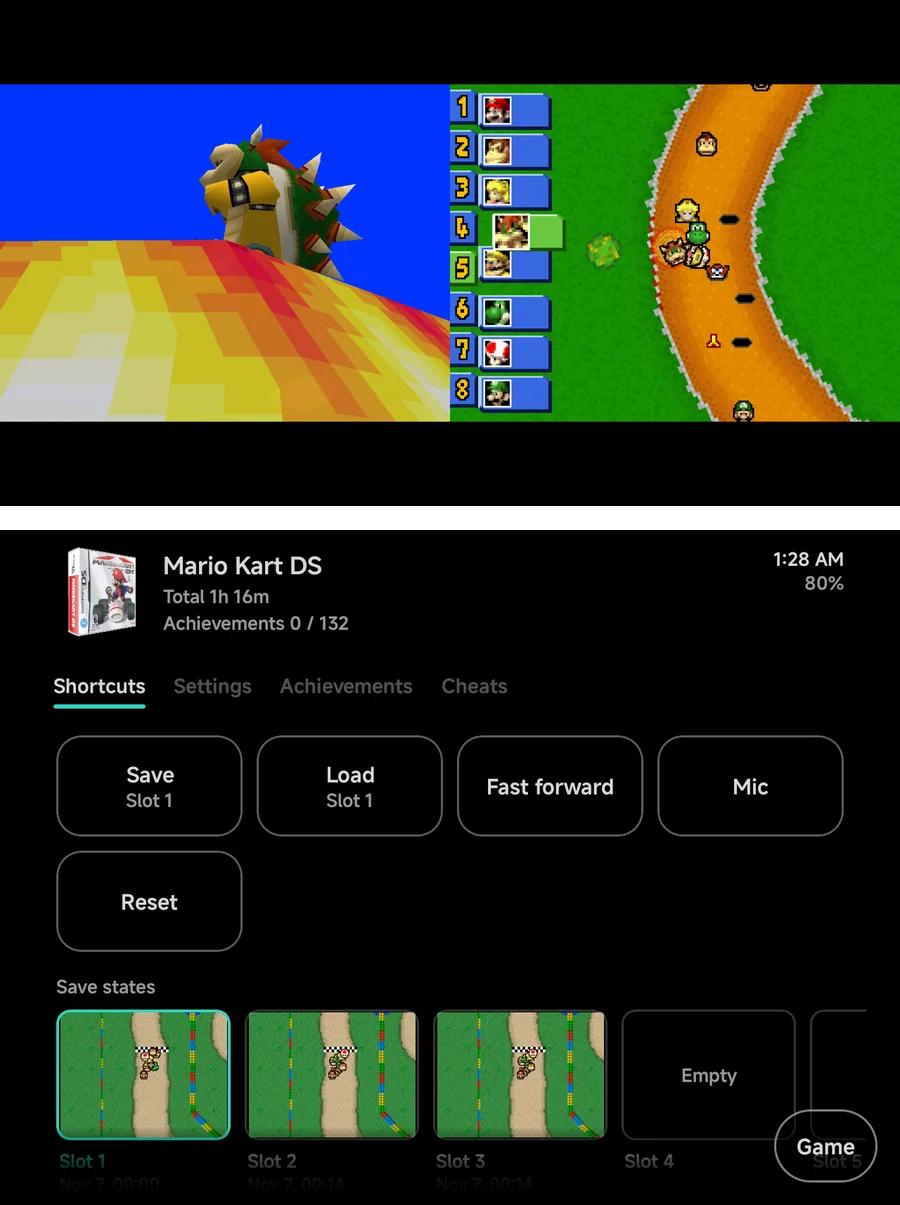
A Panel pill sits at the bottom right of the bottom screen, or at the end of the row of corner touch buttons when those show. Tap it and the bottom screen shows the game panel, while both DS or 3DS screens move side by side onto the top screen. Touch reaches the game's bottom screen there.
On the panel, the Game pill, in the same corner and with the same look, brings the game's bottom screen back.
Opening the in-game menu flips the panel up by itself, so the menu always opens on the bottom screen. Closing the menu brings the game's bottom screen back.
More detail
- On the DS, SWAP while split changes the Big Screen setting, the same as on one screen, so it carries over when you play without the second screen. On the 3DS the swap lasts for this session.
- The screen layout settings, such as Layout (landscape), aren't used
while the game is split or the panel is up, and neither is the
half-folded layout.
SELECT+Left/Rightdoes nothing then. - A shader is drawn on the game's top screen only.
- 3D Resolution is worked out from the size the screens have on the displays that show them.
Other games
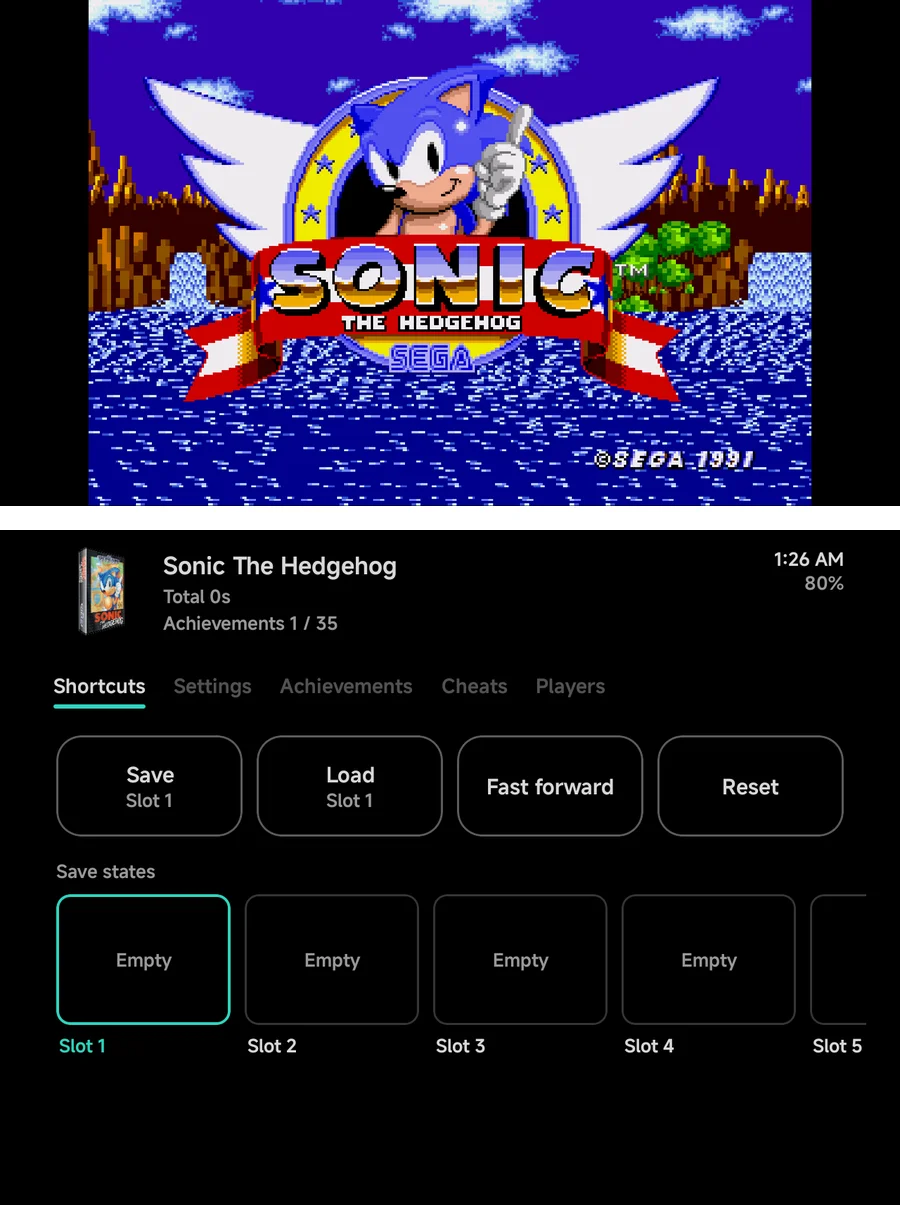
Every other game shows its picture on the top screen and the game panel on the bottom screen while you play. The panel works by touch only: your buttons keep playing the game.
Opening the in-game menu pauses the game and puts the menu on the bottom screen, in the panel's place under its header. The top screen keeps the paused picture, dimmed under a pause mark. Closing the menu brings the panel back.
More detail
- The picture on the top screen follows Screen Scaling, Offset X and Offset Y, and your shader, as they are set in the in-game menu.
- The dimming lifts while you highlight a row that changes the picture, such as a shader, so you can see what it does.
- Under the panel, the bottom screen doesn't draw the game, which saves battery. Save-state pictures are taken from the top screen.
- On PlayStation 2, 3D Resolution is worked out from the size of the picture on the top screen.
The game panel
The panel shows on the bottom screen while you play. On a phone with one screen, its Achievements, Cheats and Players tabs are in the in-game menu instead.
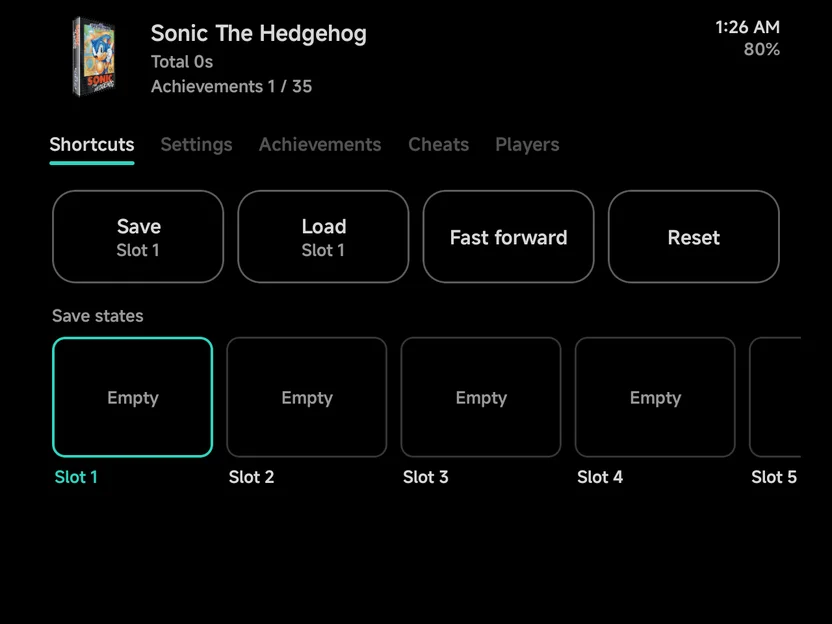
Across the top, the game's header shows:
- its box art, or the console's logo when it has none;
- its name;
- its total play time, such as Total 4h 12m;
- with a RetroAchievements set, your count, such as Achievements 3 / 40;
- the time and the battery level, since the game hides Android's status bar.
Below it are up to five tabs. A tab shows only when it applies.
| Tab | Shows when | What it holds |
|---|---|---|
| Shortcuts | Always | One-tap tiles and your save states. See below. |
| Settings | Always | Volume and a few picture settings. See below. |
| Achievements | The game has a RetroAchievements set | The game's achievements, in your Achievement sort order. |
| Cheats | The game's emulator takes cheats | The game's cheats, each with a switch. See below. |
| Players | The game has more than one player | Which controller is which player. See Local Multiplayer. |
More detail
- The play time is the total before this launch. It doesn't count up while you play.
- The clock follows the phone's 12 or 24-hour setting.
- On a panel less than 320 dp tall the header is one line: the name, the clock and the battery.
- A foldable's inner screen or a tablet can show the panel inside the pad skin. See Two screens in one skin.
Shortcuts
The tab is a grid of tiles. Your touch buttons come first, then the panel's own:
| Shortcut | Shows when | What it does |
|---|---|---|
| Your touch buttons | Always | Save and Load by default, each naming its slot, such as Slot 2. A tile works as its button on the pad does: a hold action runs while you hold the tile. |
| Swap disc | A game with more than one disc | Puts the next disc in. The tile shows the disc in use, such as 1/2. |
| Fast forward | Always | Turns fast forward on or off. Filled while on. |
| Rewind | The console's Rewind is on | Turns rewind on or off. Filled while on. |
| Mic | A Nintendo DS or 3DS game | Shows or hides the pad's mic button, for every DS and 3DS game. Filled while shown. See Microphone. |
| Reset | Always | Restarts the game. It asks first. |
Under the tiles, a strip shows your save-state slots, each with its screenshot and time. Tap a slot to make it the one Save and Load use.
More detail
- Swap disc works as the in-game menu's Disc row does, while the game keeps running.
- Fast forward and Rewind work as the Toggle shortcuts: turning one on turns the other off.
- A touch button set to Toggle FF, Toggle Rewind or Reset gets no tile of its own: the panel's tile does the same.
- The mic itself is turned on and off with the mic button the tile shows. Hiding the button turns the mic off.
- In a netplay match, the tiles and the save-state strip are hidden. While a game's local wireless is on, only Swap disc and Mic stay.
Settings
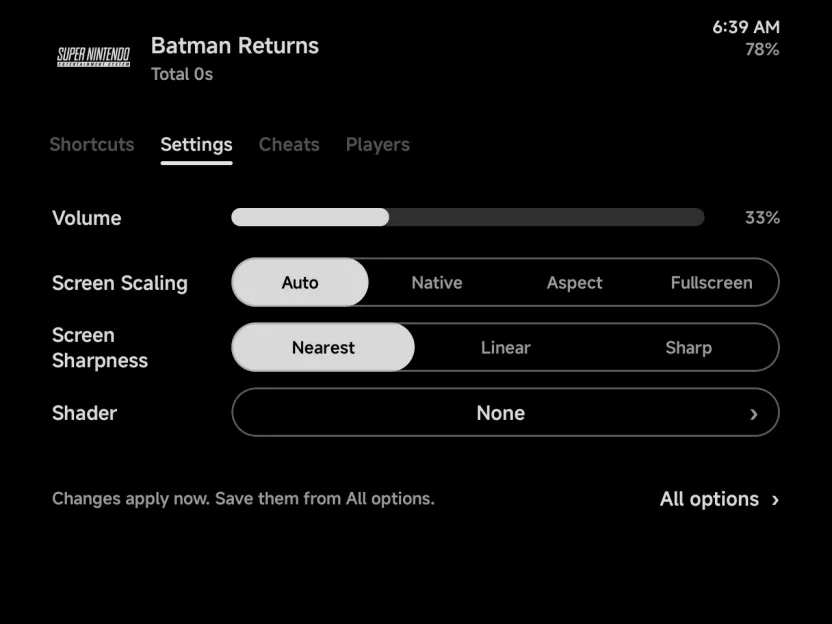
The Settings tab changes a few things without opening the in-game menu. Each applies straight away.
| Row | What it does |
|---|---|
| Volume | The device's media volume. |
| Screen Scaling | How the picture fits the screen. |
| Screen Sharpness | How the picture is smoothed. |
| Shader | The shader drawn over the picture. |
| All options | Opens the in-game menu on its Options page. |
To keep a change for next time, save it from All options. A row the game's layout holds is dimmed.
Achievements
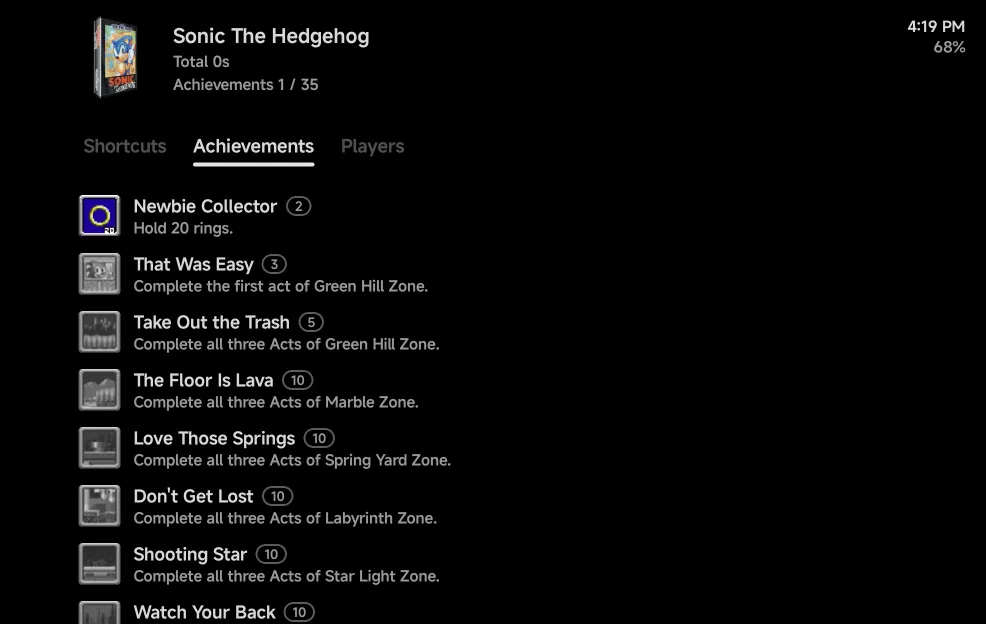
Each row shows the achievement's badge, its name with its points in a small pill, and its description. The badge says where you are: in colour once unlocked, greyed while locked. Rows open nothing.
Cheats
Each row shows a cheat's name and its switch. Tap a row to turn the cheat On or Off; it applies straight away. To keep them for next time, use Save Changes → Save for game.
With no cheats for the game, the tab says No cheats for this game. and how to add some. See Cheats.
More detail
- When a game's cheats come from several files, each row names its source under the cheat, such as GameShark.
- In a netplay match, the tab is hidden.
Players
The Player 1 to Player 4 rows show each player's controller, Empty or the name with (disconnected). Tap a row to step it to the next controller, or Empty. It works as the Players page.
Kids Mode
With Kids Mode on, its tiles and the parent's PIN pad show on the bottom screen, and the top screen shows the backdrop. While games are closed, an app that isn't allowed is sent back from either screen. See On two screens.
Limits
- While an app covers the bottom screen, the top screen's page hides until you come back.
- The panel can't be driven with buttons. Its tabs in the in-game menu on one screen can.
- The panel's Settings tab has no brightness row.
- Achievements in the panel have no details page for now.