Playing Games
Launch a game with A from any game list. Resume your last session with X,
or through the Game Switcher.
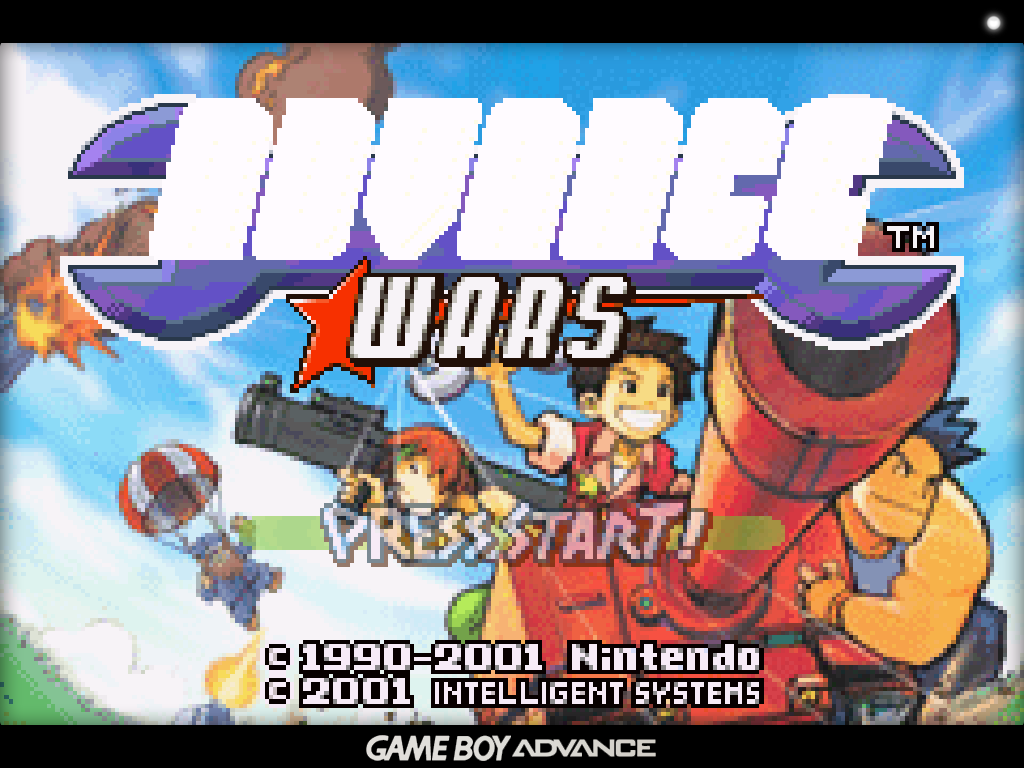
The in-game menu
Press MENU while playing to pause the game and open the in-game menu.
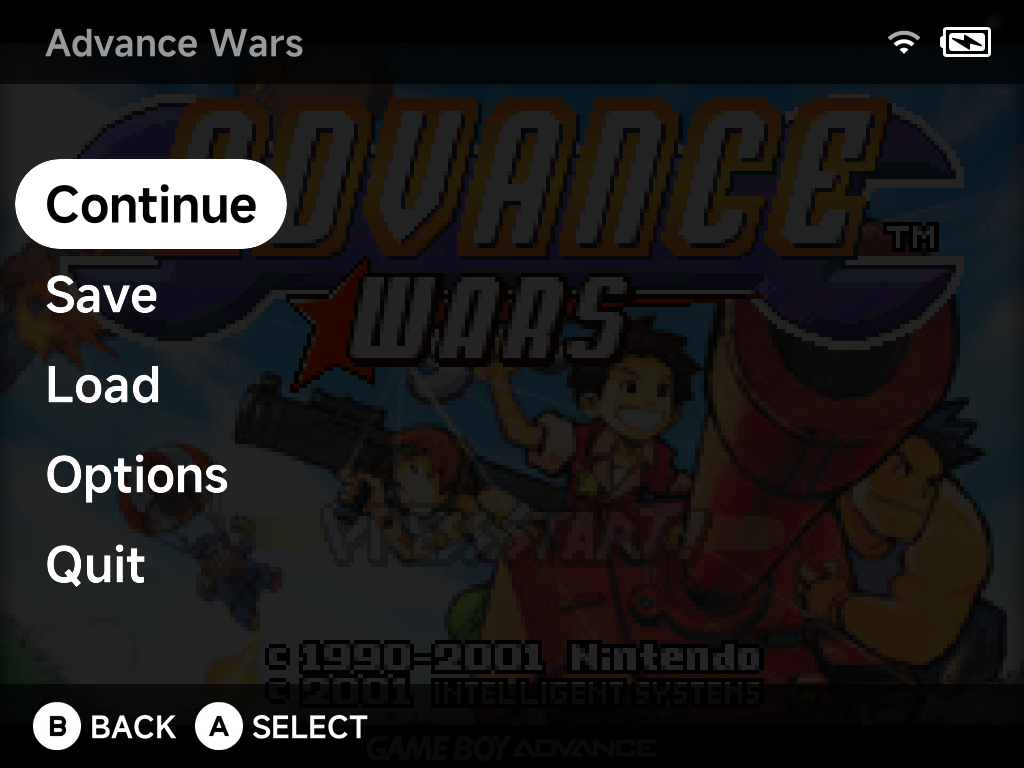
| Entry | What it does |
|---|---|
| Continue | Return to the game |
| Save / Load | Save states, complete with screenshots so you can see what you're loading |
| Options | In-game options for the running game (Frontend, Core Options, Shaders, Cheats, Controls, Shortcuts, Achievements and Save Changes), applied live |
| Quit | Exit back to the menu. Quitting auto-saves to a hidden slot, so the Game Switcher can always resume exactly where you left off. |
More detail
All emulators share the same menu, with UI styling consistent with the rest of the system. That covers the built-in cores (Dreamcast included) and the standalone Nintendo 64 and Nintendo DS emulators.
Saves and save states
| Kind | What it is | Where it lives |
|---|---|---|
| Battery saves | The game's own save files | Saves/<TAG>/ on the SD card (e.g. Saves/GBA/) |
| Save states | 8 slots per game, each with a screenshot, via the pause menu's Save/Load | Per core under .userdata/shared/ |
Quitting a game also writes a hidden auto-resume state. That's what the Game Switcher resumes from. It never touches your manual slots.
Save states belong to one emulator
Save states are tied to the emulator core that made them. Unlike battery saves, they generally don't survive moving to a different emulator.
Device Sync carries both: Saves/ and the shared
state folder.
More detail
- By default battery saves are written as uncompressed
RetroArch-compatible
.srmfiles. You can move them between NX Redux and RetroArch on another device as-is. - The battery-save format is changeable in
Settings → System:
MinUI.sav, RetroArch compressed/uncompressed.srm, or Generic. - Save states default to RetroArch-style naming (also configurable).
- The hidden auto-resume state is a ninth, invisible slot on top of the 8.
Cheats
Get the cheat files first with the Cheat Database tool. Install it from the Xtras Store, then open it from Tools to download the cheats. See Cheats.
While playing, open the pause menu → Options → Cheats to toggle individual cheats on and off.
More detail
Cheat files use the standard RetroArch .cht format. The
libretro cheat database
is a ready source. Name the file after the game and put it in the
system's folder under Cheats/:
Roms/Game Boy (GB)/Super Example World (USA).zip
Cheats/GB/Super Example World (USA).cht        ← with or without the .zip
Shaders
The pause menu's Options → Shaders page controls the video shader pipeline:
| Mode | What it does |
|---|---|
| Presets | Ready-made looks shipped in the Shaders/ folder: crt-perfect, lcd-perfect, dmg-perfect (original Game Boy), real-gameboy, real-gba, scanlines, old-tv, pixel-perfect variants and more |
| Manual setup | Up to 3 shader passes, each picking a .glsl shader from Shaders/glsl/, with per-pass filter and scaling options |
Trying a preset
Loading a preset replaces your current shader settings. To just try one out, exit the game without saving settings.
Shader choices save with the emulator's config, so they can be set system-wide or per game.
Overlays
Overlays are border/bezel images drawn around the game screen. Pick one in-game under pause menu → Options → Frontend → Overlay.
To add your own, drop a PNG at your device's screen resolution into the
system's folder under Overlays/ (e.g. Overlays/GBA/My Bezel.png). It
appears in the Overlay list by filename.
More detail
Releases ship a set of overlays for many systems (Native/Aspect variants, with optional LCD grid).
Sleep
Press the power button to put the device to sleep. This works in all standalone emulators and PortMaster games, not just the built-in cores.
Audio output
All emulators support USB-C and Bluetooth audio. Plug in a USB-C DAC or connect Bluetooth mid-game and audio reroutes automatically. A headphone icon appears in the status bar while an external output is active. See Settings → Audio for details.
In-game notifications
RetroAchievements unlock and progress notifications appear in-game as you play. See RetroAchievements. Tune their behavior in Settings → In-game Notifications.