Getting Started with NX Redux Mobile
Coming soon
NX Redux Mobile is not released yet. These pages describe the app as it is today.
NX Redux Mobile brings the NX Redux look, folder layout and in-game features to Android phones, tablets, foldables and Android handhelds. It runs retro systems through emulators bundled in the app, with nothing extra to download. On your phone, the app's icon and title read NX Redux.
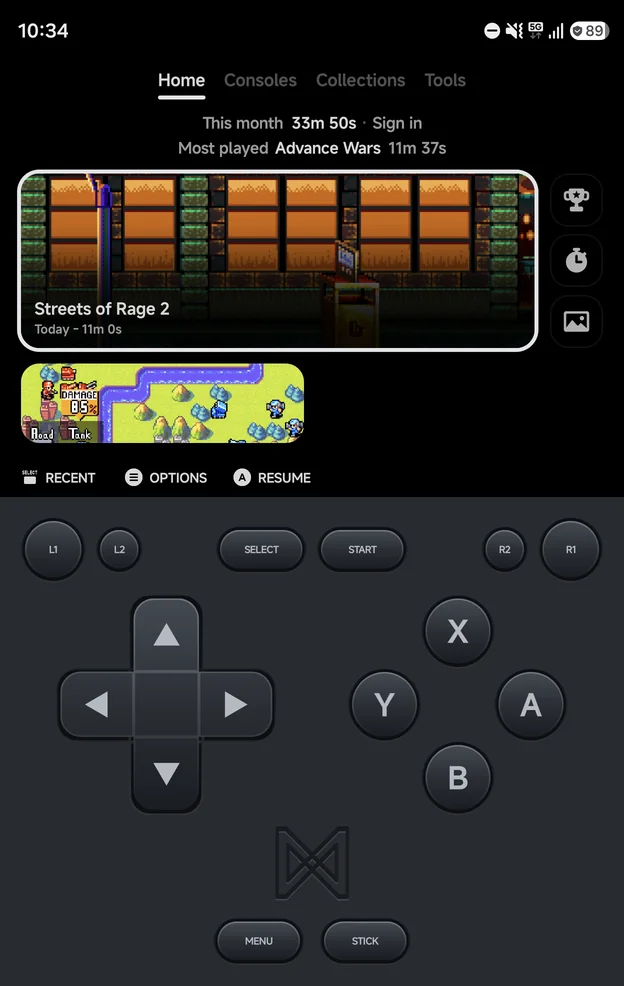
New to NX Redux? See About NX Redux first.
What's different from the handheld
- Emulators: Sega Dreamcast, NAOMI and Atomiswave are included. Nintendo DS runs melonDS DS (DraStic is not available). See Emulators and Sega Dreamcast.
- Library: besides the home folder, the app can scan extra folders in place. See Library & ROM folders.
- Controls: an on-screen pad, or any Android controller. See Controls.
- Artwork: the app downloads box art and screenshots for your games. See Artwork.
- Home screen: the app can be your phone's home screen, and list your Android games and apps. See Launcher Mode & Android Games.
- Foldables: on a half-folded phone, Flex mode puts the game above the hinge and the pad below it. See Foldables & Large Screens.
- In a later release: Netplay, Device Sync, local multiplayer for 2 to 4 players on their own controllers, and more systems, such as Nintendo 3DS and home computers (Amiga, C64 and so on).
- Not available: RetroAchievements hardcore mode, the same as on the handheld.
- Left to Android: Wi-Fi and Bluetooth management, the on-screen display, the music player, PortMaster and firmware updates are not part of the app.
Install
When it's released, the APK is listed on the Download page.
Choose a home folder
On first start the app asks you to Pick a home folder. Press A
Pick folder to open Android's folder picker.
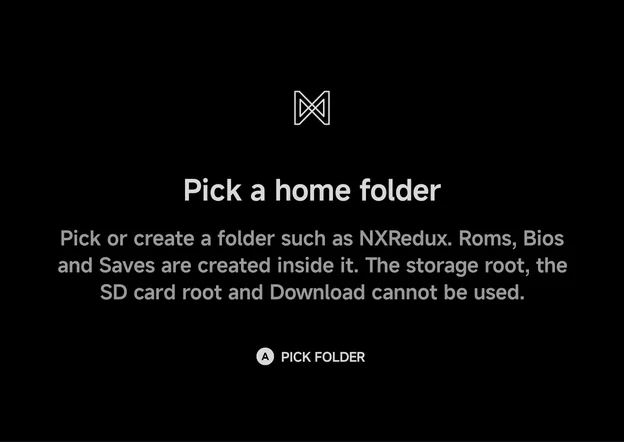
The app creates the NX Redux layout inside the folder you pick:
| Folder | What goes there |
|---|---|
Roms/<Display Name (TAG)>/ |
Games, one folder per system |
Bios/<TAG>/ |
BIOS files for systems that need them |
Saves/<TAG>/ |
Battery saves, mirrored from the app |
Collections/ |
Your game collections, once you make one |
The folders are visible to file managers, so you can copy games in from a computer. The home folder can sit on an SD card.
If your games already follow the NX Redux layout from a handheld, the same
folder names and Bios/<TAG>/ files work unchanged.
Pick a folder, not a root
The picker can't use the storage root, the SD card root or the Download
folder. Pick or create a folder inside one of them, such as NXRedux.
Add a ROMs folder
Right after you pick the home folder, the app asks Add a ROMs folder?
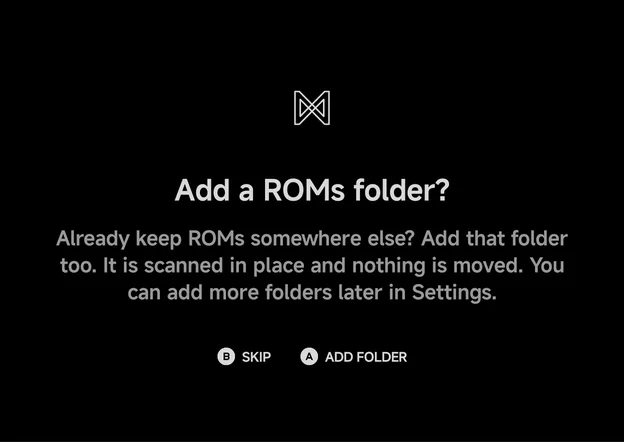
- If you already keep games somewhere else on the phone, press
AAdd folder and pick that folder. It is scanned in place and nothing is moved. - Press
BSkip to go on without one.
You can add more folders later in Tools → Settings → Library → ROM folders → Add ROM folder. See Library & ROM folders.
Android games
When the app finds games installed on your phone, the last step asks Add N Android games to Consoles? and lists them.
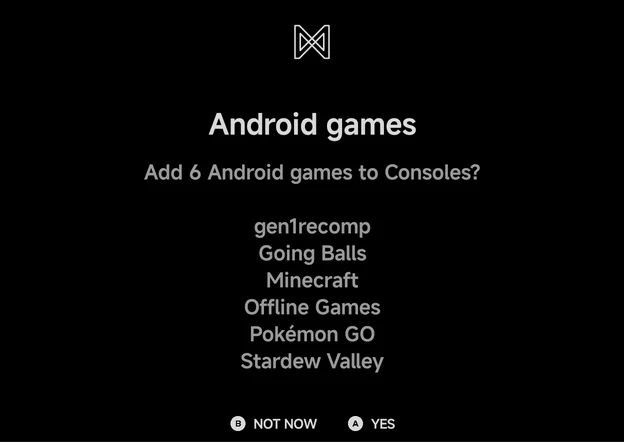
- Press
AYes to add them. They show up as an Android console on the Consoles tab. - Press
BNot now to leave them out.
The question is asked once. On an install that already has a library, it can show once as a dialog over the main menu instead. Change the list any time in Tools → Settings → Launcher → Android games. See Launcher Mode & Android Games.
Next steps
- Main Menu & Home: the tabs, Home and the game lists.
- Controls: the on-screen pad, controllers and the buttons in the menus.
- In-game Menu: save states, options and Save Changes.
- Game Switcher: resume recent games.