In-game Options
While playing on a built-in emulator core, press MENU and choose
Options to open the in-game options menu. Most changes apply live —
you see the result as soon as you return to the game.
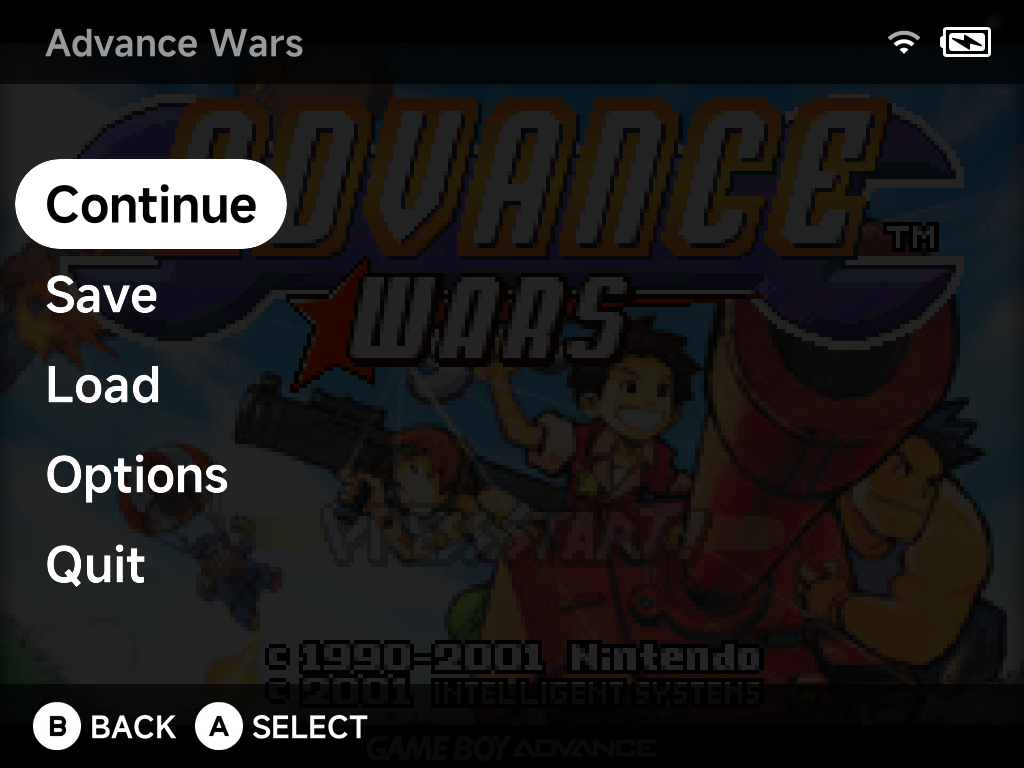
The Options menu contains:
| Entry | What it's for |
|---|---|
| Frontend | Video scaling, screen effects, overlays, CPU speed, fast-forward and rewind. |
| Core Options | The emulator core's own settings — see Emulator Options. |
| Shaders | The video shader pipeline and shader presets. |
| Cheats | Turn the game's cheats on and off. |
| Controls | Remap the emulated controller's buttons. |
| Shortcuts | Bind in-game hotkeys (save/load state, fast-forward, rewind, turbo…). |
| Achievements | Browse the game's RetroAchievements — shown only when achievements are enabled. |
| Save Changes | Keep your changes for this system or this game, or restore defaults. |
The Frontend entry shows the NX Redux version next to it, and Core Options shows the running core's version.
Changes aren't saved until you use Save Changes
Everything you change in Options takes effect immediately but only lasts for the current session. To keep it, open Save Changes before you quit. This makes it easy to experiment: to undo a change, quit without saving.
Frontend
Settings handled by NX Redux itself rather than the emulator core, so the
same list appears for every system. Use LEFT / RIGHT to change a value.
| Option | Values | What it does |
|---|---|---|
| Screen Scaling | Native, Aspect, Aspect Screen, Fullscreen, Cropped | Native uses integer scaling (sharpest, may leave borders). Aspect fills the screen at the core's reported aspect ratio. Aspect Screen uses the screen's aspect ratio. Fullscreen stretches to fill the screen (non-square pixels). Cropped is integer-scaled and then cropped to fill — only on devices that support it. |
| Audio Resampling Quality | Low, Medium, High, Max | Higher quality uses more CPU. Default: High. |
| Ambient Mode | Off, All, Top, FN, LR, Top/LR | Makes the chosen LEDs follow the colors on screen. See also LED Control. |
| Screen Effect | None, Line, Grid | Grid simulates an LCD grid, Line simulates CRT scanlines. Effects usually look best with Native scaling. |
| Overlay | None, or any overlay for this system | A border/bezel image drawn around the game — see Overlays. |
| Offset screen X / Offset screen Y | −64 to +64 | Shift the game image horizontally/vertically by this many pixels. Default: 0. |
| Screen Sharpness | NEAREST, LINEAR | NEAREST keeps pixels crisp; LINEAR smooths lines, and works best when the final image is high resolution (a high-res core, or upscaling with shaders). Default: LINEAR. |
| Core Sync | Auto, Screen, Native, Emulated | What drives the frame rate: Native follows the emulator's frame rate, Screen follows the display's refresh rate. Emulated follows the game's own timing, for GPU-rendered systems such as Dreamcast (its default); for other systems it behaves like Native. Auto picks for you. |
| CPU Speed | Powersave, Normal, Performance, Auto | Underclock to save battery or overclock for demanding games. Auto (default) scales within a range tuned for each emulator. |
| Debug HUD | Off, On | Show frames per second, CPU load, resolution and scaler information on screen. |
| Max FF Speed | None, 2x – 8x | Cap for fast-forward (it may run slower depending on the game and emulator). Default: 4x. |
| Fast forward audio | Off, On | Play or mute audio while fast-forwarding. Default: Off. |
| Rewind | Off, On | Enable the in-memory rewind buffer. Uses extra CPU and memory, and needs a shortcut (Toggle Rewind or Hold Rewind) to use during play. Default: Off. |
| Rewind Buffer (MB) | 8, 16, 32, 64, 128, 256 | Memory reserved for rewind snapshots — more memory means you can rewind further back. Default: 64. |
| Rewind Interval | 16 ms (~60 fps) – 600 ms | Time between rewind snapshots. Shorter intervals give smoother rewinding but use more CPU and memory. Default: 16 ms. |
| Rewind Compression | Off, On | Compress snapshots to fit more into the buffer, at the cost of CPU. Default: On. |
| Rewind Compression Speed | 1 (best ratio) – 12 (fastest) | Lower values compress more but use more CPU. Default: 2. |
| Rewind audio | Off, On | Play or mute audio while rewinding. Default: Off. |
Note
Some systems lock individual frontend options to a fixed value; locked options don't appear in the list.
Shaders
Controls the video shader pipeline. If the Shaders/ folder is missing or
empty, the menu says so instead.
| Option | What it does |
|---|---|
| Optional Shaders Settings | Opens the extra parameters exposed by the active shaders (e.g. scanline strength). Shows "No extra settings found" when the shaders have none. |
| Shader / Emulator Settings Preset | Load a ready-made preset from the Shaders/ folder (crt-perfect, lcd-perfect, real-gameboy, scanlines, old-tv, pixel-perfect variants and more). Loading a preset replaces your current shader settings — to just try one out, quit without saving. |
| Number of Shaders | off, or 1 to 3 shader passes. |
| Shader 1–3 | The .glsl program each pass runs, picked from Shaders/glsl/. |
| Shader 1–3 Filter | Upscaling method for that pass: NEAREST or LINEAR. |
| Shader 1–3 Source type / Texture Type | Which resolution the pass scales from: source or relative. |
| Shader 1–3 Scale | Scale the image 1x–8x, or screen to scale to the screen's resolution (can hurt performance). |
See Shaders for more about presets.
Cheats
Lists every cheat found for the game. Toggle a cheat On / Off with
LEFT / RIGHT — it applies immediately. Press A on a cheat to read its
full description.
If no cheat file is loaded, the menu lists the file names it looked for and points you at Xtras → Cheat Database. Cheats can't be enabled while RetroAchievements hardcore mode is active. See Cheats for where cheat files go.
Controls
Remaps the buttons of the emulated controller to your device's buttons. Only the buttons the running core uses are listed.
- Press
Aon a button, then press the device button (orMENU+ button) you want to assign to it. - Press
Xto clear a binding (NONE). - For cores that support different controller types (for example PlayStation), a Controller entry at the top switches between Standard and DualShock.
Shortcuts
Hotkeys for actions during play. All are unbound (NONE) by default. Bind
them the same way as Controls: A then the button or
MENU + button to set, X to clear. Using a MENU + button combination
keeps the shortcut from clashing with the game's own controls.
| Shortcut | Action |
|---|---|
| Save State / Load State | Save to / load from the current save state slot. |
| Undo Load State | Go back to where you were before the last Load State. |
| Reset Game | Restart the game. |
| Save & Quit | Save and exit the game. |
| Cycle Scaling | Step through the Screen Scaling modes. |
| Cycle Effect | Step through the Screen Effect modes. |
| Toggle FF / Hold FF | Fast-forward: toggle on/off, or only while held. |
| Toggle Rewind / Hold Rewind | Rewind: toggle on/off, or only while held. Needs Rewind turned on. |
| Game Switcher | Open the Game Switcher. |
| Screenshot | Take a screenshot. |
| Toggle Turbo A / B / X / Y / L / L2 / R / R2 | Turn turbo (rapid fire) on or off for that button. |
Achievements
Appears only when RetroAchievements is enabled, with your progress (e.g. 12 / 40 unlocked) next to it. It lists the running game's achievements, sorted by the Achievement sort order setting in RetroAchievements.
A— open an achievement's details.Y— switch between showing all achievements and only locked ones.X— mute or unmute notifications for the selected achievement (marked[M]), handy for chatty progress trackers.
If the game isn't recognized or has no achievements, a message tells you so.
Save Changes
Keeps what you've changed in Options: Frontend, Core Options, Shaders, Controls and Shortcuts. The entry's description tells you which settings the game is using right now: Using defaults, Using console config or Using game config.
| Choice | What it does |
|---|---|
| Save for console | Save as the defaults for every game on this system (same as Emulator Settings). If this game had its own config, that is removed so the game follows the system settings again. |
| Save for game | Save for this game only, overriding the system settings (same as Emulator Options in the context menu). |
| Restore defaults | Delete the saved config the game is currently using and reset everything to the defaults. |
See Emulator Options for how system-wide and per-game settings fit together.