Menu Layouts
The Consoles, Collections and Tools tabs, and every game list, can each be drawn in their own style. Pick them in Tools → Settings → Appearance → Layouts. Home has no layout setting: it looks the same whatever you pick here.
| Style | Tabs | Game lists | In short |
|---|---|---|---|
| List | ✓ | ✓ | Text rows over the art, the most entries per screen |
| Grid | ✓ | ✓ | Two rows of tiles |
| Carousel | ✓ | ✓ | One large item at a time, across or down the screen |
| Backdrop | ✓ | Box art over the game's screenshot |
Out of the box, Consoles, Collections and game lists use Carousel, and Tools uses Grid.
The Layouts page
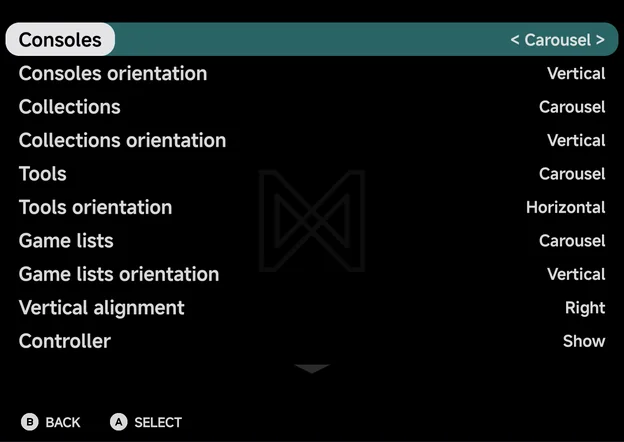
Right and A step the highlighted row to its next value, and Left to
the previous one. Some rows
only show when they apply.
| Row | Values | Default | Shows |
|---|---|---|---|
| Consoles | List, Grid, Carousel | Carousel | Always |
| Consoles orientation | Horizontal, Vertical | Horizontal | When Consoles is Carousel |
| Collections | List, Grid, Carousel | Carousel | Always |
| Collections orientation | Horizontal, Vertical | Horizontal | When Collections is Carousel |
| Tools | List, Grid, Carousel | Grid | Always |
| Tools orientation | Horizontal, Vertical | Horizontal | When Tools is Carousel |
| Game lists | List, Grid, Carousel, Backdrop | Carousel | Always |
| Game lists orientation | Horizontal, Vertical | Horizontal | When Game lists is Carousel or Backdrop |
| Vertical alignment | Left, Right | Left | When Game lists orientation is Vertical |
| Controller | Show, Hide | Show | Always |
| Reset to defaults | Always |
List
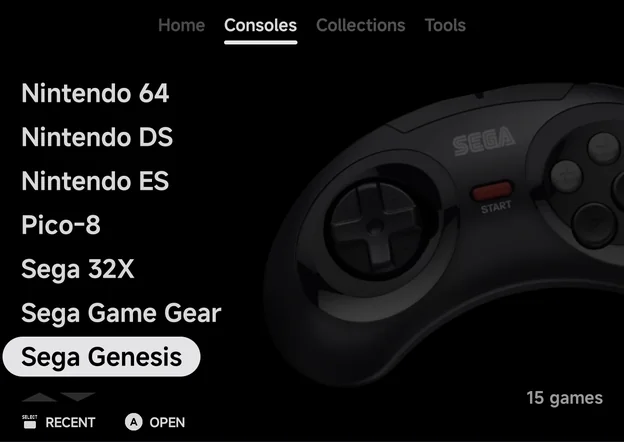
A plain list. On the Consoles tab the selected console's controller sits beside the list. In a game list the selected game's screenshot fills the background.
Consoles tab
Game list
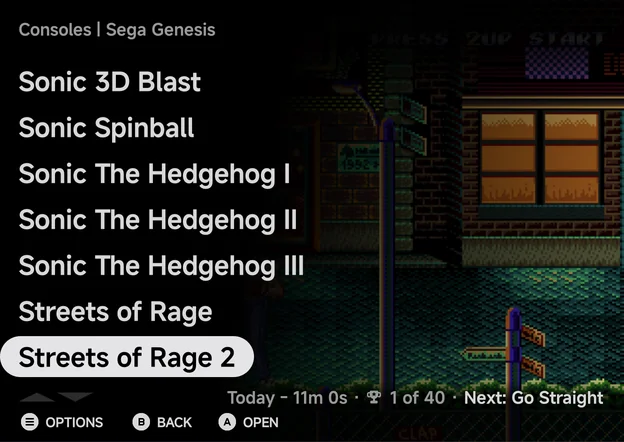
The line at the bottom shows the game count on a tab, and the selected game's last-played time, achievements and next achievement in a game list.
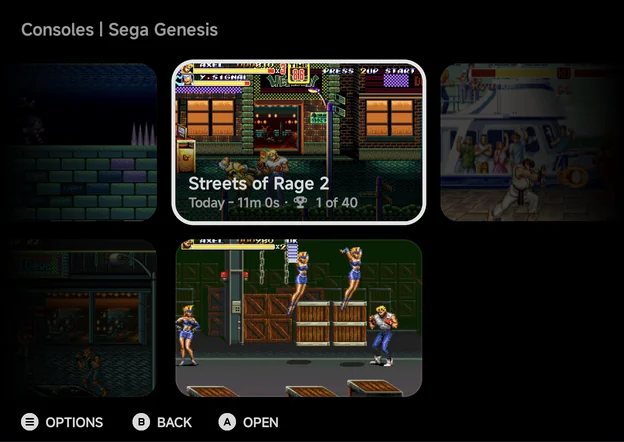
Grid
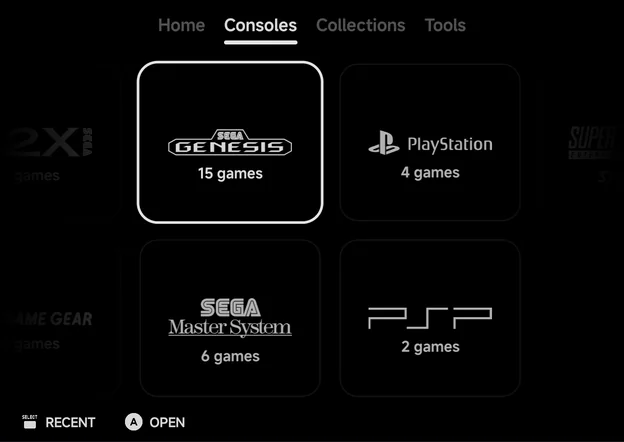
Two rows of tiles that slide sideways as you move. Consoles show their logo and game count. Games show their screenshot, and the selected tile adds its name, last-played time and achievement count.
Consoles tab
Game list
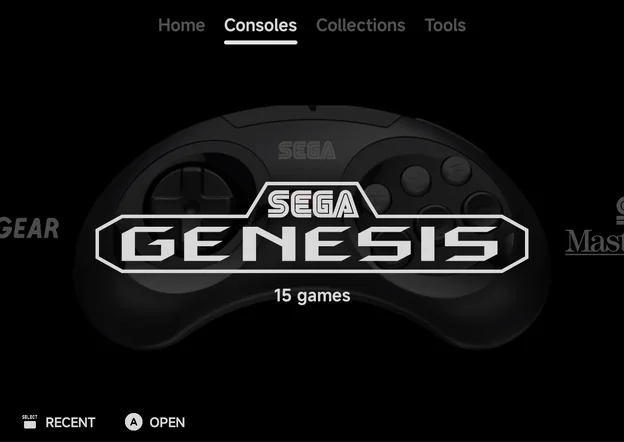
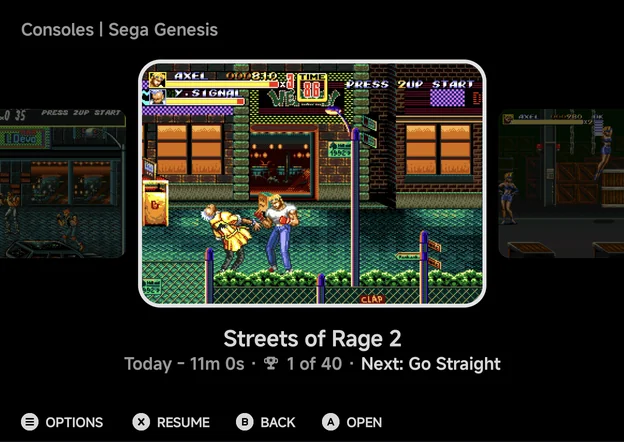
Carousel
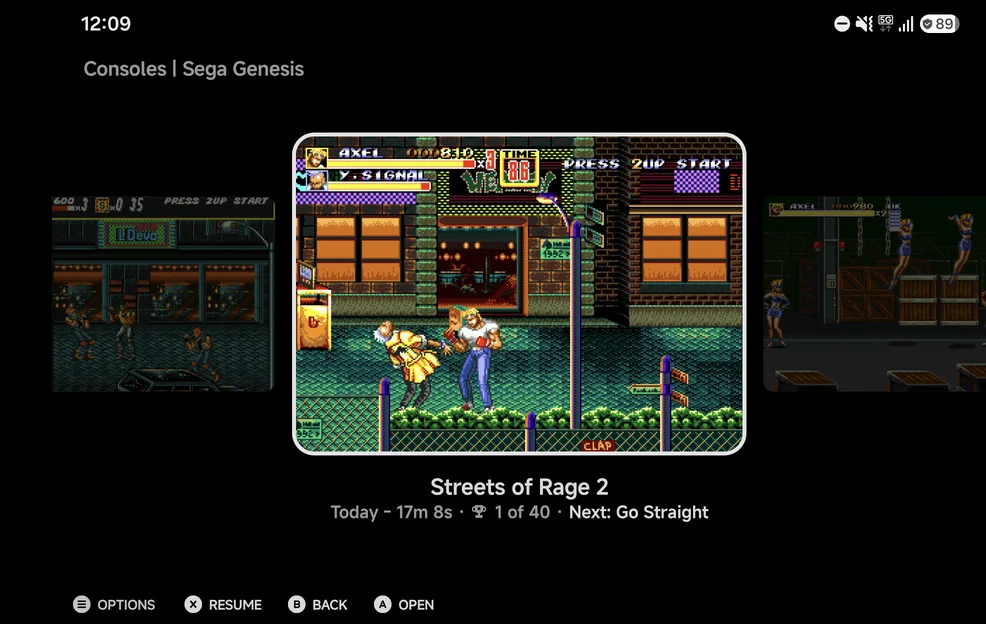
A single row with the selected item large in the middle and its neighbours to the sides. Consoles show their logo over their controller, collections their name, tools their icon. In a game list the caption under the selected game gives its name, play time and achievements.
Consoles tab
Game list
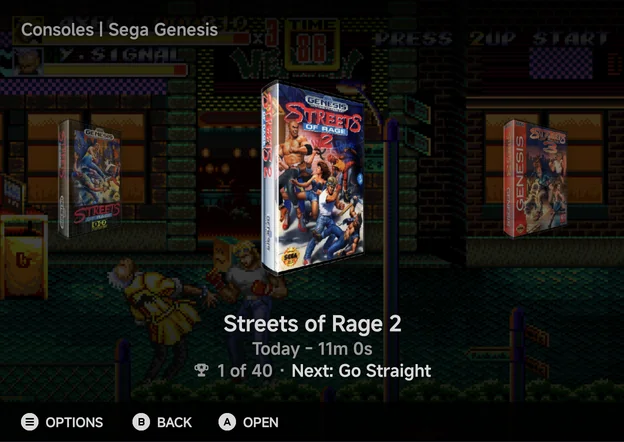
Backdrop
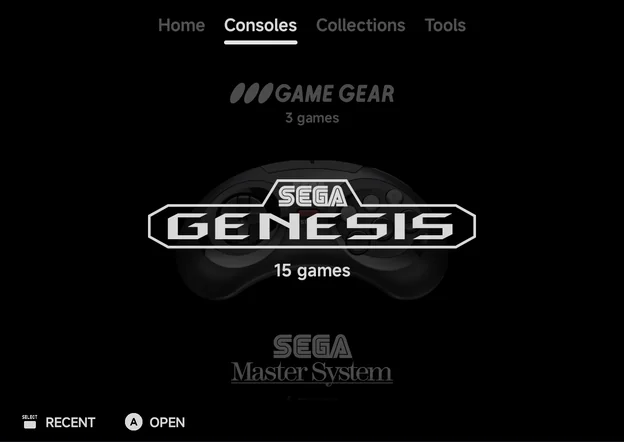
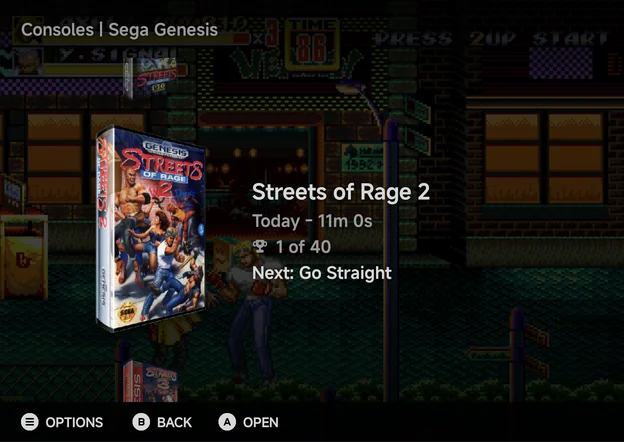
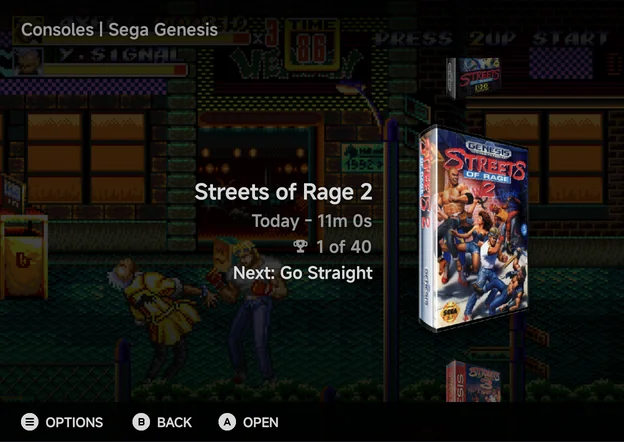
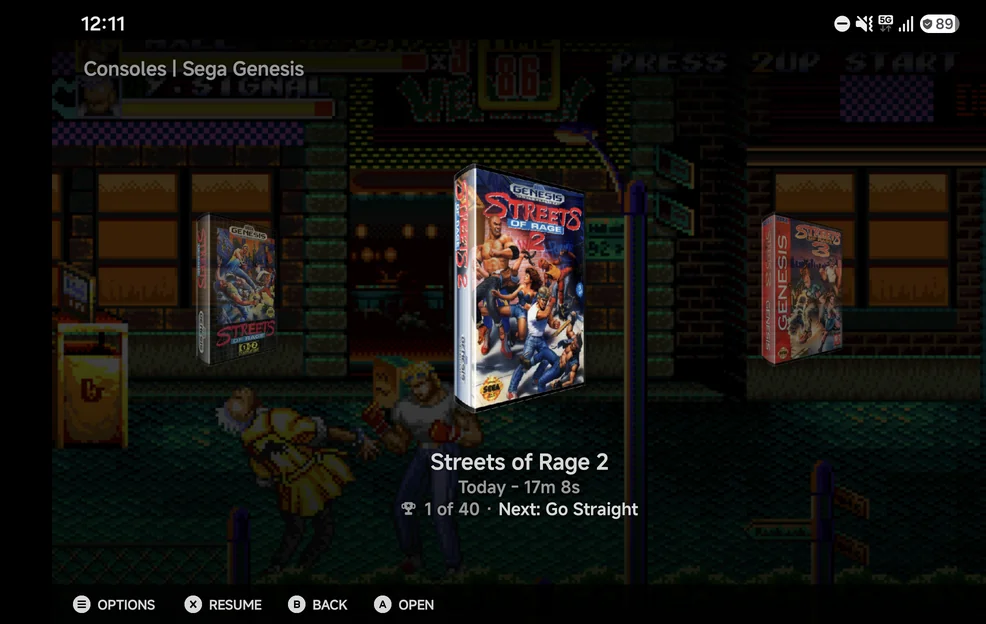
Game lists only. The selected game's box art stands over its dimmed screenshot, with its neighbours' boxes to the sides.
Orientation
Carousel and Backdrop can also run down the screen instead of across:
set the orientation row under the style to Vertical. Up / Down
then move through the items. Left / Right switch tabs on a tab, and do
nothing in a game list.
Vertical alignment
In a vertical game list the stack sits on the left and the details on the right. Set Vertical alignment to Right to swap the sides.
In landscape
Turn the phone sideways and the same layouts spread across the wider screen. These are the Carousel and Backdrop game lists, both Horizontal.
Controller art
The Consoles tab shows each console's controller behind it in the List and Carousel styles. Set Controller to Hide for plain logos.
Reset to defaults
Reset to defaults on the Layouts page puts every row on this page back to its default. It does not ask first. Reset to defaults on the Appearance page resets the layouts too.
Games without artwork
A game with no screenshot or box art gets a generated abstract picture,
the same one every time. To fetch real art, press MENU on a game and
choose Fetch art, or use Artwork for many games at
once.