Media Player
A built-in video player with audio and subtitle track switching, per-video resume, and internet TV streaming. Open it from Tools → Media Player.
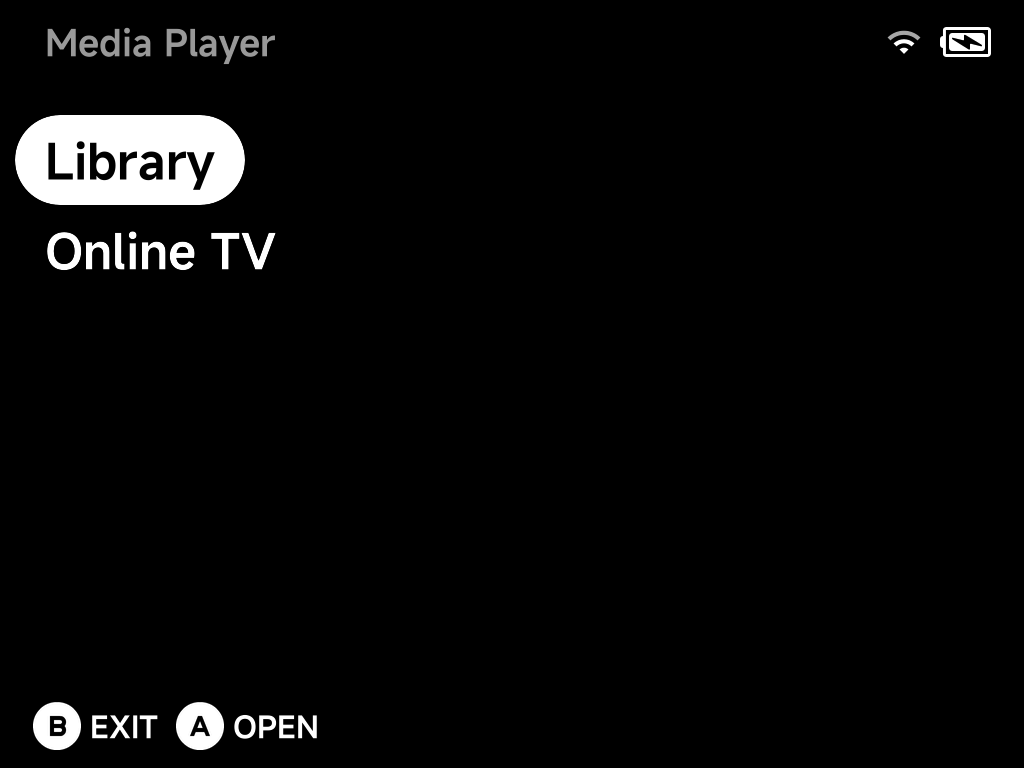
Library
Put your videos in the Videos folder on the SD card. Subfolders are fine.
Your screen recordings in
Videos/Recordings show up here too.
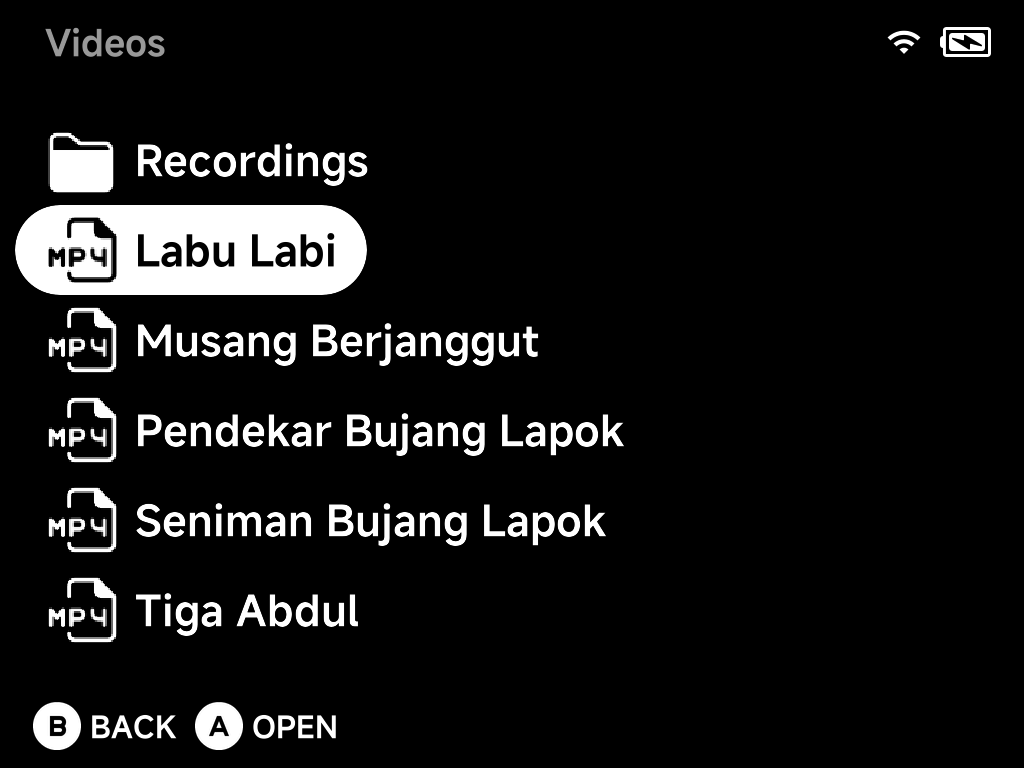
Supported containers: mp4, mkv, avi, webm, mov, ts, flv,
m4v, wmv, mpg, mpeg, 3gp.
Every video remembers its playback position:
Aplays the video. It resumes from where you left off if it has a saved position.- To ignore the saved position once, press
MENUon the video and choose Play from Start.
Playback controls
| Button | Action |
|---|---|
A |
Pause / resume |
B |
Stop and return to the library |
X |
Toggle the on-screen info display |
Y |
Cycle aspect ratio |
Left / Right |
Seek −/+ 10 s (hold to keep seeking) |
L1 / R1 |
Seek −/+ 60 s |
Up |
Cycle audio track |
Down |
Cycle subtitle track (including off) |
Subtitles
Embedded subtitle streams (e.g. in an mkv) work out of the box. Cycle
through them with Down during playback.
To add external subtitles, drop srt, ass, ssa or sub files next
to the video, named after it. Down cycles through all of them, plus a
subtitles-off step.
More detail: subtitle file names
Any subtitle file whose name starts with the video's name is picked up automatically:
Videos/
├── movie.mkv
├── movie.srt            ← exact match
├── movie.en.srt         ← language variants work too
├── movie(Malay).srt
└── movie_english.sub
Online TV
Online TV streams live internet TV. The page lists your channels. Press
A to play one.
Before connecting, the player runs a quick reachability check. A dead or
geo-blocked stream fails fast with an Unavailable — offline or geo-blocked
toast instead of a black screen.
Press MENU for the page's context menu:
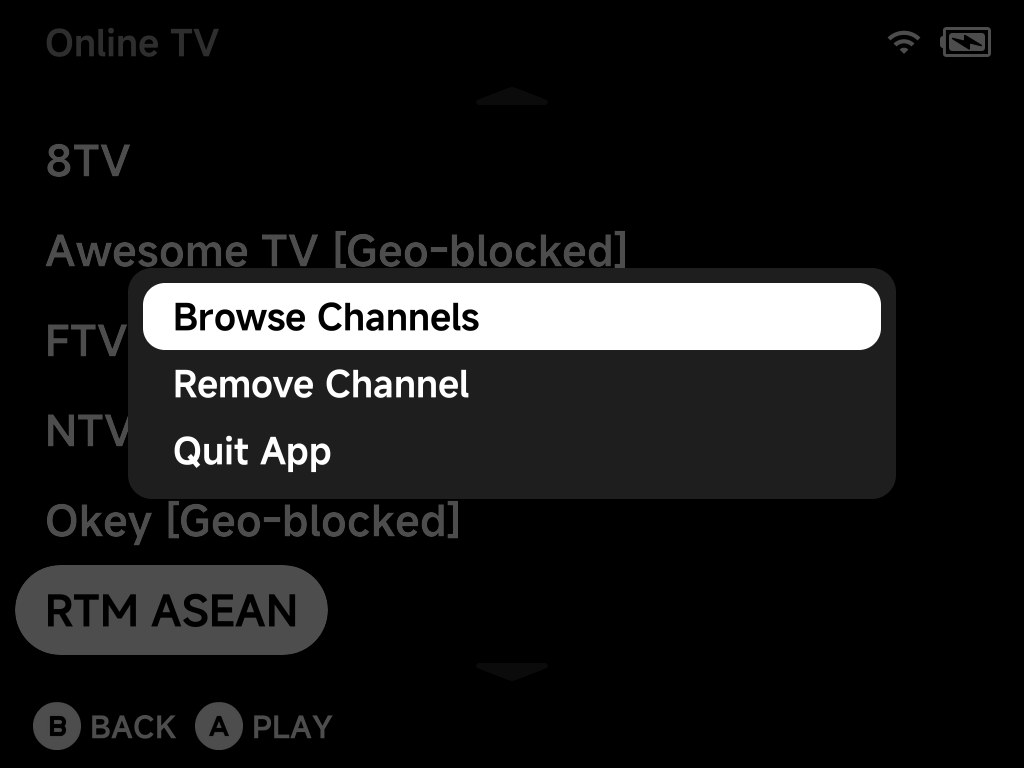
- Browse Channels: open the channel catalog to add channels (below).
- Remove Channel: remove the highlighted channel from your list.
- Quit App.
Adding channels from the catalog
- Choose Browse Channels. It opens a country list, with your device's country first.
- Pick a country to see its channels.
- Press
Ato add a channel to your Online TV list. Added channels are marked. PressingAagain offers to remove them.
Your list holds up to 64 channels. In the catalog, MENU offers Refresh
List to re-fetch the catalog.
Note
Streams come from iptv-org, so availability varies. Channels can go offline or be blocked in your region at any time, as the catalog toast says.
More detail
- The catalog is built from the community-run iptv-org catalog. It is cached on the SD card; Refresh List re-fetches it from iptv-org.
- Channel names carry iptv-org's status tags such as
[Geo-blocked]and[Not 24/7], so you know what to expect before adding. The tag is dropped from the name when the channel is saved to your list.
Adding your own channels
You can add any direct stream URL (e.g. HLS .m3u8) by editing your channel
list, a plain JSON file on the SD card:
.userdata/shared/media-player/tv/channels.json
Warning
Edit the file with the device powered off or the Media Player closed. The app saves the same file when you add or remove channels.
More detail: channel entry format
Each entry looks like:
{
  "name": "My Channel",
  "url": "https://example.com/stream/master.m3u8",
  "group": "News",
  "logo": "https://example.com/logo.png",
  "decryption_key": ""
}
Add a new entry and it appears in Online TV. decryption_key is optional
and accepts a ClearKey hex string for streams that need one. group and
logo are optional metadata.