Tools Overview
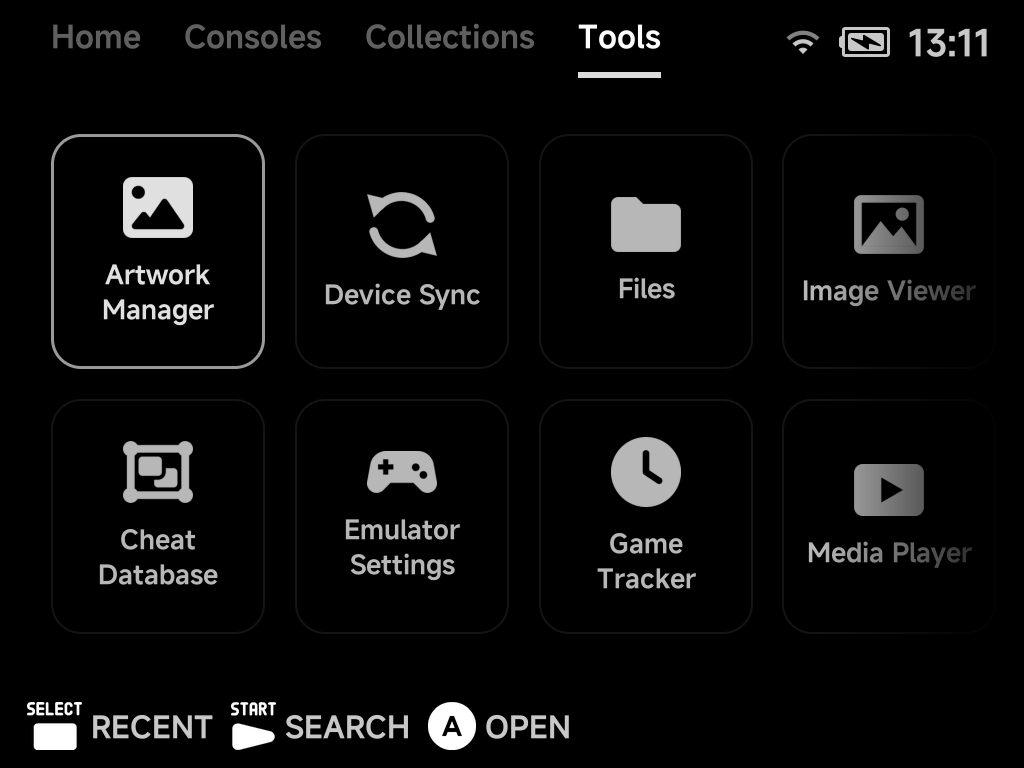
The Tools tab of the main menu holds every built-in app and utility.
Pin the ones you use most to Home
with MENU → Pin Tool.
| Tool | What it does |
|---|---|
| Artwork Manager | Fetch screenshots and box art for your ROMs |
| Device Sync | Sync saves, states, settings and ROMs across devices |
| Emulator Settings | Configure each system's emulator options |
| Files | Dual-pane file manager for the SD card |
| Game Tracker | Play-time statistics per game |
| Image Viewer | Browse and view screenshots and photos |
| Media Player | Video player with audio/subtitle switching |
| Music Player | Music, internet radio and podcasts |
| PortMaster | Community game ports (installed via Xtras) |
| RetroAchievements | Achievements, fully offline-capable |
| Settings | Display, audio, network, input, Simple Mode and more — see the Settings page |
| Xtras | On-device add-on store |
Tools you install from the Xtras store, such as PortMaster, appear in this menu too.
Installing community paks
Community paks built for NextUI still work here.
- Copy the
<Name>.pakfolder to the SD card: into/Toolsfor a tool, or/Emusfor an emulator pak. - Follow the pak's own installation steps.
- The pak appears in this menu.
Some paks say to use a platform folder, for example
Tools/tg5040/<Name>.pak. If the pak's README says so, do it.
Warning
Don't give your pak the same name as a tool or emulator shipped with NX
Redux. Same-named paks in /Tools and /Emus count as NX Redux leftovers
and are removed on every update.
These paks target NextUI, not NX Redux. See the support notes in Additional Emulators.
More detail
The platform-folder layout also works. For paks whose scripts reference the platform path internally, it is required.
The platform folder name depends on your device:
| Device | Platform folder |
|---|---|
| Brick / Brick Hammer / Brick Pro / Smart Pro | tg5040 |
| Smart Pro S | tg5050 |
If the same pak exists in both places, the flat copy (Tools/<Name>.pak)
wins.