Accessing Your Files
Everything NX Redux uses (ROMs, saves, BIOS files, artwork, music and videos) lives on the SD card. You can reach it two ways:
| Way | How it works |
|---|---|
| Over Wi-Fi with SFTP | Browse and copy files from your computer while the SD card stays in the device |
| With a card reader | Power the device off, take the SD card out and open it on your computer |
Over Wi-Fi (SFTP)
- Connect the device to Wi-Fi (Settings → Network).
-
Turn on Settings → Developer → Enable SSH / SFTP. The hint under the toggle shows the device's IP address and login, e.g.
root@192.168.1.8 Password: tina.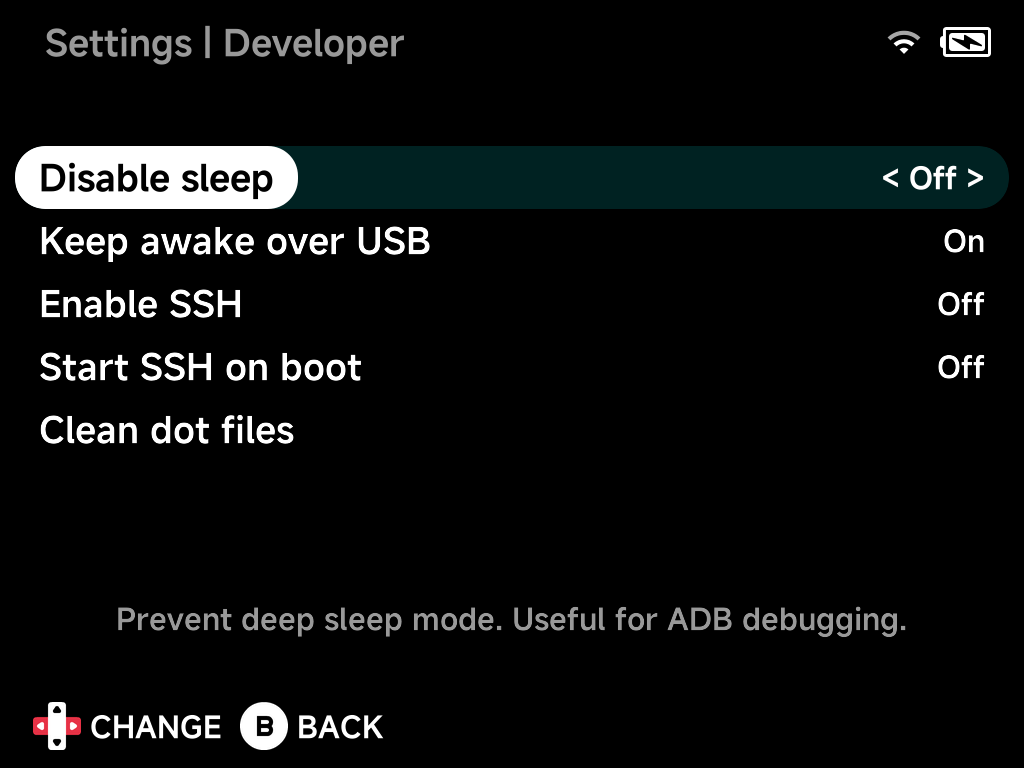
-
Connect from your computer with an SFTP client using:
Field Value Protocol SFTP Host the IP address from the hint Port 22Username rootPassword tinaon Brick and Brick Pro; leave empty on Smart Pro S -
Go to
/mnt/SDCARD. That is the root of the SD card.
To have SFTP available every time the device starts, also turn on Start SSH / SFTP on boot.
More detail
SFTP is file transfer over SSH, so it comes with the SSH server: when SSH is on, SFTP is on.
SFTP clients
Any SFTP client works. FileZilla is free and runs on Windows, macOS and Linux:
- Open File → Site Manager → New site.
- Set Protocol to SFTP - SSH File Transfer Protocol.
- Fill in the host, port, user and password above, and connect.
- Accept the host key the first time.
- Drag files between the left (your computer) and right (the device) panes.
More detail: other free SFTP clients
- WinSCP (Windows): choose SFTP as the file protocol.
- Cyberduck (macOS, Windows): choose SFTP (SSH File Transfer Protocol).
- Linux file managers: type
sftp://root@192.168.1.8/mnt/SDCARDinto the address bar of Files (GNOME) or Dolphin (KDE). - Command line:
sftp root@192.168.1.8orscp game.zip root@192.168.1.8:/mnt/SDCARD/Roms/....
Keep the device awake during big transfers
Wi-Fi drops when the device sleeps, which stops a transfer. For long copies, keep the device awake or turn on Developer → Disable sleep.
Turn SSH off on networks you don't trust
The login is root with a well-known password (or none on Smart Pro S),
so anyone on the same network can reach the device while SSH is on. Turn
Enable SSH / SFTP off when you're done.
With a card reader
Power the device off, remove the SD card and put it in a card reader. It opens like any other drive on your computer. Put the card back and power on.
SD cards are built per device model
Put a card back into the same kind of device it came from. To move saves between devices, use Device Sync instead.
On macOS, run Developer → Clean dot files
afterwards to remove the .DS_Store and ._* files Finder leaves behind.
What's where
| Folder | Contents |
|---|---|
Roms/ |
Your games, one folder per system |
Saves/ |
In-game saves |
Bios/ |
BIOS files for systems that need them (Cores & BIOS Files) |
Cheats/ |
Cheat files (Cheats) |
Collections/ |
Your game collections |
Music/ |
Files for the Music Player |
Videos/ |
Files for the Media Player |
Overlays/, Shaders/ |
Screen overlays and shaders |
Emus/, Tools/ |
Your own community paks (see Getting Started) |
.userdata/ |
Settings, save states and logs (hidden folder) |
.system/ |
NX Redux itself — don't change anything here |
Folders starting with a dot are hidden by default; turn on "show hidden files" in your client or file manager to see them.