Menu Layouts
The Consoles, Collections and Tools tabs, and every game list, can each be drawn in their own style. Pick them in Settings → Layouts. The menu picks up the change as soon as you leave Settings, with no restart.
| Style | Tabs | Game lists | In short |
|---|---|---|---|
| List | ✓ | ✓ | Text rows over the art, the most entries per screen |
| Grid | ✓ | ✓ | Two rows of tiles |
| Carousel | ✓ | ✓ | One large item at a time, across or down the screen |
| Backdrop | ✓ | Box art over the game's screenshot |
Out of the box, Consoles, Collections and game lists use Carousel, and Tools uses Grid.
List
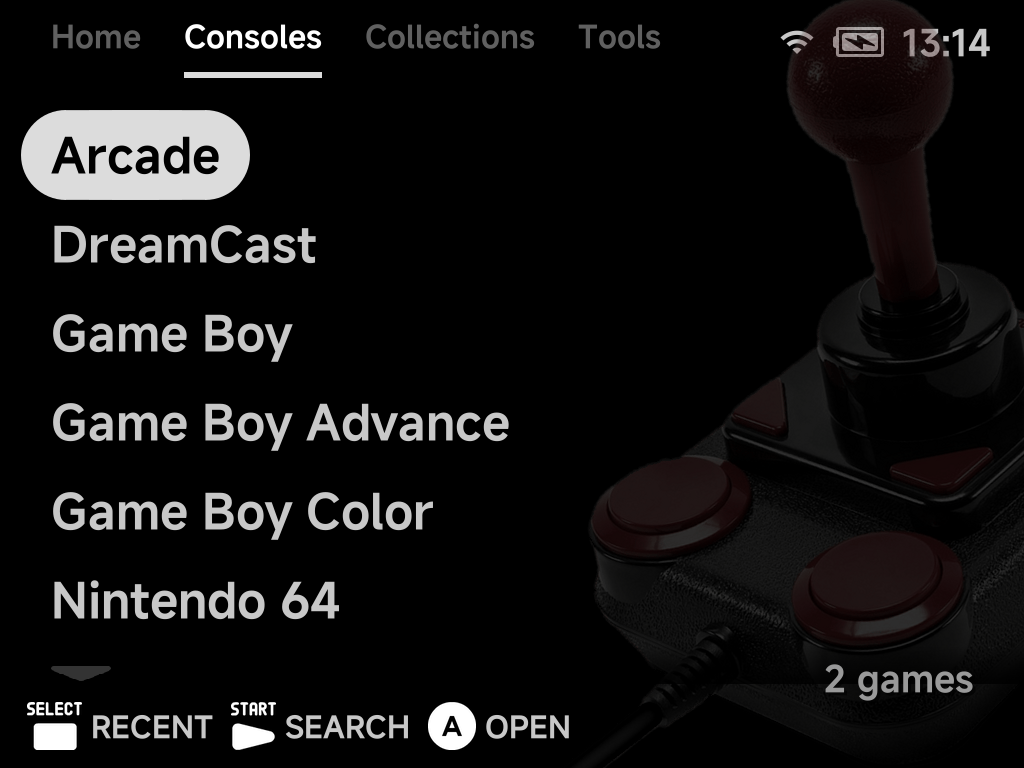
A plain list. On the Consoles tab the selected console's controller sits behind the list. In a game list the selected game's screenshot fills the background.
Consoles tab
Game list
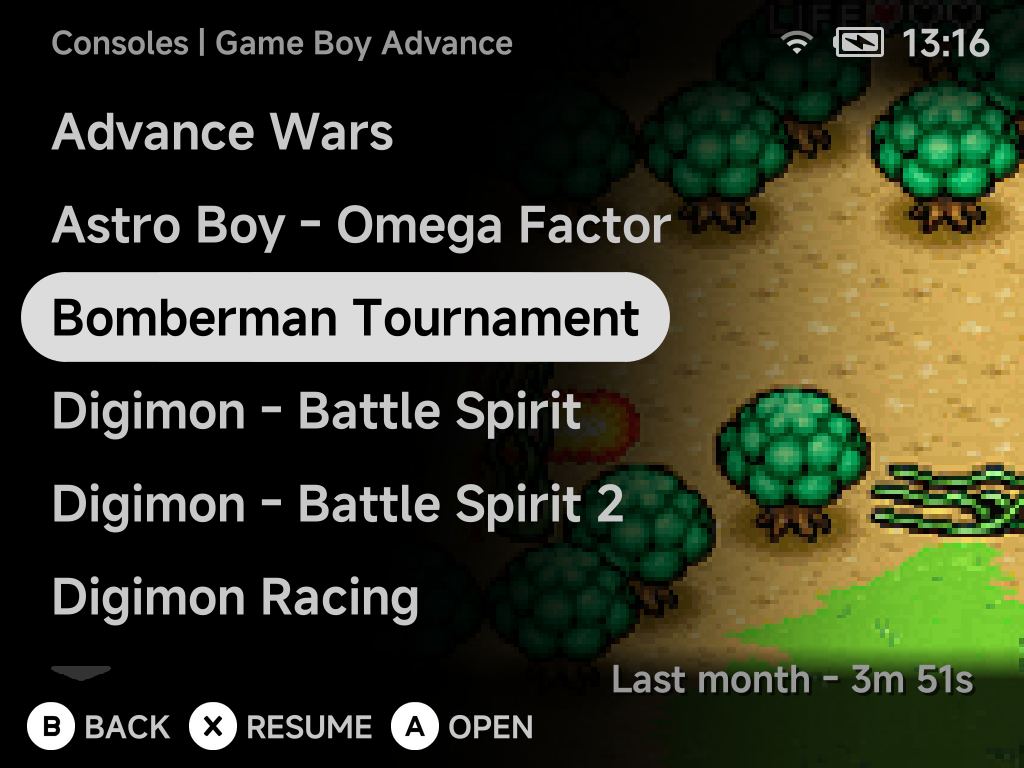
- The line at the bottom holds the scroll arrows. On the Collections tab it also shows each collection's game count.
- With Button hints hidden, a game list shows the selected game's last-played time, achievements and next achievement in the bottom row, where the hints were.
- With Page title hidden, the up arrow moves above the first row, so the list has one arrow at each end.
Upon the first row wraps to the last, andDownon the last wraps to the first (hold the button to stop at the end instead).- On the main menu
Left/Rightswitch tabs. In game lists they page up and down.
Grid
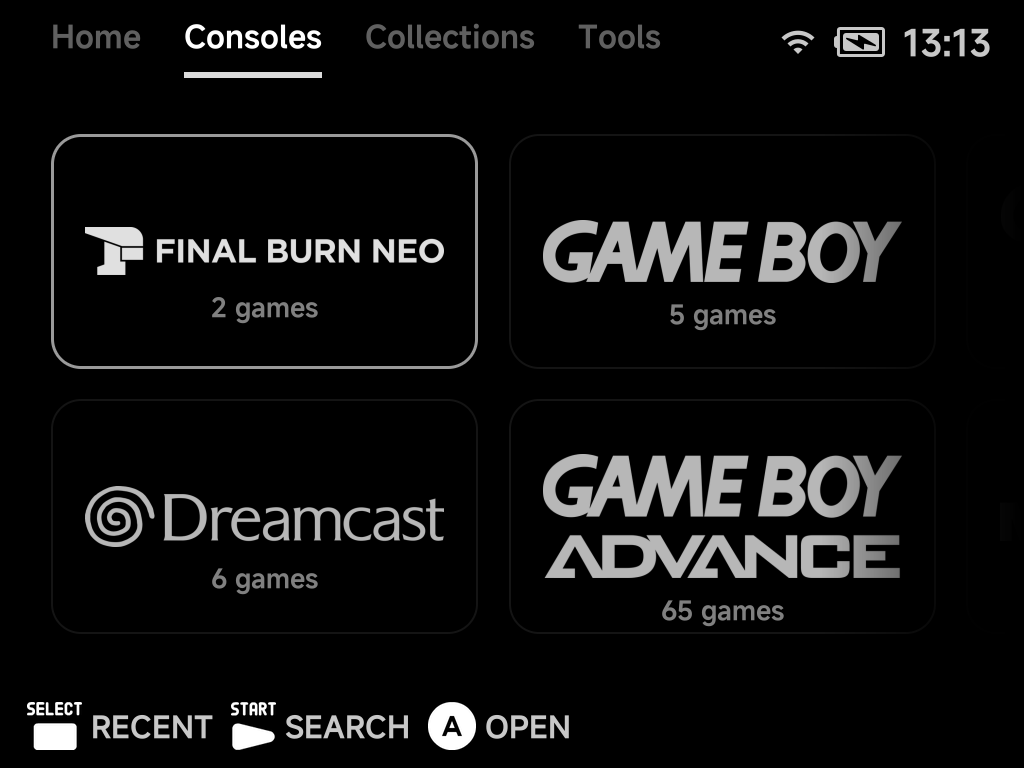
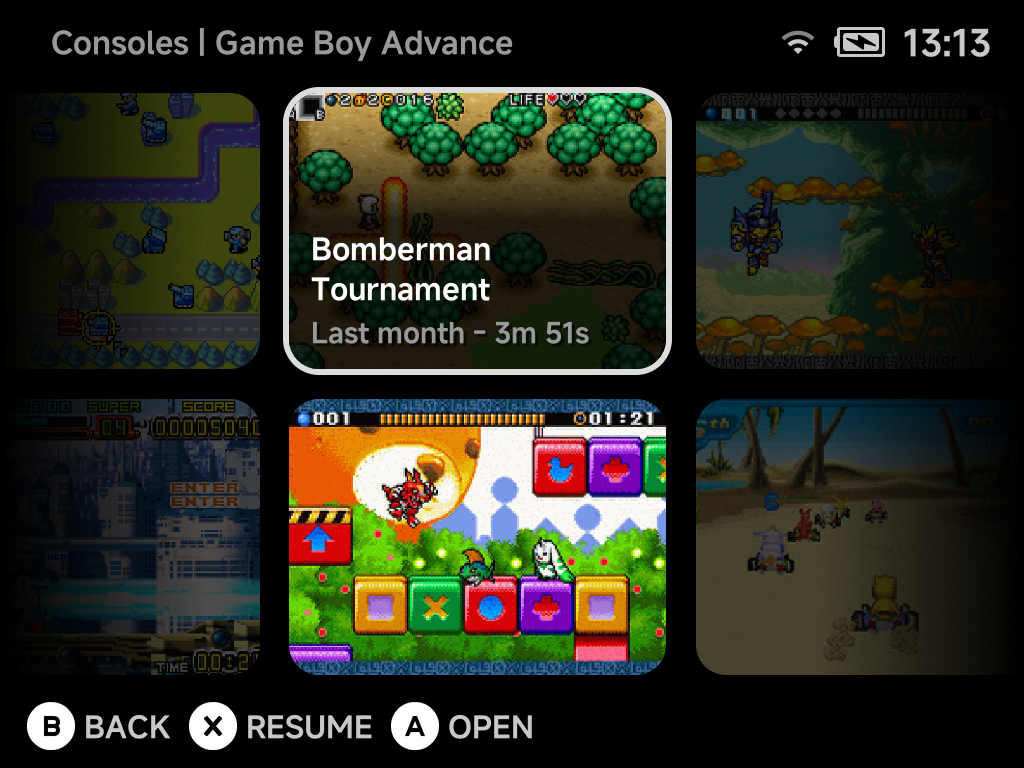
Two rows of tiles that slide sideways as you move. Consoles show their logo and game count. Games show their screenshot, and the selected tile adds its name, last-played time and achievement count.
Consoles tab
Game list
With no other tab to switch to (a single tab left, or a hidden tab opened from
the MENU options), Left / Right past the first or last tile wrap around
to the other end.
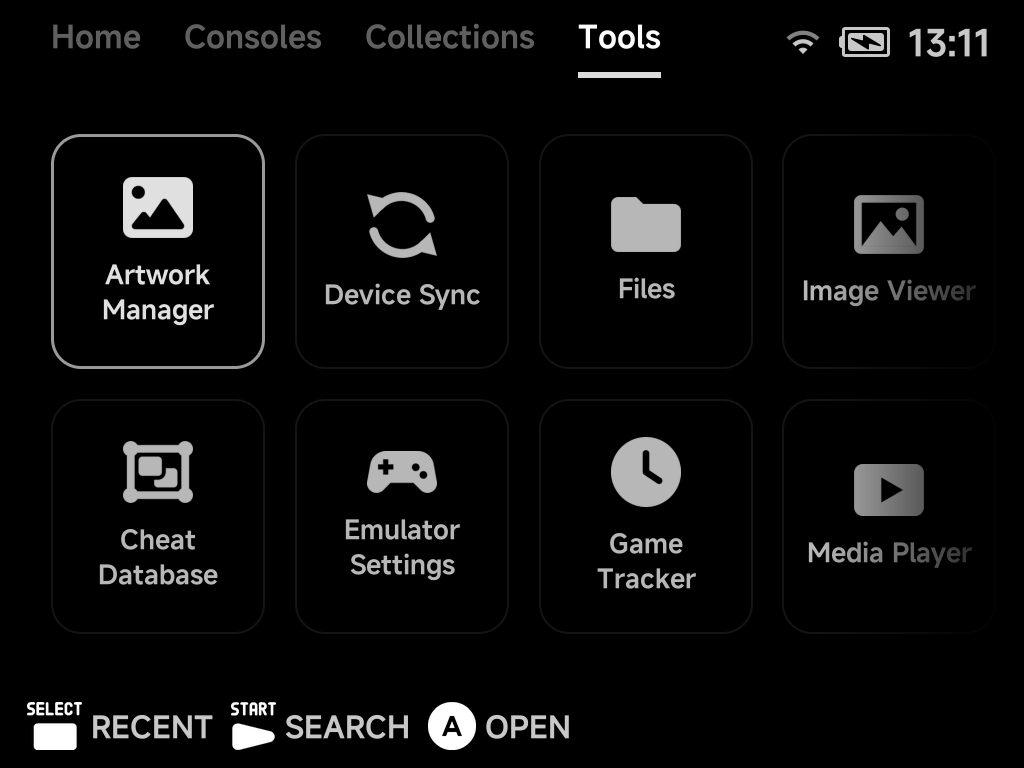
Tools tab (the default for Tools)
Carousel
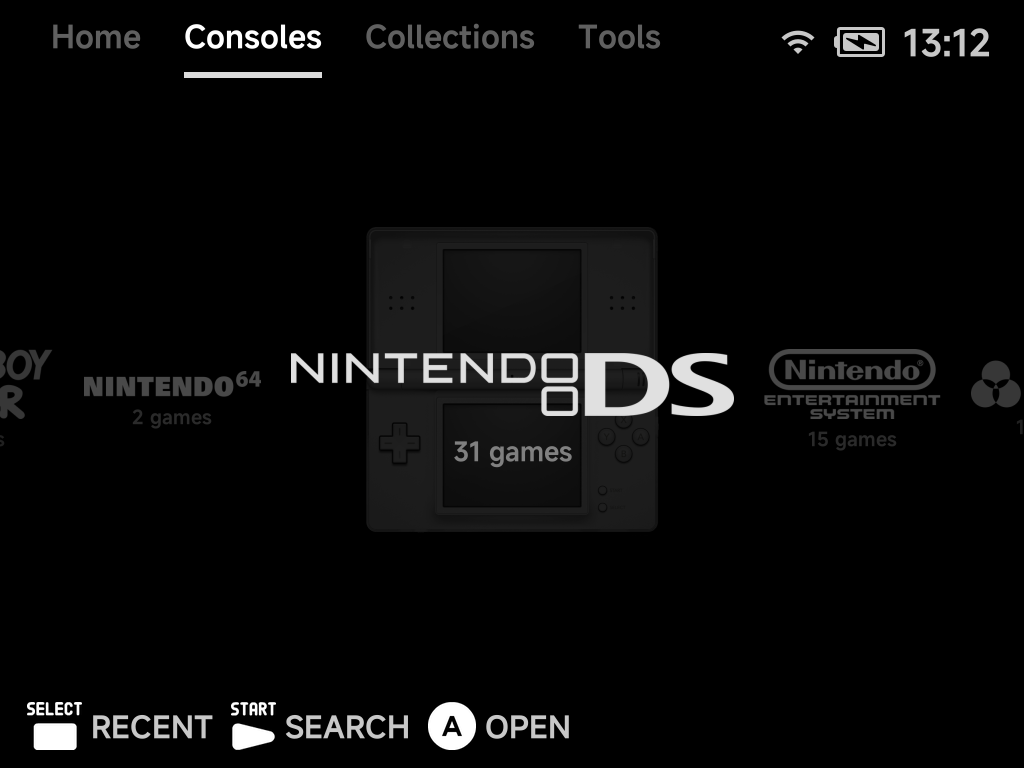
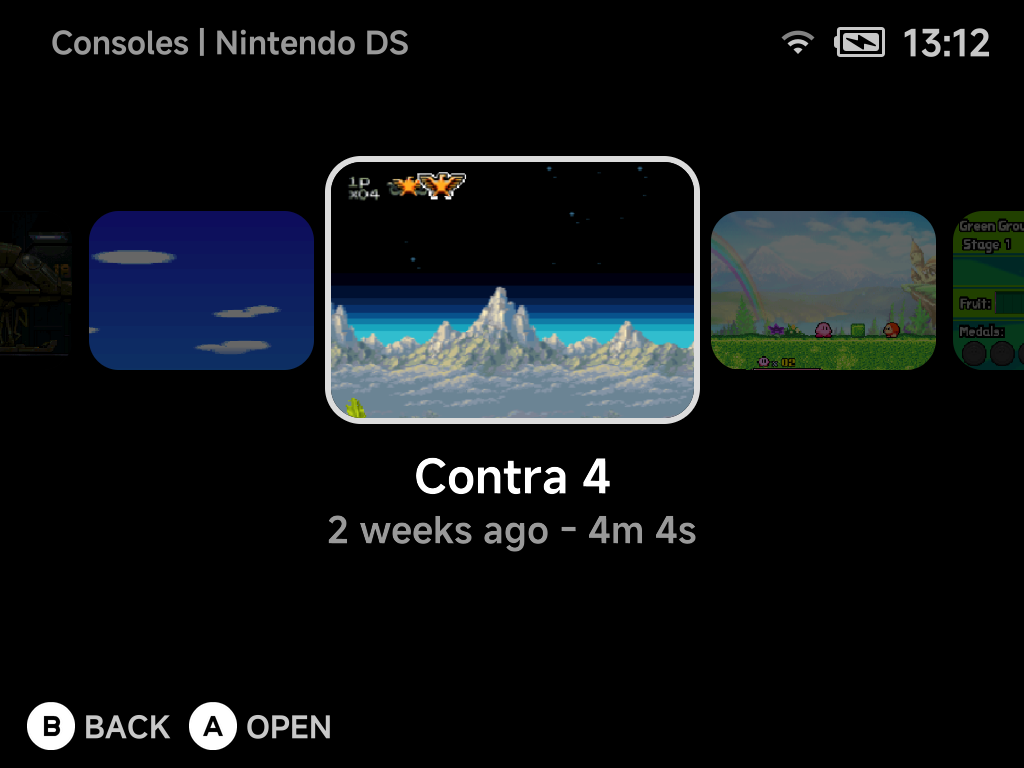
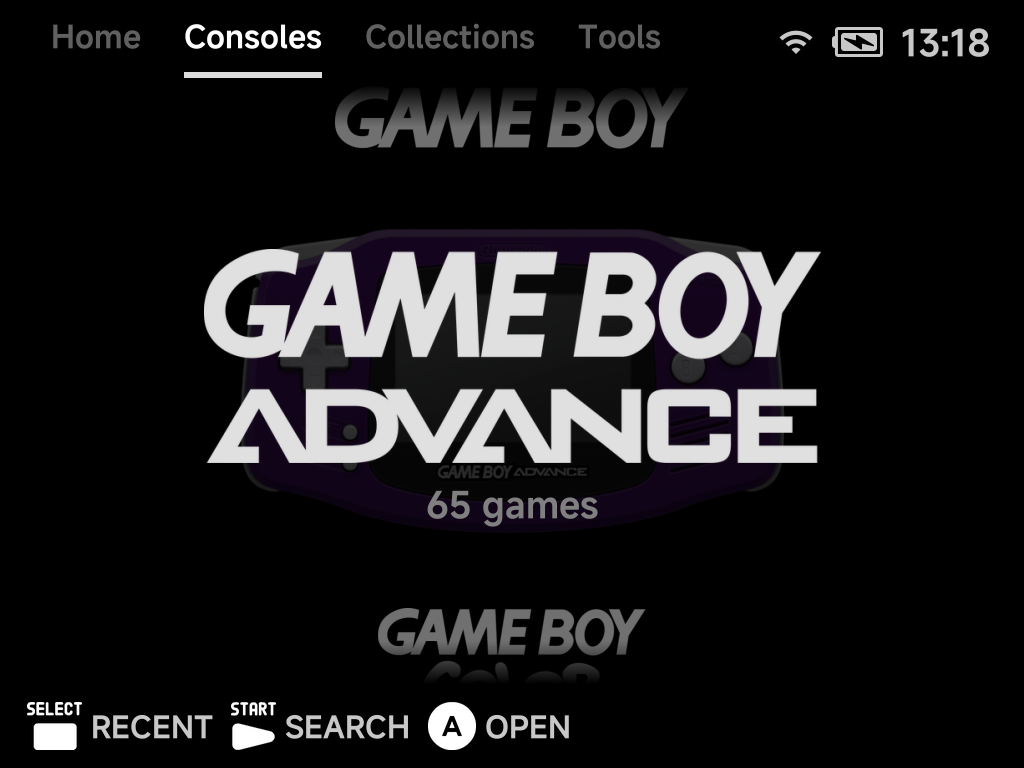
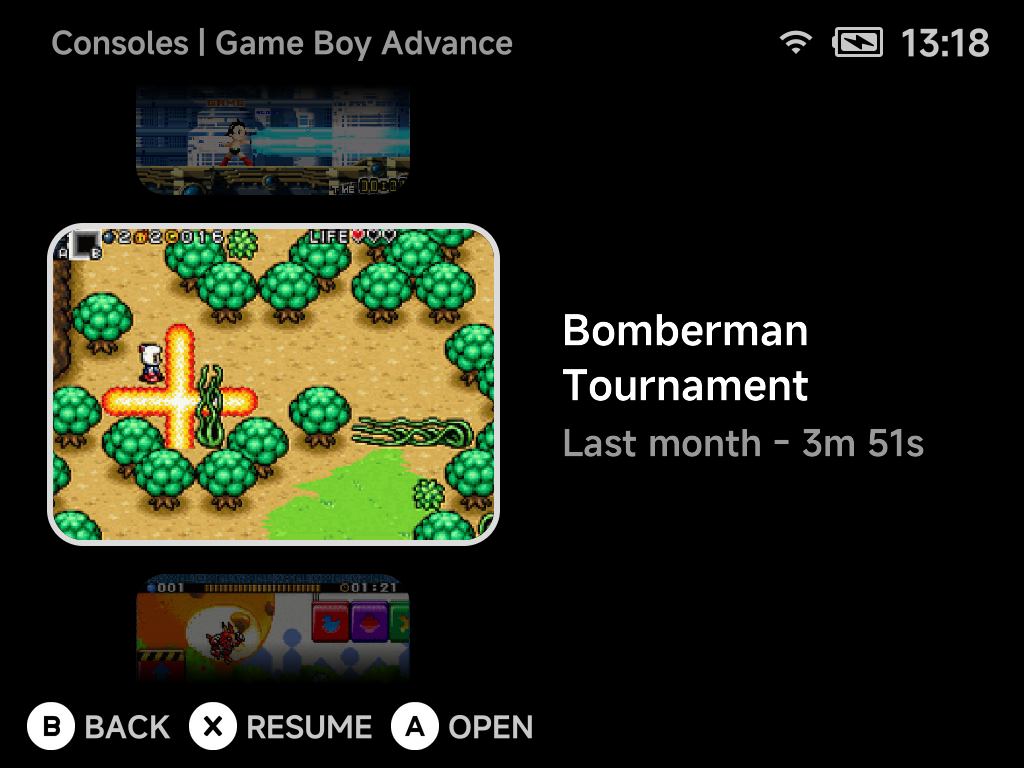
A single row with the selected item large in the middle and its neighbours fading out to the sides. Consoles show their logo over their controller, collections their name, tools their icon. In a game list the caption under the selected game gives its name, play time and achievements.
Consoles tab
Game list
Backdrop
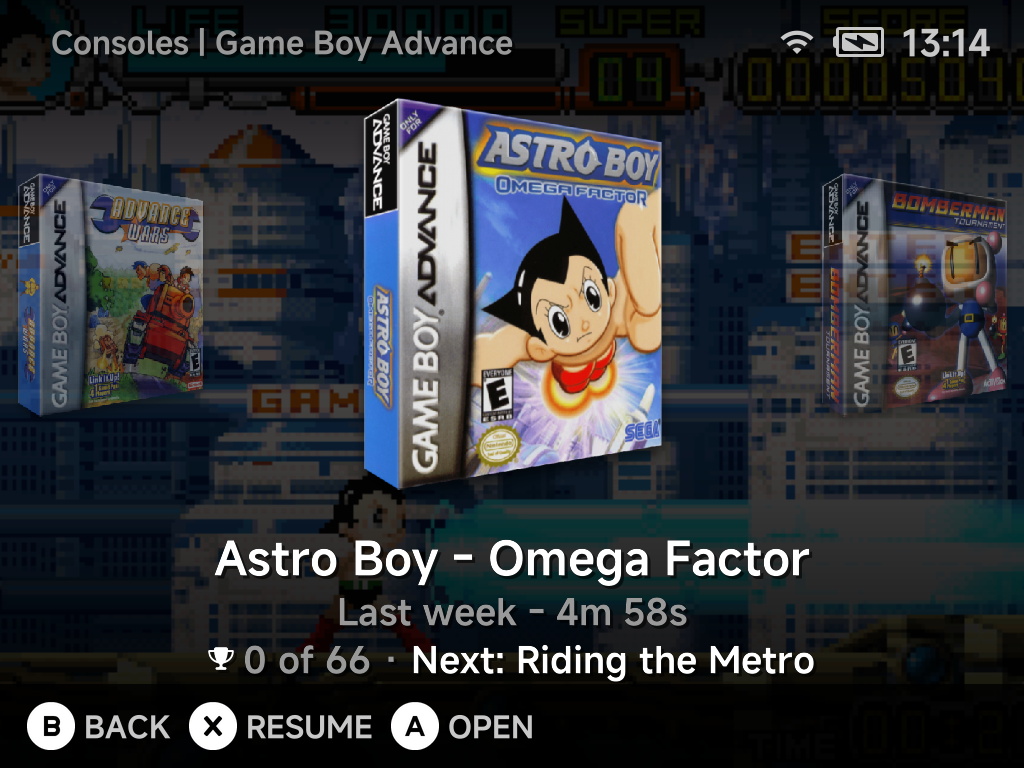
Game lists only. The selected game's box art stands over its dimmed screenshot, with its neighbours' boxes to the sides. A game with no box art gets a placeholder box.
Vertical orientation
Carousel and Backdrop can also run down the screen instead of across:
set the orientation row under the style to Vertical. Up / Down
then move through the items and wrap around at the ends (hold to stop
instead), and Left / Right switch tabs (on a tab) or do nothing (in a game
list).
Consoles tab, vertical Carousel
Game list, vertical Carousel
Game list, vertical Backdrop
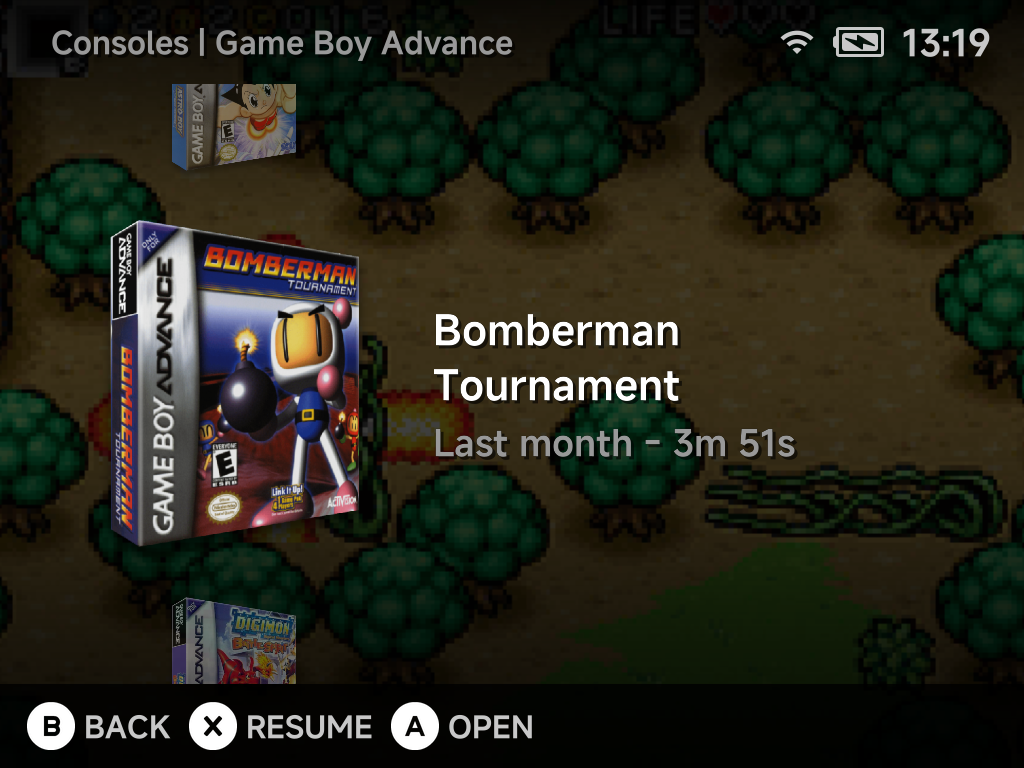
In a vertical game list the stack sits on the left and the details on the right. Set Vertical alignment to Right to swap the sides.
With the page title or the button hints hidden, carousels and Backdrop are no longer cut off at the top and bottom rows: the neighbouring items run on into the freed space to the screen's edge.
More detail
- Controller art. The Consoles tab shows each console's controller behind it in the List and Carousel styles. Turn Controller off in Layouts for plain logos.
- Logos. Systems without a logo of their own show their name under a cartridge emblem. Tools without an icon get a generic one.
- Games without artwork. A game with no screenshot or box art gets a
generated abstract picture, the same one every time. These pictures are
stored in
.userdata/shared/.minui/placeholders/, never next to your ROMs, and are safe to delete. To fetch real art for one game, pressMENUon it and choose Fetch Artwork; for many games, use the Artwork Manager.